

For pool safety inspectors, fence contractors, pool builders and property managers
Pool inspector scheduling app: one diary for inspections, repairs and quote visits
The Schedule is a job diary and scheduling app for pool inspectors, fence contractors, builders and agencies. It shows every job by day, week or month, for the whole team or one person.
Read more
Each job belongs to a customer and usually a property, with a type, a time and a length. You move jobs by dragging them, repeat the ones that come round again, and the Schedule warns you when two jobs overlap.
Pilot offer: the first 20 businesses to sign up get 3 months at no charge (no card needed), then 25% off for as long as you stay a member. 17 of 20 places left. How it works
 Pilot offer: the first 20 businesses to sign up get 3 months at no charge (no card needed), then 25% off for as long as you stay a member. 17 of 20 places left.
The demo is your own private copy with made-up example data. No sign-up, and it's deleted automatically.
Prices include GST.

What you get with Schedule
What you see in your job diary
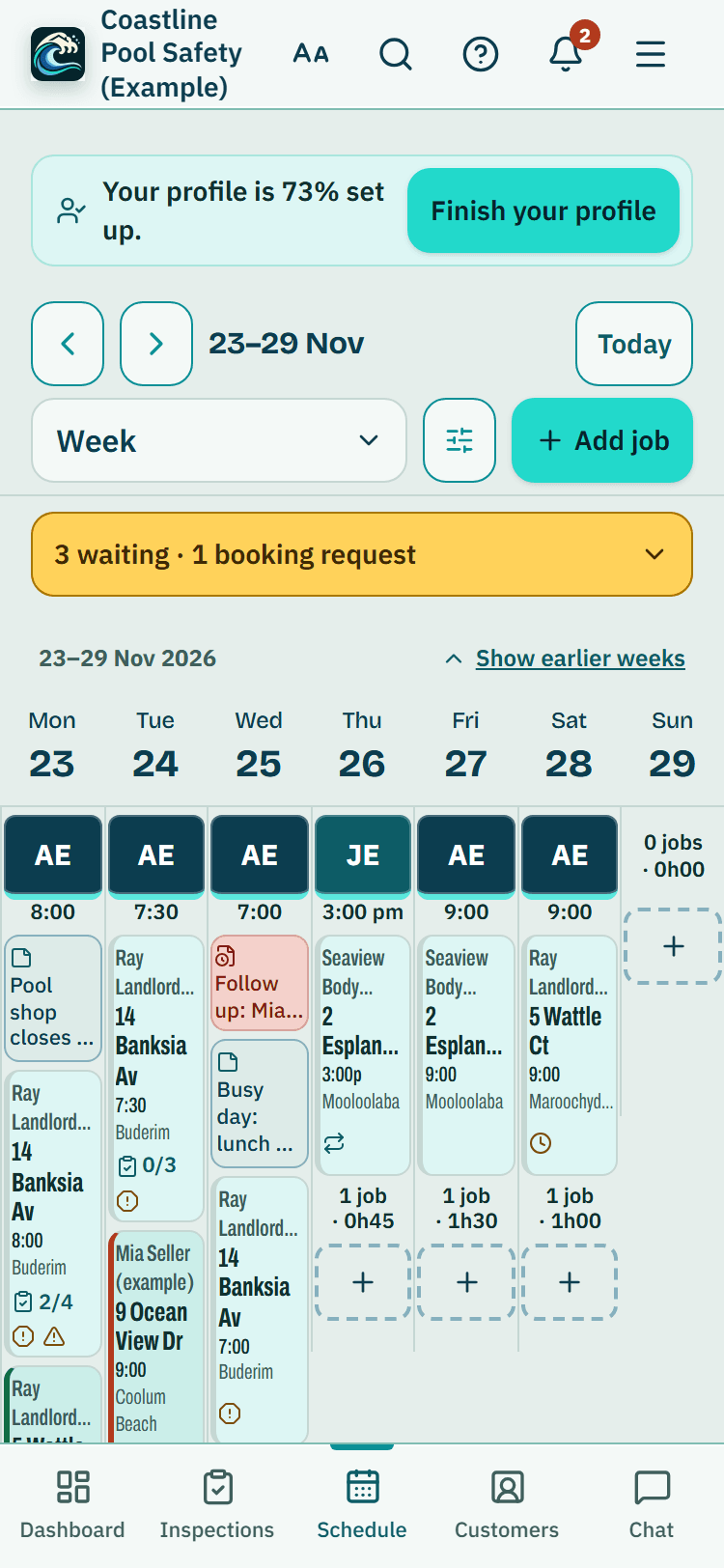
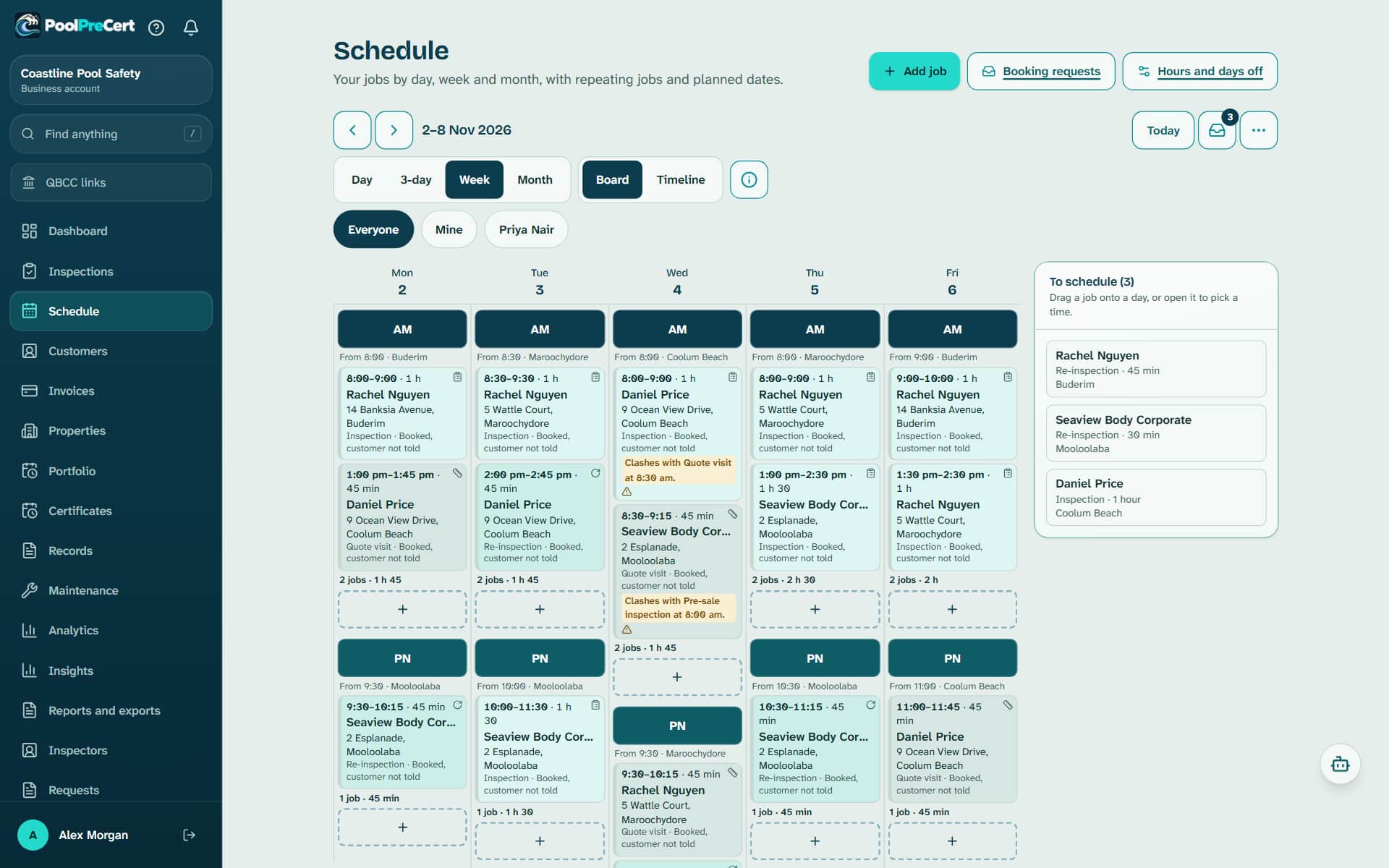
Your job diary opens as a board in the Week and 3-day views. Each day is a column, and each person's jobs sit under their first name in time order, with a total such as 3 jobs and the booked time. Keep scrolling and the next weeks load by themselves.
Read more
Timeline shows hours down the side, List is a plain phone list, and Month shows a chip for each person's day.
Jobs that have no time yet wait in To schedule. Tap any job card and a sheet opens over the Schedule with Call, Text, Directions, Open job and Move to another day. Text opens your phone's own messages, so nothing is sent by PoolPreCert.
- Job types: inspection, re-inspection, repair, quote visit or other. Fence contractors and builders choose from repair, quote visit and other.
- Options holds layout, filters and tools. Filters narrow the Schedule by person, job type, status or suburb.
- A short note, up to 200 characters, can be pinned to a day or to one person's day, such as the pool shop closes at noon. Customers never see notes.
Moving jobs around
Drag a job to another day, or onto another person's jobs to hand it over. It keeps its time. On a phone, press and hold first, or press Pick up on the card and tap the day you want. A bar offers Undo for 8 seconds.
Read more
To change the order of a person's day, drag a job up or down. A job that is done or has started stays put.
- Select ticks many jobs at once. Then Move to another day, Give to, Back to To schedule or Cancel jobs, with one Undo. Nobody is emailed.
Repeating jobs and planned dates
Choose Repeat when you add a job, or Make this repeat on one you already have: every week, every 2 weeks, every month, every 3 or 6 months, every year, or every number of days.
Read more
The next few weeks are booked as real jobs, and you choose how far ahead under Book ahead (weeks), from 9 to 52.
Dates further out show as dashed Planned cards. Tap one to Book this one now, Skip this one, Pause repeat, or Change every one after this. A repeat never emails the customer unless you tick the box for it, and both boxes start unticked. A business can run up to 200 repeats.
Team schedule, clash warnings and the best order for the day
To run a team schedule, give a job to someone with Who is it with?, then switch between Everyone, Mine or a person's name. A job can have up to 4 people on it.
Read more
When one person has two overlapping jobs, once the travel time between them is allowed, the Schedule shows a clash warning and offers Move to the next available time or Give to an available colleague. It warns and never blocks.
For the best order for the day, open a person's day and choose Best order for this day. The first job stays first and the rest go in a shorter driving order. A job marked Booked time (the customer was promised that time) stays put. Nothing changes until you press Use this order for the day.
Hours, days off and a calendar for pool inspections
Under Hours and days off you set working days and hours, add days off, and set travel time between jobs from 0 to 120 minutes. Each team member can have their own hours and days off. Working outside your hours is allowed; the Schedule just marks it.
Read more
An owner or admin can press Make a calendar link, then Open in your calendar app, to see your booked inspections and other jobs in Google, Apple or Outlook calendars. Customer phone numbers and street addresses can be left off the link.
Appointment confirmations, and each kind of business
A customer with an email address gets an appointment confirmation and a reminder the day before. Jobs made by a repeat send nothing unless you tick the box.
Read more
Inspectors get re-inspection jobs and certificate cards with a Book the next one button. Contractors and builders get a pink Follow up pill for a sent quote with no answer. Agencies share one Schedule across their people, each with a Mine view.




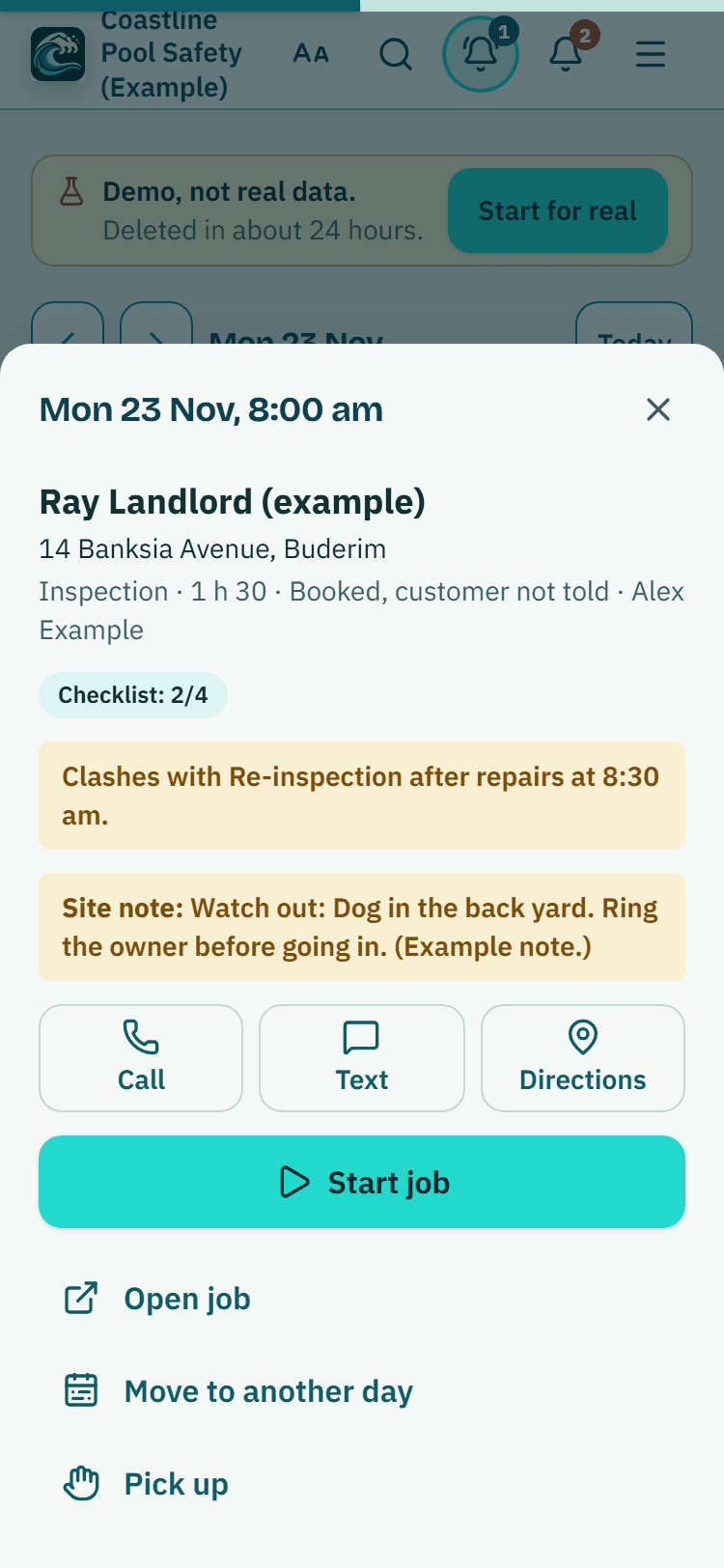
A job's sheet on the Schedule, example data: Call, Text, Directions and a big Start job button.

How to start
Set your hours
Open Schedule, then Hours and days off, and set your working days, start and finish times and travel time.
Add a job
Press Add job, choose the customer and property, the job type, the time and how long it takes.
Make it repeat if it comes round again
Under the time, choose Repeat and pick how often. Leave the customer email boxes unticked if you do not want an email.
Move and share the work
Drag jobs to another day or person, or press Pick up, and use Select for many at once.
Plan the day
Open a person's day and try Best order for this day. Press Make a calendar link to see jobs on your phone calendar.
What Schedule does and does not do
What it does
- Shows jobs by day, week or month, for the whole team or one person
- Lets you drag jobs to another day or person and repeat visits
- Warns you about clashes and suggests the best order for a day
- Makes a private calendar link for your phone calendar
What it does not do
- It does not email a customer when you move a job. If they were already told the time, you are offered Email the new time.
- It does not block double-booking or work outside your hours. It warns you.
- Drive times are straight-line estimates between suburb centres, not road routes.
- Viewers can see the Schedule but cannot change it.

Features that go with it
Booking page
Give customers a link to a page of open times built from your hours. Every booking arrives as a request you approve, move or decline.
Customers
An address book that ties each customer to their properties, jobs and paperwork, with dated notes, a private link, CSV import and a duplicate finder.
Team and permissions
Invite staff by email, pick owner, administrator, inspector or viewer, and switch off prices, downloads or deleting for one person.
Inspection checklist
Walk the Queensland barrier checklist one question at a time, with measurements, photos, AI photo notes you control, defect tasks, re-inspections and a finished report.
Guides that give the background
Step by step instructions: Help centre. All features are listed on the features page.
Common questions
Can I see my whole team's day and avoid clashes?
Yes. Switch between Everyone, Mine or one person's name. Each person starts on Mine, and owners and admins start on Everyone. Two overlapping jobs for one person are flagged, and it warns without blocking.
Does it plan the best order to drive?
It suggests one. Choose Best order for this day on a person's day, and nothing changes until you press Use this order for the day.
Can customers get a confirmation?
Yes. A customer with an email address gets a confirmation when a job is booked and a reminder the day before. You can switch the reminder off, or untick the confirmation for one job.
Can I see my jobs in my phone's calendar?
Yes. An owner or admin presses Make a calendar link under Hours and days off, then opens it in a calendar app. Stop this link ends it at any time.
What if a customer cancels one visit in a repeat?
Open the job and choose Skip this one. That job is cancelled and the rest of the repeat stays.
What does the Schedule cost?
It is part of the business plans. Starter is $49 a month and Business is $99 a month (incl. GST). The first 20 businesses to sign up get 3 months at no charge (no card needed), then 25% off for as long as you stay a member. After the places are gone, plans start with a 14-day trial, no card required.

What it needs and what it costs
The Schedule is part of the business plans and trials; see the plans and prices for what each plan lists. See the plans and prices. The first 20 businesses to sign up get 3 months at no charge, no card required. Prices include GST. Start 3 months at no charge
Try it before you pay
The first 20 businesses to sign up get 3 months at no charge, no card required. Prices include GST. The demo at the top of the page needs no sign-up.