

For pool safety inspectors, fence contractors and pool builders
Online booking page for pool inspectors, where customers pick an open time
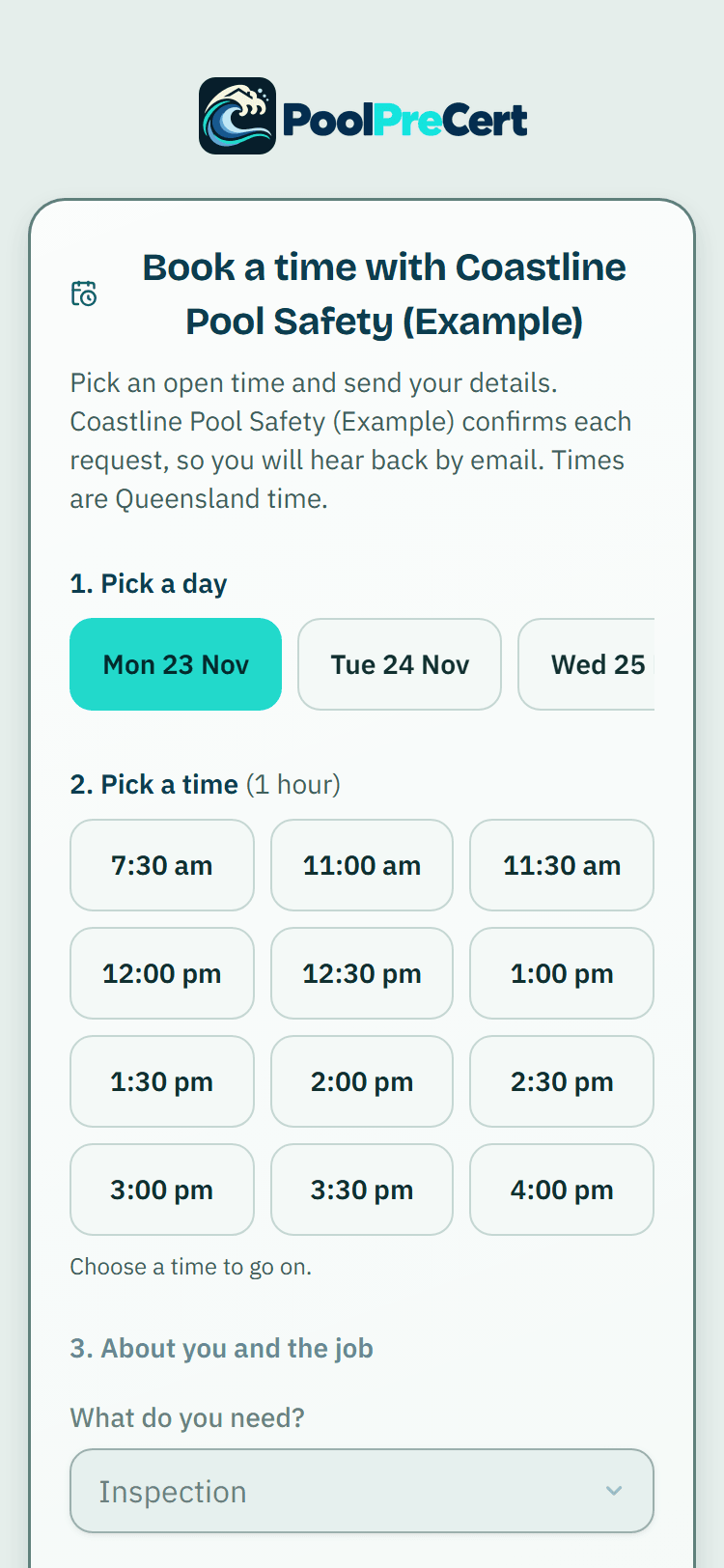
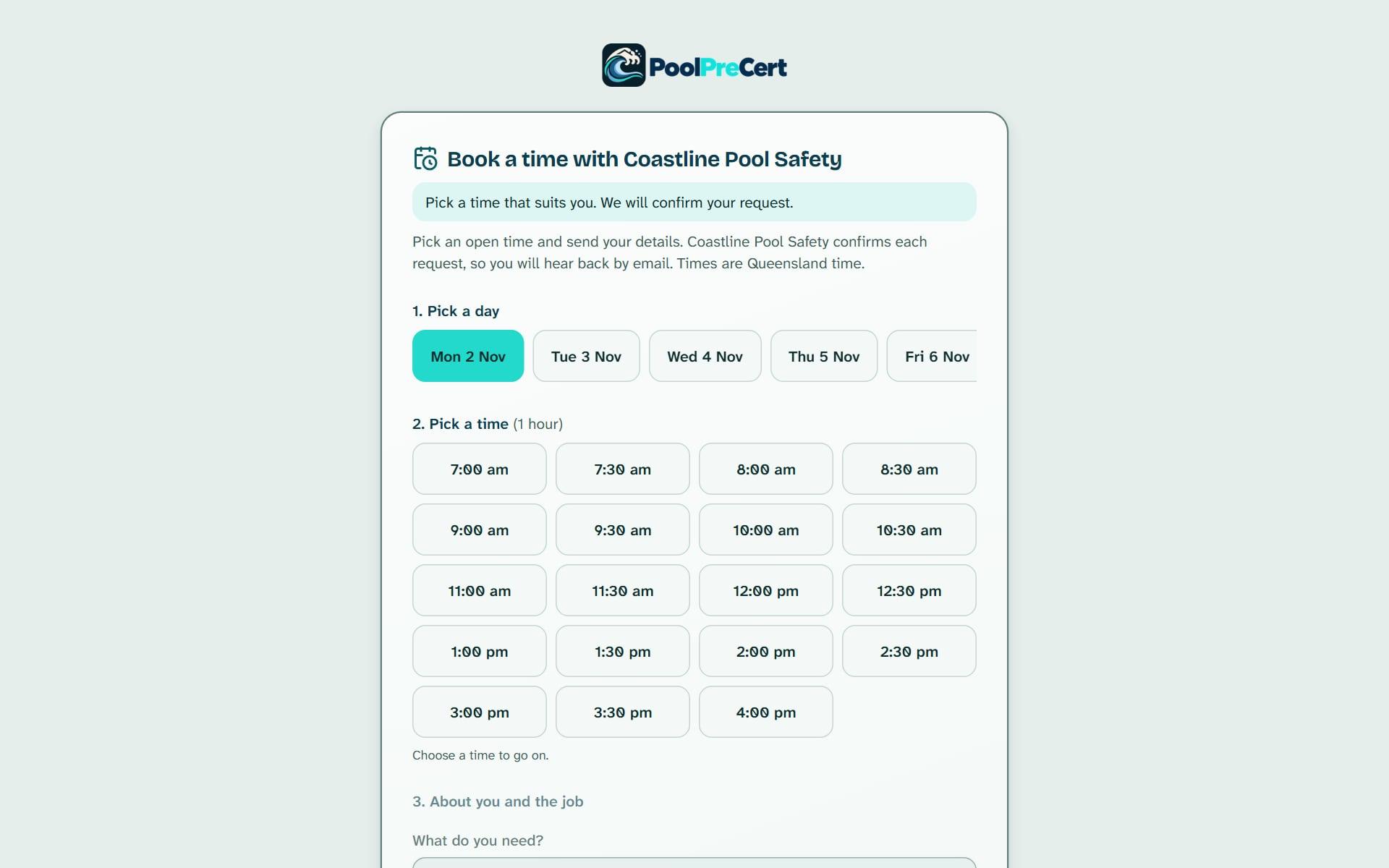
The booking page is an online booking page for your business where a customer picks a day and an open time and sends their details.
Read more
The times come from your hours, days off, jobs already booked and travel time, so the page never shows your jobs or your customers. Each booking arrives as a request that waits for you.
Pilot offer: the first 20 businesses to sign up get 3 months at no charge (no card needed), then 25% off for as long as you stay a member. 17 of 20 places left. How it works
 Pilot offer: the first 20 businesses to sign up get 3 months at no charge (no card needed), then 25% off for as long as you stay a member. 17 of 20 places left.
The demo is your own private copy with made-up example data. No sign-up, and it's deleted automatically.
Prices include GST.

What you get with Booking page
How customers book a pool inspection online
Customers pick an open time without calling you. Your customer opens your link, picks a day, picks an open time and enters their name, phone, email, the job's street address, suburb and postcode, and optional notes. They tick a box to agree to be contacted, and send the request.
Read more
Times are shown in Queensland time.
There is no sign-in and no payment on the page. It is not listed by search engines, so only people you give the link to will find it. If you have set a different length for some kinds of job, the page first asks what they need, then shows times for that kind of visit.
What you choose
The settings live under Schedule, then Hours and days off, then Customer booking page. Only an owner or admin can change them.
- Kinds of job customers can ask for, and A booking takes (the length of one visit).
- Notice needed, from none up to 7 days, so nobody books you for this afternoon.
- How far ahead customers can look: 7, 14, 30 or 60 days.
Read more
- A line for the top of the page, up to 300 characters, such as for urgent jobs, call us.
- Away until, with a back-on date, which closes the page to new requests until then. Jobs already booked stay booked.
Booking requests: approve, move or decline
Booking requests collect under the Schedule. Each shows what was asked for, the address, phone, email and notes, and a Clashes badge if the time overlaps another job. Press Approve to book it.
Read more
Change the date or time first to move it, and pick a team member in With if you have a team. Decline sends a polite note, with a reason if you add one.
Approving finds or creates the customer and the property, books the job in your Schedule, and emails the customer a confirmation. Owners and admins are also emailed about each new request, with a private link that lets them confirm or decline from a phone without signing in. That link works once, stops after 7 days, and cannot change the time.
Book them in automatically
This is off to start with. If you tick Book them in automatically, an open time is booked straight away and the customer is emailed. Most businesses keep it off, so they see every request first.
Your booking link for customers, one at a time
To take bookings from your website, press Make my booking link, then copy it onto your website, into an email or onto a sign. Making a new link stops the old one at once, and Stop this link ends it.
Read more
The page stays switched off until you tick Let customers ask for a time on my booking page.




How to start
Set your hours first
Open Schedule, then Hours and days off, and check your working days, days off and travel time.
Switch the page on
Under Customer booking page, tick Let customers ask for a time on my booking page and choose the kinds of job, length, notice and how far ahead.
Make the link
Press Make my booking link, then copy it to share.
Answer each request
Open Booking requests and press Approve, change the time and approve, or Decline.
What Booking page does and does not do
What it does
- Gives customers a link to a page of open times built from your hours
- Sends every booking to you as a request
- Lets you approve, move or decline each one
- Can book people in automatically if you choose
What it does not do
- It does not take payment or a deposit.
- It does not show your other jobs, your customers or how busy you are.
- The email link cannot move a time. To offer a different time, sign in and use Booking requests.
- It is not the same as requests from your directory listing, which come to your Requests inbox.

Features that go with it
Schedule
Your jobs by day, week or month, with drag and drop, repeat visits, clash warnings, best order for the day and a private calendar link.
Customers
An address book that ties each customer to their properties, jobs and paperwork, with dated notes, a private link, CSV import and a duplicate finder.
Requests inbox
Requests from your directory listing, self-checks and Website button arrive in one inbox, with the homeowner's details, message and status steps.
Website button
A link, QR code, poster and button for your own website. A visitor does their own pool check and can send you the result. You see counts, not names.

Guides that give the background
Step by step instructions: Help centre. All features are listed on the features page.
Common questions
Does the customer pay online?
No. There is no payment or deposit on the page. The customer sends their details and a time, and you deal with the request.
Will it double-book me?
The page only offers open times, worked out from your hours, days off, jobs already booked and travel time, and it never shows your jobs or customers. A Clashes badge on a request tells you if its time overlaps another job. Nothing is booked until you approve it, unless you tick Book them in automatically, which is off to start with.
Where do I put the booking link?
Press Make my booking link, then copy it onto your website, into an email or onto a sign. A new link stops the old one at once, and Stop this link ends it.
Is a booking an inspection result?
No. A booking is only a request for a visit. A licensed pool safety inspector decides about a pool when they inspect it.
Does it work for fence contractors and builders?
Yes. Inspectors, fence contractors and pool builders can all switch it on. You tick the kinds of job a customer may ask for, so you only offer what you really do.
Does it cost extra?
No. It comes with the business plans. Starter is $49 a month and Business is $99 a month (incl. GST). The first 20 businesses to sign up get 3 months at no charge (no card needed), then 25% off for as long as you stay a member. After the places are gone, plans start with a 14-day trial, no card required.

What it needs and what it costs
The booking page is part of the business plans and trials, and is off until you switch it on. See the plans and prices. The first 20 businesses to sign up get 3 months at no charge, no card required. Prices include GST. Start 3 months at no charge
Try it before you pay
The first 20 businesses to sign up get 3 months at no charge, no card required. Prices include GST. The demo at the top of the page needs no sign-up.