

For pool safety inspectors, fence contractors and pool builders
Pool inspection leads and quote requests, in one inbox
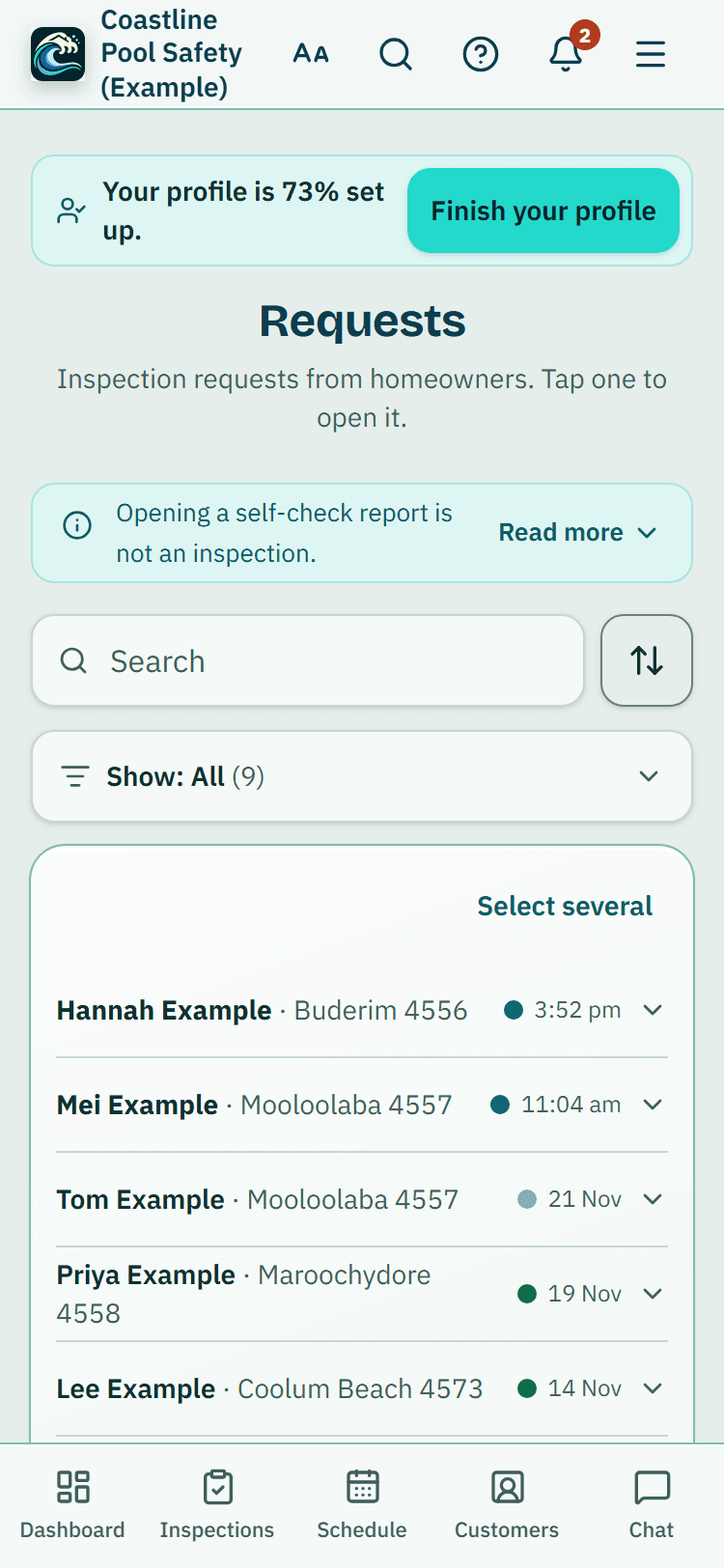
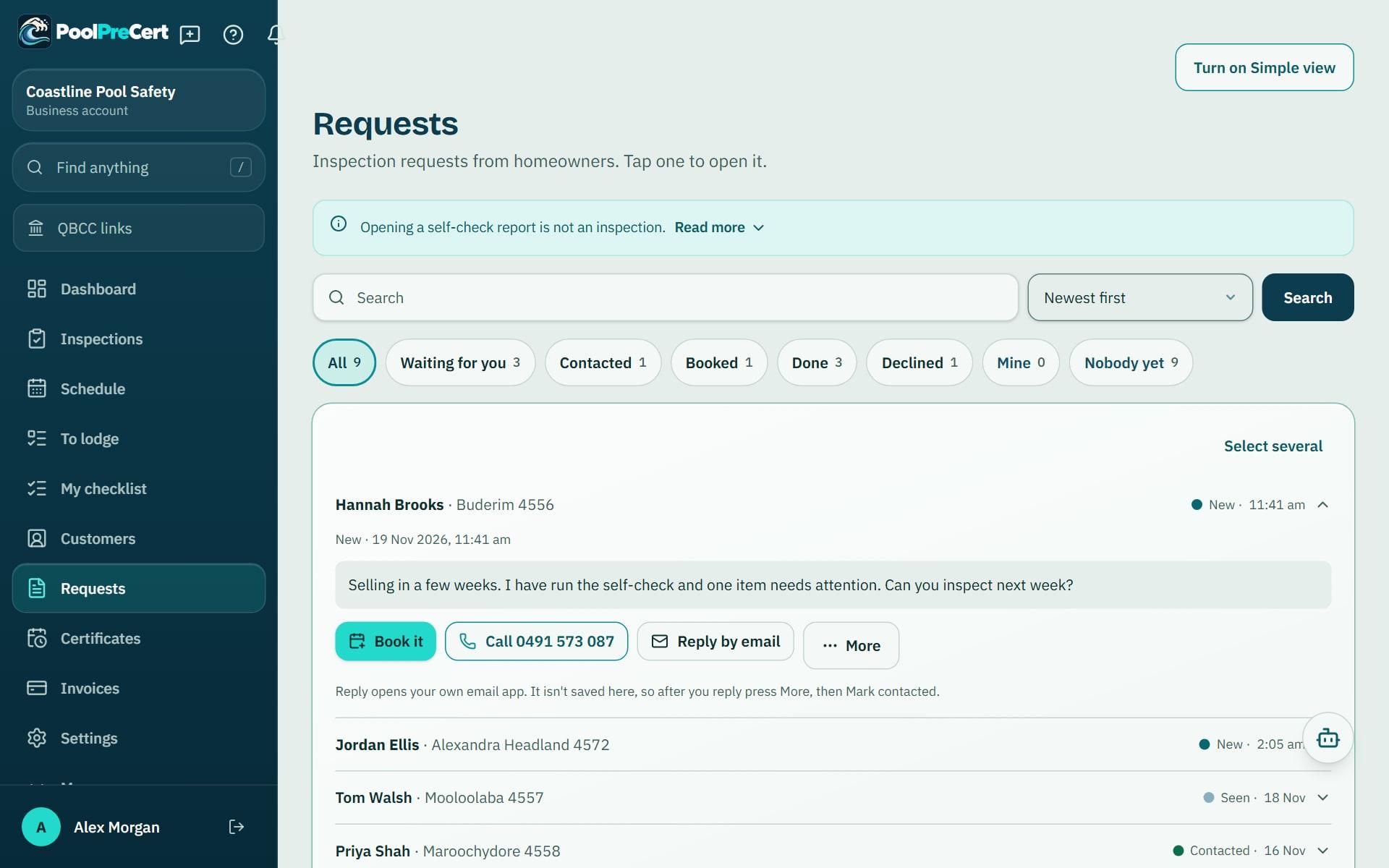
The Requests inbox collects pool inspection leads and quote requests from homeowners who want an inspection, a repair quote or a new pool. Each request has their contact details and message.
Read more
You call or reply, move it through simple status steps, and turn it into a customer, a job or a quote.
Pilot offer: the first 20 businesses to sign up get 3 months at no charge (no card needed), then 25% off for as long as you stay a member. 17 of 20 places left. How it works
 Pilot offer: the first 20 businesses to sign up get 3 months at no charge (no card needed), then 25% off for as long as you stay a member. 17 of 20 places left.
The demo is your own private copy with made-up example data. No sign-up, and it's deleted automatically.
Prices include GST.

What you get with Requests inbox
Where your pool inspection leads come from
Homeowners reach you in four ways, and all of them land in the same place. A homeowner chooses who to ask, and PoolPreCert does not charge a fee for each request.
- The request button on your public listing.
- The sheet that opens after a homeowner finishes a self-check and chooses to contact a business.
- For inspectors, the Request an inspection box on council and suburb pages, where one homeowner can ask up to three nearby inspectors at once.
Read more
- Your Website button link or QR code.
What an inspection request or a quote request shows
Every request shows the homeowner's name, suburb, postcode and when it arrived. Tap Call, Text or Email. Inspectors also get a Reply menu that fills in your saved message templates.
- Inspectors: the message, then Reply and Book it, with the rest under More, including an Open self-check report button when the homeowner shared their report. Photos come only if the homeowner ticked a separate box.
- Fence contractors: the repair items the homeowner marked as needing attention, with their notes and photos if they agreed.
Read more
- Fence contractors and builders: the type of job and rough timing, the message first, then Build a quote with a Call button and the next step (such as Mark contacted) beside it while the request is waiting for its quote (Call once a quote has gone), with Message (Text, Email and Reply), the other status buttons, Save as customer and Add to schedule under More.
- Homeowner pictures made with See it in your yard show with a label saying they are homeowner-supplied AI illustrations. A Report this image link hides one until PoolPreCert looks at it.
Reply to homeowner enquiries and update the status
Inspectors use Mark contacted, Mark booked, Mark inspection done and Decline. Fence contractors and builders use Mark contacted, Mark quoted, Mark booked, Mark done and Not suitable. The homeowner can follow the status from their own Requests page.
Read more
Marking a request booked or done is also what lets the homeowner leave you a verified review. A badge on each request shows where that review invitation is up to.
Add team notes, search and filter
Search by name, phone, email, suburb or message, and use Filter requests to narrow by status. Mine and Nobody yet show who is looking after what (on a phone they are under Show). Tick several requests to mark them contacted or decline them in one go.
Read more
Looked after by and a team note tell colleagues who has a request. Only your own team sees them. People with a viewer role can read the inbox but not change it.
Turn a request into a quote or a job
Once you have spoken to the homeowner, the request can become real work. In an inspector inbox press Book it to make a job, or open More and press Save as customer to keep them. Contractors and builders press Save as customer or Add to schedule under More.
Read more
For a quote request, press Build a quote for this request. In a fence contractor or builder inbox a request still waiting for its quote shows Build a quote as its main button. It saves the homeowner as a customer and opens the quote tool with what they asked for in view, and when you email the quote the request moves to Quoted.
Homeowners who asked before you joined
A homeowner can ask any listed business to contact them, even one that has not joined. That request waits up to 60 days and nothing goes to the business.
Read more
Until your listing is claimed and your plan or trial includes requests, you see only a banner saying how many homeowners are waiting near your councils.
Once you can see requests, the waiting ones move into your inbox the first time you open Requests, as normal requests. Each homeowner is emailed to say you have joined. A homeowner can withdraw at any time.





How to start
Switch requests on
Open Directory listing, tick the box to receive requests, add an Email for requests and press Save listing.
Open Requests
Choose Requests in the menu. Owners and admins also see a notice in the app when one arrives.
Contact the homeowner
Open the request, read the message, and call, text or email. Reply by phone or email yourself; PoolPreCert does not reply for you.
Update the status
Press the next status button so the homeowner can see where it is up to.
Share or act on it
Set Looked after by, add a team note, or press Book it or Save as customer (under More for inspectors), Add to schedule or Build a quote for this request.
What Requests inbox does and does not do
What it does
- Collects requests from your listing, self-checks and Website button in one inbox
- Shows each homeowner's contact details, message and status
- Lets you add team notes, search and filter
- Turns a request into a quote, a customer or a job
What it does not do
- It does not book a time for you or promise that a homeowner will reply to you or book.
- Opening a self-check report is not an inspection. The inbox reminds inspectors that an inspection of a regulated barrier needs a certificate or a nonconformity notice.
- It does not charge a fee for each request. Plans are a flat monthly price.
- It does not show names or contact details for waiting requests until your listing is claimed and your plan or trial includes requests.

Features that go with it
Directory listing
Your QBCC licence probably has a listing already. Claim it, add your details and areas, and homeowners can find you, call you and send requests.
Verified reviews
Homeowners whose request you marked booked or done get one invitation to review you. Reviews show on your listing and you can reply in public.
Customers
An address book that ties each customer to their properties, jobs and paperwork, with dated notes, a private link, CSV import and a duplicate finder.
Pool fence quote builder
Turn a few answers about a pool fence job into a priced quote from your own price list. Offer Good, Better and Best. PoolPreCert numbers and emails it.

Guides that give the background
Step by step instructions: Help centre. All features are listed on the features page.
Common questions
Are requests shared with other businesses?
A homeowner chooses who to ask. On council and suburb pages they can ask up to three nearby inspectors at once, and each of those inspectors gets the request. A request from your own listing button or Website button comes to you.
Do I pay for each lead?
No. There is no fee per request. Starter is $49 a month and Business is $99 a month (incl. GST). The first 20 businesses to sign up get 3 months at no charge (no card needed), then 25% off for as long as you stay a member. After the places are gone, plans start with a 14-day trial, no card required.
How do I reply and keep notes on a request?
Open the request and call, text or email the homeowner yourself; PoolPreCert does not reply for you. Use Looked after by and a team note so colleagues know who has it. Only your own team sees them.
Can I turn a request into a quote?
Yes, for a quote request. Press Build a quote for this request. In a fence contractor or builder inbox it is the main button on a request still waiting for its quote.
Will I get an email when a request arrives?
An email goes to the private request address on your listing. It has no customer details, so you sign in to read the request. Under Settings, Notifications, an owner or admin can also choose which team members, and up to five other addresses, are told.
Why is my inbox empty?
Requests arrive once your listing is confirmed and set to receive them. A fuller listing with a description and your areas gives homeowners more to go on. Nothing here promises a number of requests.

What it needs and what it costs
The inbox comes with the plans and trials that include requests. Without one you see only a count of homeowners waiting. See the plans and prices. The first 20 businesses to sign up get 3 months at no charge, no card required. Prices include GST. Start 3 months at no charge
Try it before you pay
The first 20 businesses to sign up get 3 months at no charge, no card required. Prices include GST. The demo at the top of the page needs no sign-up.