

For pool safety inspectors
Pool inspection checklist app for Queensland, built for your phone
This pool inspection app is where a licensed Queensland pool safety inspector records an inspection.
Read more
The checklist walks through the pool barrier items one question at a time and builds the record as you go: answers, measurements, photos, notes and a report. You decide every answer.
Pilot offer: the first 20 businesses to sign up get 3 months at no charge (no card needed), then 25% off for as long as you stay a member. 17 of 20 places left. How it works
 Pilot offer: the first 20 businesses to sign up get 3 months at no charge (no card needed), then 25% off for as long as you stay a member. 17 of 20 places left.
The demo is your own private copy with made-up example data. No sign-up, and it's deleted automatically.
Prices include GST.

What you get with Inspection checklist
A pool barrier inspection checklist, one question at a time
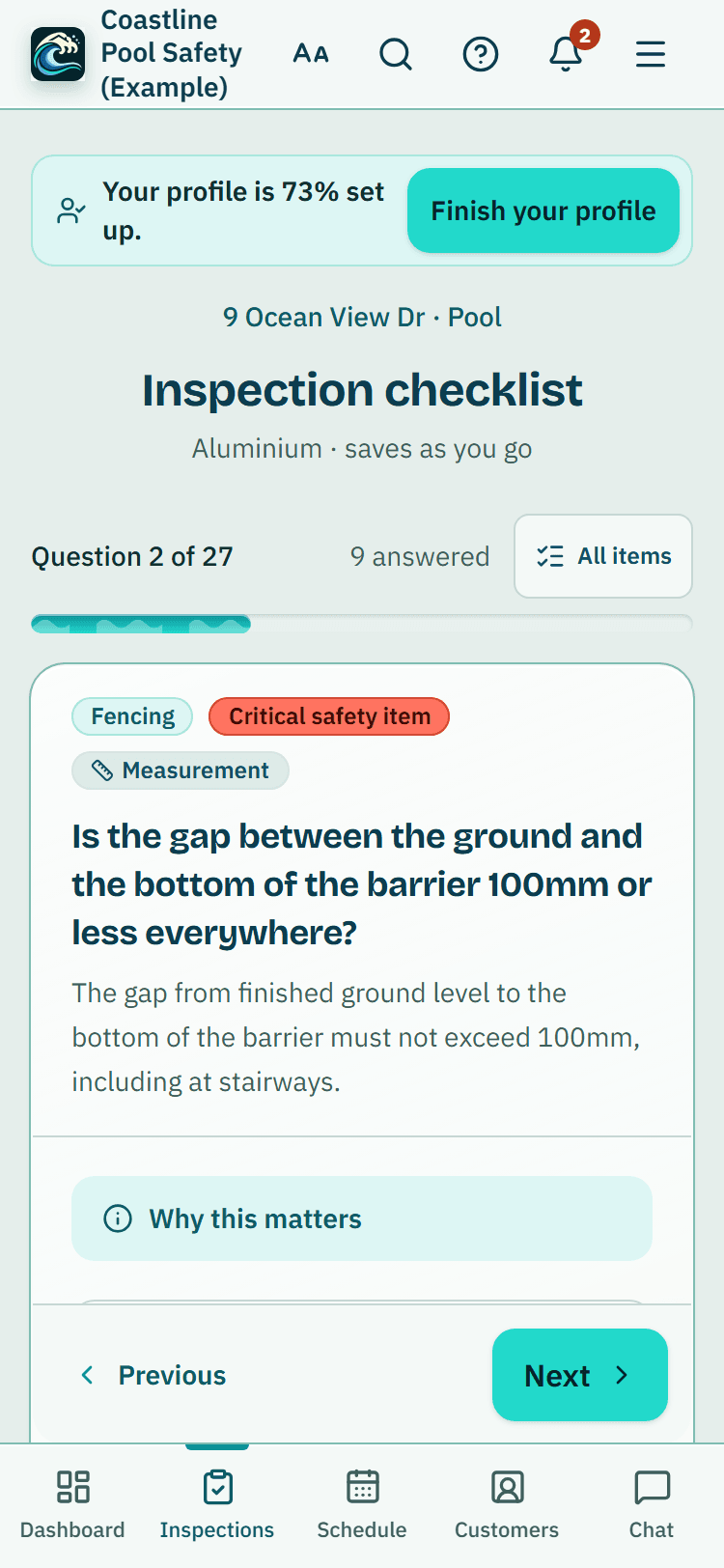
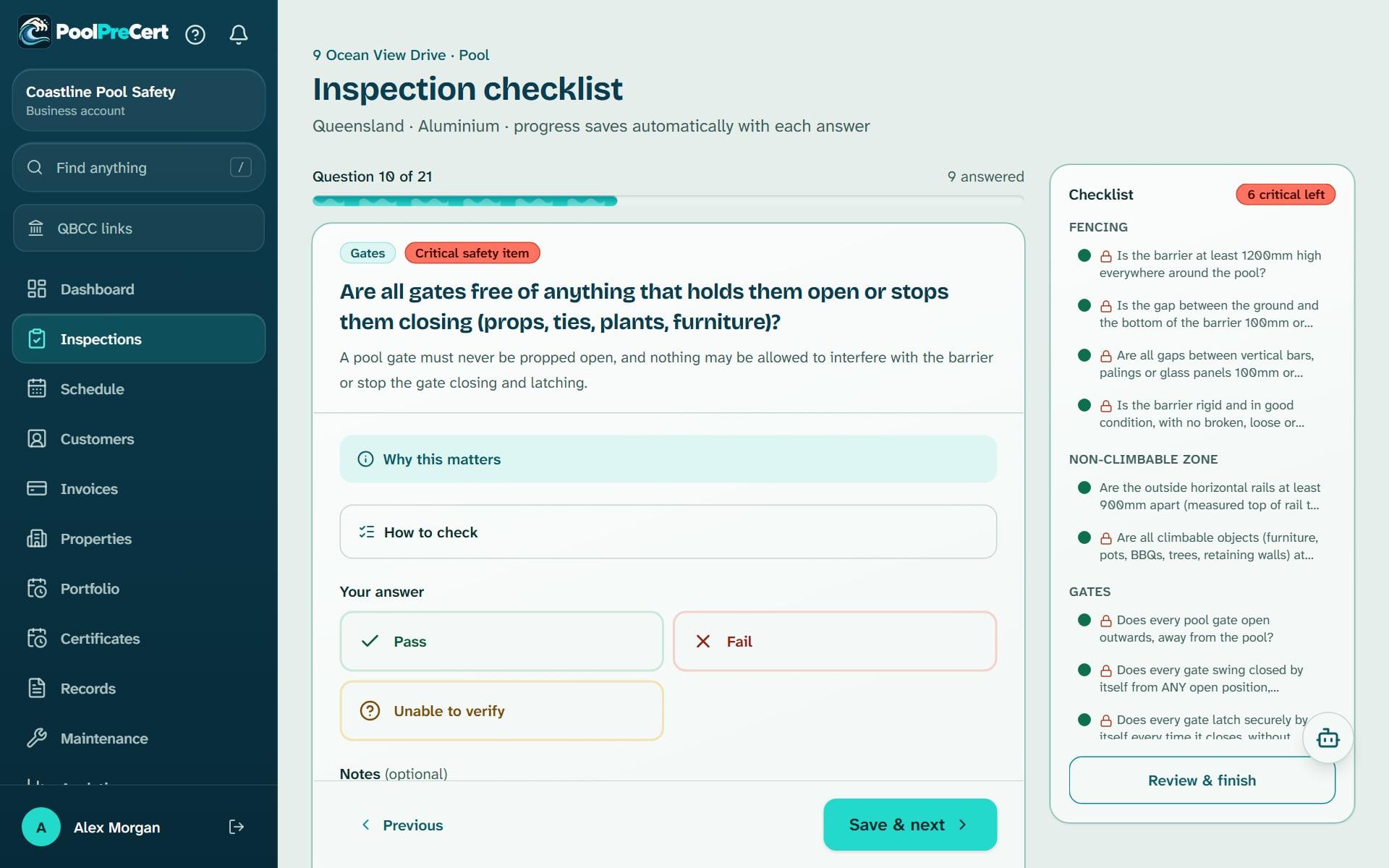
The pool barrier inspection checklist shows one item at a time. Press Start an inspection, add a new customer or press Start next to one of your customers' properties, and the checklist is ready.
Read more
Each screen shows one item, a progress bar and an All items list so you can jump around on a phone. Critical items carry a Critical safety item badge. Items that need a hands-on test carry a Physical test badge, because a photo cannot confirm them.
You answer with one tap: the answer that records the item meets the requirement, the one that records it does not, Unable to verify, or Not applicable. Not applicable is offered on every measurement item (on a critical one, say why in Notes), not on other critical items. Add a note.
Measurements and inspection photos on every item
Items with a size rule have measurement boxes: a value, a unit and a note on where you measured. Use Add another reading when you take more than one, and record the worst reading you find.
Read more
Every reading is compared with the requirement for that item and shown as within or outside it. You take the measurement with your own tape. The app does not measure anything.
Add inspection photos to any item, and mark them up with a circle, an arrow or text. Photo mode is the quicker way for a walk-round: it opens the camera first. Take a photo, pick its item or leave it Not tagged yet, and carry on; tag or retag it later. Each photo keeps the time it was taken.
AI photo check, with you in charge
Press AI photo check on a photo and the app suggests visible hazards to look at in person. A notice tells you what is sent each time. It cannot measure, cannot test a gate and cannot say whether a pool meets the standard.
Read more
Many suggestions carry a Check in person or Measurement needed flag.
For each suggestion you choose Accept, Override severity or Dismiss, and the reason you type is kept in the audit trail. Review and finish flags observations that are still waiting for review. Each plan includes a number of AI photo checks a month. HEIC photos cannot be checked, so set an iPhone camera to Most compatible. Under Settings, Appearance, AI features you can hide the button, and an owner or admin can turn AI off for the whole business.
Finishing, tasks and a record you can keep
Press Finish to open Review and finish. It shows the counts, lists any critical items you have not answered and asks you to tick a box if you finish with some missing.
Read more
Items that need fixing go on your fix list, and any AI observation can become a task with Create task. Finishing locks the record. An administrator can reopen it, and it is logged.
From a finished inspection, Generate PDF report makes a report with photos. Download it or share a private link. Business plans can add your branding under Business & branding. A report is a record of what you saw and measured, not a pool safety certificate. Customer sign-off (optional) lets the customer sign on your phone that they saw the report. It is kept 5 years and is not an agreement.
Reinspections within three months, and comparing
If you give an owner a nonconformity notice (Form 26 in Queensland), the job page has a Gave a nonconformity notice? card with Book the re-inspection.
Read more
It starts a re-inspection job due within three months, with a due-by warning, and points the owner to pool fence contractors who may fix what was found. Dates are reminders only: the notice and its deadline come from QBCC.
When a pool has an earlier finished inspection, Compare with previous shows checklist changes, measurement changes and before and after photos side by side. Under More, Duplicate this inspection starts a new one.
Setting up and who can use it
Under Settings, Templates an owner or admin can set what New inspection starts with: the checklist template, the inspection type, Repeat every (months) and barrier types. You can change each one. Assign an inspection to a team member and schedule it, or leave the date blank to start now.
Read more
Viewers can only read.




The checklist is one part of the day. The pool inspector app page follows a whole Queensland inspection day, from the booking to the To lodge list and the invoice.
How to start
Start the inspection
Press Start an inspection, pick the pool and press Start inspection. Other choices are under More options.
Answer each item
Press Start checklist. Answer, add notes and enter measurements from your own tape.
Take photos
Add photos to an item, or press Photo mode to take them quickly and tag them later. Press AI photo check on a photo if you want prompts.
Review and finish
Press Finish. Check the counts, add who was present, then press Finish inspection.
Make the report
Press Generate PDF report. Download it or copy the private link.
What Inspection checklist does and does not do
What it does
- Walks the Queensland barrier checklist one question at a time
- Records your measurements and photos on each item
- Offers optional AI photo prompts, with you in charge
- Makes a PDF report when you finish
What it does not do
- It does not decide anything or issue a certificate. The inspector decides and issues the QBCC form through the QBCC Portal.
- It does not connect to the QBCC Portal or submit anything to QBCC.
- The AI photo check never measures, tests or certifies. Its notes are prompts, and you accept, override or dismiss each one.
- It has a Queensland checklist only, and the app will not apply Queensland rules to a property in another state.

Features that go with it
Offline mode
Answers and photos wait on your phone when there is no signal and upload on their own when you are back online. Here is how it works, and where it stops.
QBCC records
A pre-filled Form 26 PDF, the Form 23 steps with Copy buttons, links to QBCC and the records QBCC asks inspectors to keep. You lodge on QBCC's own site.
Your own checklist
My checklist: copy the PoolPreCert checklist, put the areas and checks in the order you walk the pool, and add checks of your own, with a measurement if you want one.
Anything else items
At the end of an inspection, add as many of your own items as you like, each with a result, notes and photos, and have them waiting on your next inspection.



Guides that give the background
Step by step instructions: Help centre. All features are listed on the features page.
Common questions
Does the pool inspection app issue the pool safety certificate?
No. It records what you answer, measure and photograph. A licensed pool safety inspector decides, and issues the Form 23 or Form 26 through the QBCC Portal.
Does QBCC expect an inspector to keep a checklist?
QBCC's record keeping fact sheet for inspectors lists a checklist among the records to keep. A finished inspection here holds your answers, measurements, notes and photos in one locked record.
Can I attach photos to each item on the checklist?
Yes. Add photos to any item and mark them up with a circle, an arrow or text. Photo mode opens the camera first, and you pick the item as you take each photo or tag it afterwards.
What happens at a reinspection after a Form 26?
From the job page, Gave a nonconformity notice? has Book the re-inspection, which starts a re-inspection job due within three months. The dates are reminders only: the notice and its deadline come from QBCC.
What does it cost?
Inspections come with the business plans and the trial. Starter is $49 a month and Business is $99 a month (incl. GST). The first 20 businesses to sign up get 3 months at no charge (no card needed), then 25% off for as long as you stay a member. After the places are gone, plans start with a 14-day trial, no card required.
Does the inspection app work with no signal?
Yes, for answers and photos, once you have opened the checklist with a connection. You lodge in the QBCC Portal when you have signal again. The offline mode page lists the limits.

What it needs and what it costs
The checklist is part of the business app for pool safety inspectors, and each plan includes a monthly number of AI photo checks; see the plans and prices. See the plans and prices. The first 20 businesses to sign up get 3 months at no charge, no card required. Prices include GST. Start 3 months at no charge
Try it before you pay
The first 20 businesses to sign up get 3 months at no charge, no card required. Prices include GST. The demo at the top of the page needs no sign-up.
Related help articles
Sources
- QBCC: Form 26, Pool safety nonconformity notice (effective September 2021) (opens in a new tab)
- QBCC: Record keeping for pool safety inspectors (fact sheet, effective May 2026) (opens in a new tab)
Last checked against QBCC guidance: 19 November 2026.