

For pool safety inspectors
Custom pool inspection checklist: your order, your own checks
Every inspector works a little differently, so the checklist is yours to arrange.
Read more
An owner or admin opens My checklist, makes a copy of the PoolPreCert checklist, puts the areas and the checks in the order they walk the pool, adds checks of their own, with a measurement box if they want one, and removes optional questions they do not use. The built-in rules still decide the overall result of the inspection.
Pilot offer: the first 20 businesses to sign up get 3 months at no charge (no card needed), then 25% off for as long as you stay a member. 17 of 20 places left. How it works
 Pilot offer: the first 20 businesses to sign up get 3 months at no charge (no card needed), then 25% off for as long as you stay a member. 17 of 20 places left.
The demo is your own private copy with made-up example data. No sign-up, and it's deleted automatically.
Prices include GST.
What you get with Your own checklist
Copy the template, then make it yours
Press My checklist, next to Start an inspection, then Make my own checklist. You get a copy of the PoolPreCert checklist that belongs to your business, and you can give it a name.
Read more
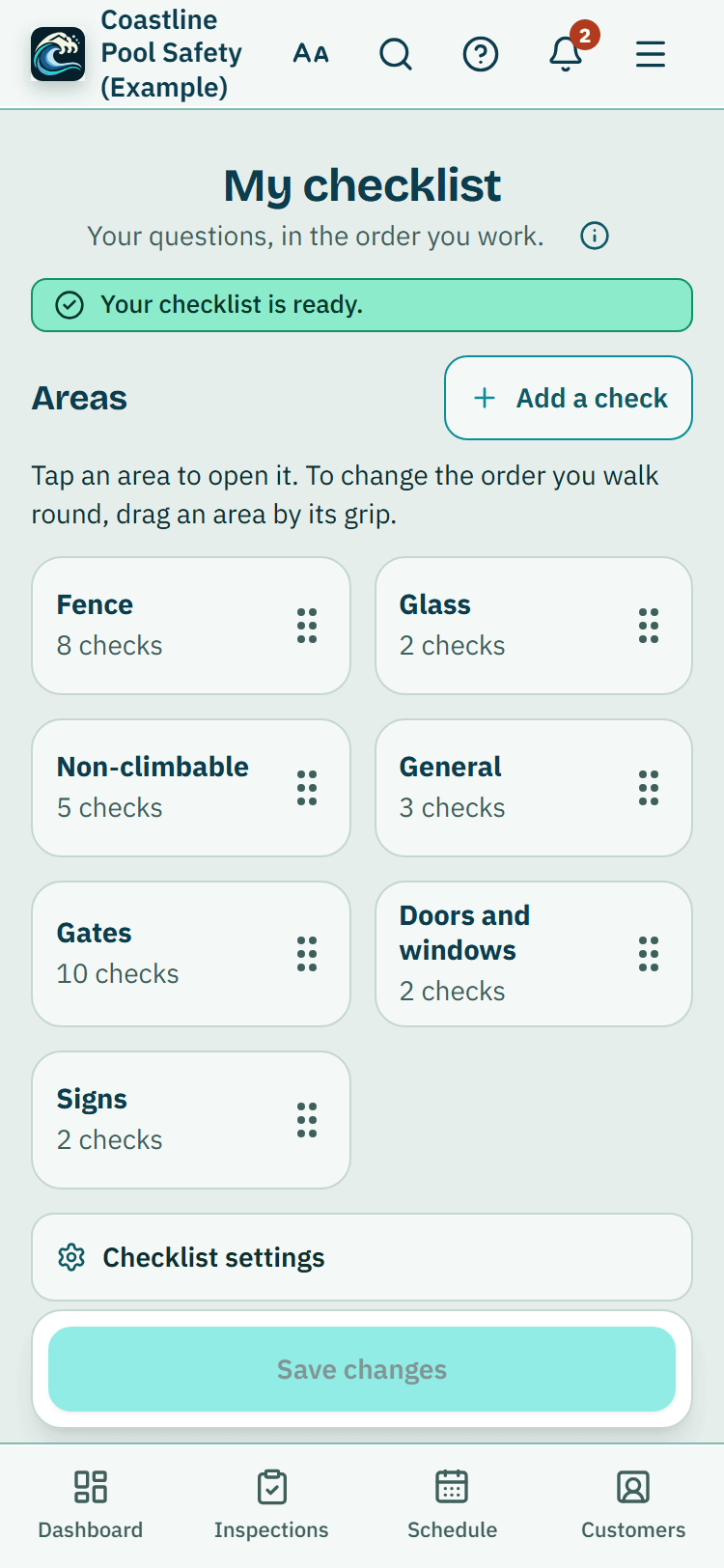
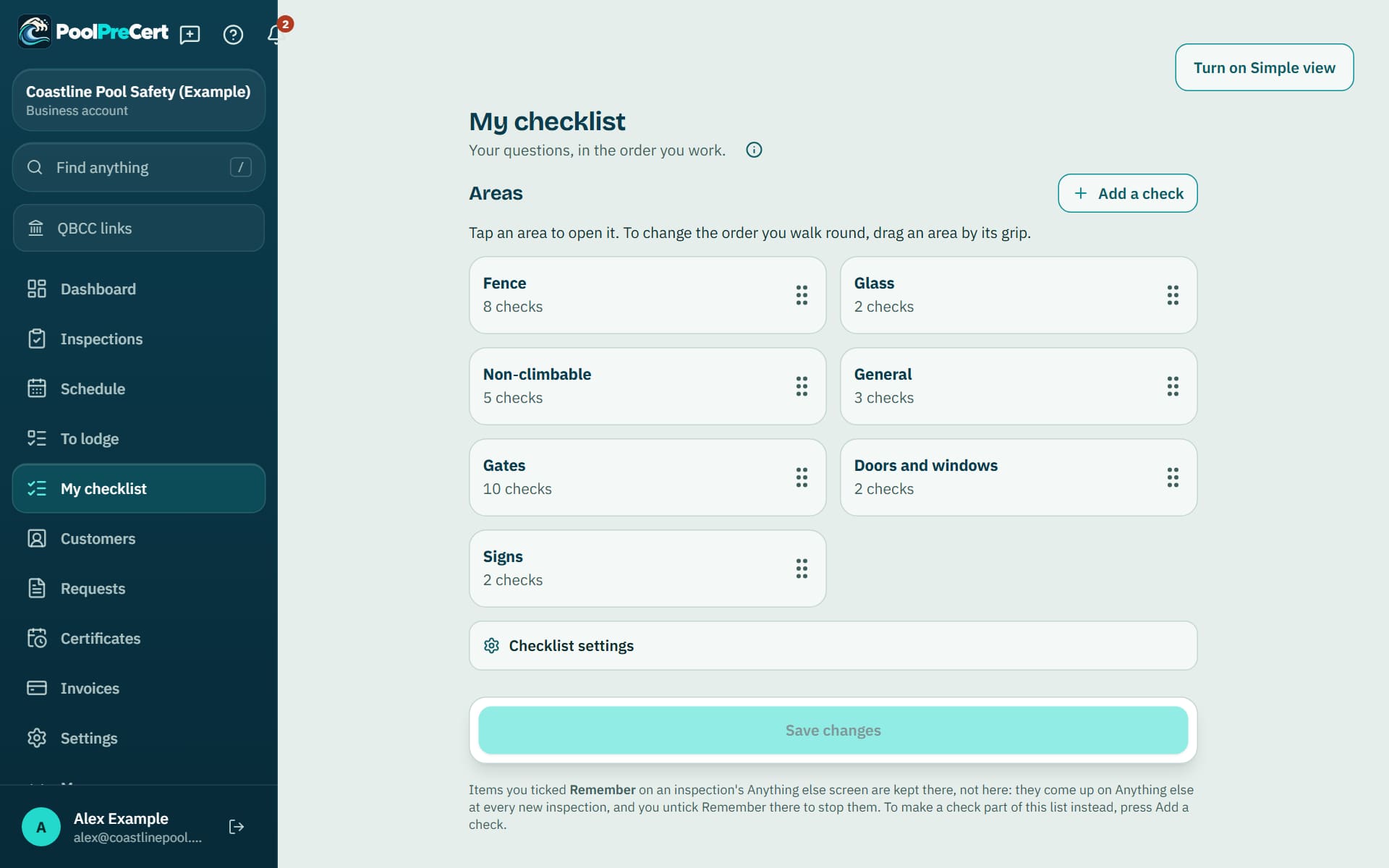
The first screen shows your checks grouped by area (Fence, Gates, Glass and so on): drag an area by its grip to set the order you walk round, or tap it to open it. Inside an area each check is one short line with a grip at the right: drag it to a new place, or tap the grip to pick it up, scroll, and tap Put it here. Tap a line to open the full wording, Move to top, Move to bottom and Remove.
Set the order to match how you work: along the fence first, then the gates, then the doors and windows, or any order that suits the pool you usually inspect. Nothing is stored until you press Save changes, and the page warns you if you try to leave with changes unsaved. To start new inspections with your copy, press Use this one for new inspections.
Add checks of your own
Press Add a check, say what you want to check, tick This check includes a measurement if you want a box for a reading, and choose the area. It goes at the end of that area, marked Yours, with the same four answers, notes and photos.
Read more
In an inspection a measurement check shows the same box as the PoolPreCert measurement items, with mm, cm or m and Add another reading, but it is your own record: it is never compared with a rule and a reading is optional. Open one of your own checks to reword it, switch the measurement on or off, or move it to another area. PoolPreCert's own questions keep their wording, because they follow the Queensland rules.
Your own checks are your record. They never change the overall result of the inspection, which comes only from the PoolPreCert questions and rules, and PoolPreCert does not judge them. In the report they are listed as your own checks, and one you mark Fail becomes a task like any other.
Critical questions stay, and removals are shown
You can remove optional PoolPreCert questions from your copy, and Undo takes the last removal back until you save. Critical safety questions carry a padlock: they can be moved but never removed, so the core checks are always asked.
Read more
If you remove a question, the report names it under Not on this inspector's checklist, so anyone reading the record can see it was not asked.
Bring in new PoolPreCert questions when you choose
When PoolPreCert adds questions to its template, New PoolPreCert questions are available shows at the top of My checklist. Press Bring them in and they are added at the end, ready for you to move into place.
Read more
Nothing is changed or reordered without you, and a question you removed earlier is not brought back by that button. Put back a PoolPreCert question you removed lists them if you change your mind.
Wording changes to existing questions are not copied into your copy. If you want the latest wording, make a new copy of the PoolPreCert checklist from Settings.
Who can change it, and what it does not change
Only the owner or an admin of the business can change templates. Inspections already started keep the checklist they started with, and finished inspections are not changed. The judgement about the pool stays with the licensed inspector.



How to start
Open My checklist
Press My checklist, next to Start an inspection, then Make my own checklist.
Set the order
Drag the areas into the order you walk round, then open an area and drag its checks, or tap a grip to pick one up and put it down.
Add your own checks
Press Add a check, say what you want to check, tick This check includes a measurement if you need one, choose the area and press Add this check.
Save
Press Save changes. New inspections start with your copy once you press Use this one for new inspections.
What Your own checklist does and does not do
What it does
- Copies the PoolPreCert checklist so you can make it yours
- Lets you put areas and checks in the order you walk the pool
- Adds checks of your own, with a measurement if you want one
- Keeps the critical questions in place and shows what you removed
What it does not do
- It does not let you remove a critical safety question.
- It does not decide whether a pool meets the standard. Only a licensed pool safety inspector decides that.
- It does not change the overall result of the inspection: your own checks are recorded and reported as yours.
- It does not update your copy by itself. New questions come in when you press the button.

Features that go with it
Inspection checklist
Walk the Queensland barrier checklist one question at a time, with measurements, photos, AI photo notes you control, defect tasks, re-inspections and a finished report.
Anything else items
At the end of an inspection, add as many of your own items as you like, each with a result, notes and photos, and have them waiting on your next inspection.
QBCC records
A pre-filled Form 26 PDF, the Form 23 steps with Copy buttons, links to QBCC and the records QBCC asks inspectors to keep. You lodge on QBCC's own site.

Guides that give the background
Step by step instructions: Help centre. All features are listed on the features page.
Common questions
Can I put the gate questions first?
Yes. Drag the Gates area to the top of the areas, or drag a gate check to the top of its area. The inspection follows the order you set once you press Save changes.
Do my own checks count towards the result?
No. The overall result of the inspection comes only from the PoolPreCert rules. Your own checks are recorded and shown in the report as yours.
Can my team use my copy?
Yes. Anyone who starts an inspection on your account can use your copy, and Use this one for new inspections makes it the one new inspections start with. Only the owner or an administrator can change it.
Does the report show what I took out?
Yes. Questions removed from your copy are listed under Not on this inspector's checklist, so it is clear they were not asked.

What it needs and what it costs
Your own checklist is part of the inspector app on the business plans and trial, with no separate charge; see the plans and prices. See the plans and prices. The first 20 businesses to sign up get 3 months at no charge, no card required. Prices include GST. Start 3 months at no charge
Try it before you pay
The first 20 businesses to sign up get 3 months at no charge, no card required. Prices include GST. The demo at the top of the page needs no sign-up.