

For pool safety inspectors
Extra items on a pool inspection: record anything else you check, with notes and photos
Anything else is a place at the end of a professional inspection for what the checklist does not ask about, such as a pump cover, a light or a spa lid.
Read more
Each item has what you checked, a result, notes and photos. There is no limit, and the app can remember the item for your next inspection.
Pilot offer: the first 20 businesses to sign up get 3 months at no charge (no card needed), then 25% off for as long as you stay a member. 17 of 20 places left. How it works
 Pilot offer: the first 20 businesses to sign up get 3 months at no charge (no card needed), then 25% off for as long as you stay a member. 17 of 20 places left.
The demo is your own private copy with made-up example data. No sign-up, and it's deleted automatically.
Prices include GST.

What you get with Anything else items
An item for anything you checked
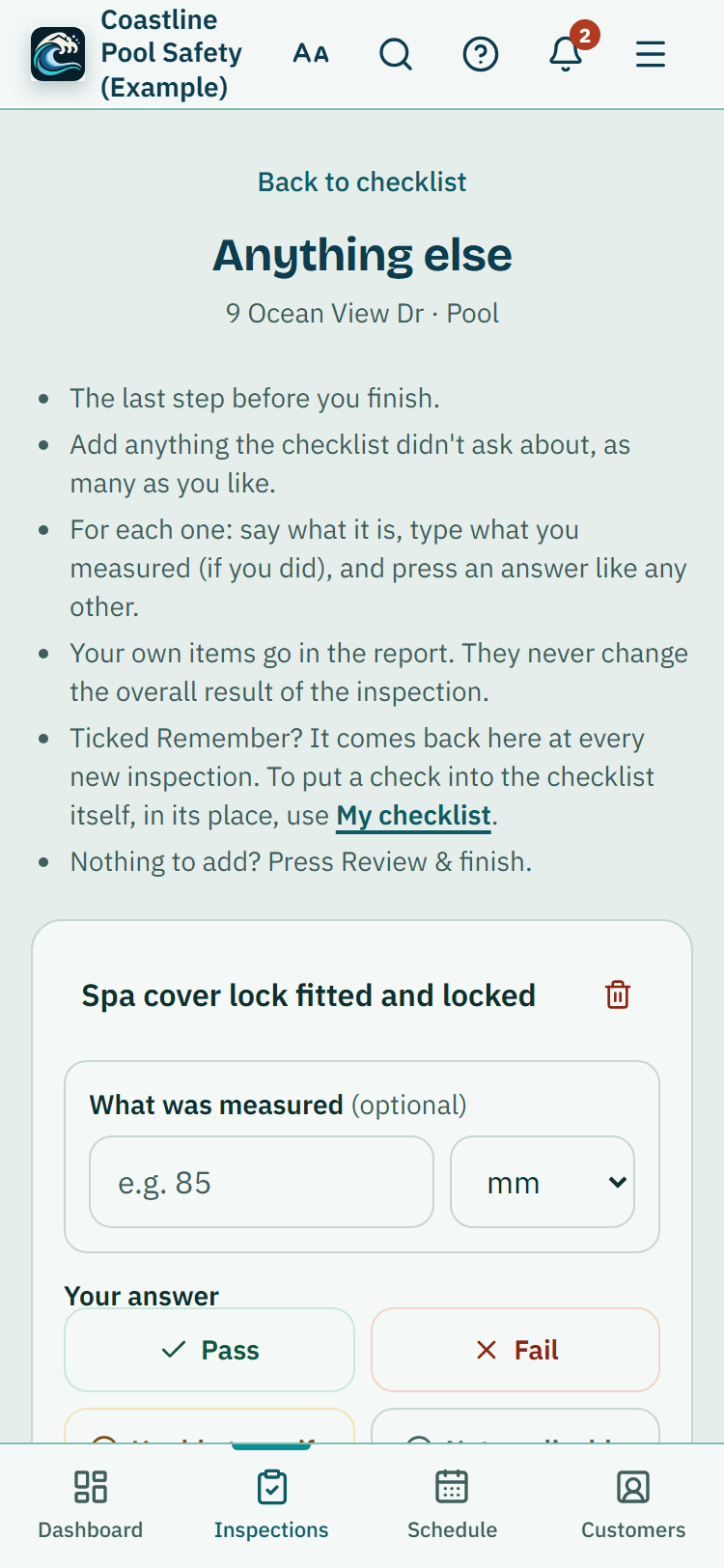
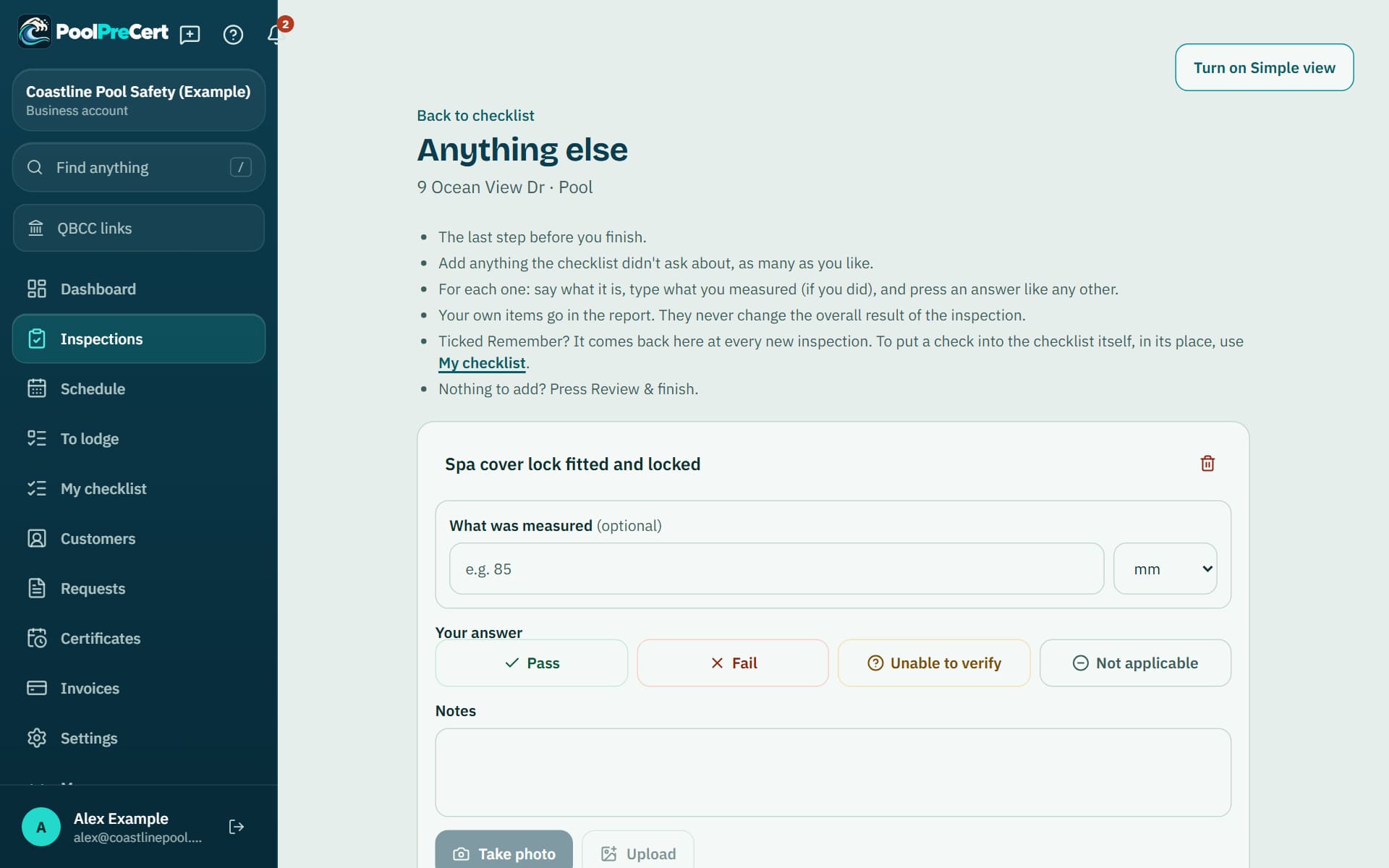
After the last question, Anything else opens by itself (you can also reach it beside the checklist or from Review and finish). Type what you checked and press Add item. If you measured something, type it in the measurement box and choose mm, cm or m.
Read more
Then choose an answer: Pass, Fail, Unable to verify or Not applicable, the same four as on every checklist item. Press the answer again to clear it.
Each item has a notes box that saves when you leave it, and photos you can take or upload. You can rename an item, remove it, and add as many as you need.
It remembers for next time
Tick Remember this for my next inspections (it starts unticked, as most typed items are one-offs). The name of the item is added, unanswered, to your next professional inspections, so a check you do on every job is already there waiting. Results, notes and photos are never carried over.
Read more
Untick Remember on an item to stop it coming back. Removing a remembered item from one inspection keeps it off that inspection; press Also stop remembering it if you don't want it on new ones either.
In the report and the record
Your items appear in the PDF report under Anything else, with their measurement, answer, notes and photo numbers, and in the record pack with their photos. An item marked Fail becomes a task when you finish, and an item you did not answer is reported as Not answered.
Read more
These items are your own record. They never change the overall result of the inspection, and PoolPreCert does not judge them.
Limits
Anything else needs a connection, so add your extra items when you are back in range. It is on professional inspections, not on a homeowner's self-check, and a finished inspection is read-only unless an administrator reopens it.



How to start
Open Anything else
Press Anything else on the last checklist question, beside the checklist, or from Review and finish.
Add an item
Type what you checked and press Add item.
Record it
Choose a result, write notes and add photos.
Choose whether to remember it
Tick Remember this for my next inspections for a check you do on every job, or leave it unticked for a one-off.
Finish
Press Review and finish. Items marked Needs fixing become tasks.
What Anything else items does and does not do
What it does
- Adds as many of your own items as you like at the end of an inspection
- Records a result, notes and photos for each one
- Remembers an item for next time if you tick the box
- Turns items marked Needs fixing into tasks
What it does not do
- It does not change the overall result of the inspection.
- It does not carry over results, notes or photos, only the name of the item.
- It does not work with no signal.
- It is not on a homeowner's self-check.

Features that go with it
Your own checklist
My checklist: copy the PoolPreCert checklist, put the areas and checks in the order you walk the pool, and add checks of your own, with a measurement if you want one.
Inspection checklist
Walk the Queensland barrier checklist one question at a time, with measurements, photos, AI photo notes you control, defect tasks, re-inspections and a finished report.
QBCC records
A pre-filled Form 26 PDF, the Form 23 steps with Copy buttons, links to QBCC and the records QBCC asks inspectors to keep. You lodge on QBCC's own site.

Guides that give the background
Step by step instructions: Help centre. All features are listed on the features page.
Common questions
Is there a limit to how many items I can add?
No. Add as many as you need on each inspection.
Why is there an item I did not add?
It is on your remembered list from an earlier inspection. Remove it here, then press Also stop remembering it if you do not want it again.
Do the photos go in the report?
Yes. Photos on your items are listed in the report's photographic evidence and in the record pack, with the item they belong to.
Can I add an item after I finish?
No. A finished inspection is read-only. An administrator can reopen it if you need to change it.

What it needs and what it costs
Anything else is part of the inspector app on the business plans and trial, with no separate charge; see the plans and prices. See the plans and prices. The first 20 businesses to sign up get 3 months at no charge, no card required. Prices include GST. Start 3 months at no charge
Try it before you pay
The first 20 businesses to sign up get 3 months at no charge, no card required. Prices include GST. The demo at the top of the page needs no sign-up.