


My checklist: reorder and add checks
Make your own copy of the PoolPreCert checklist, put the areas and checks in your order, add your own checks, with a measurement if you want, and save once.
For: Pool safety inspectors · Last updated 13 November 2026
What it is
My checklist is your own copy of the PoolPreCert checklist. Put the areas and the checks in the order you walk the pool, add checks of your own, and take out optional questions you do not use. Nothing is stored until you press Save changes.
Who it is for
The owner or an administrator of an inspector business can change it. Other team members use the copy you set up.
How to do it
Press My checklist.
It is next to Start an inspection on the dashboard and on the Start an inspection and Inspections screens, and it is in the menu.
The first time, press Make my own checklist.
You get a copy of the PoolPreCert checklist, and you can change its name at the top.
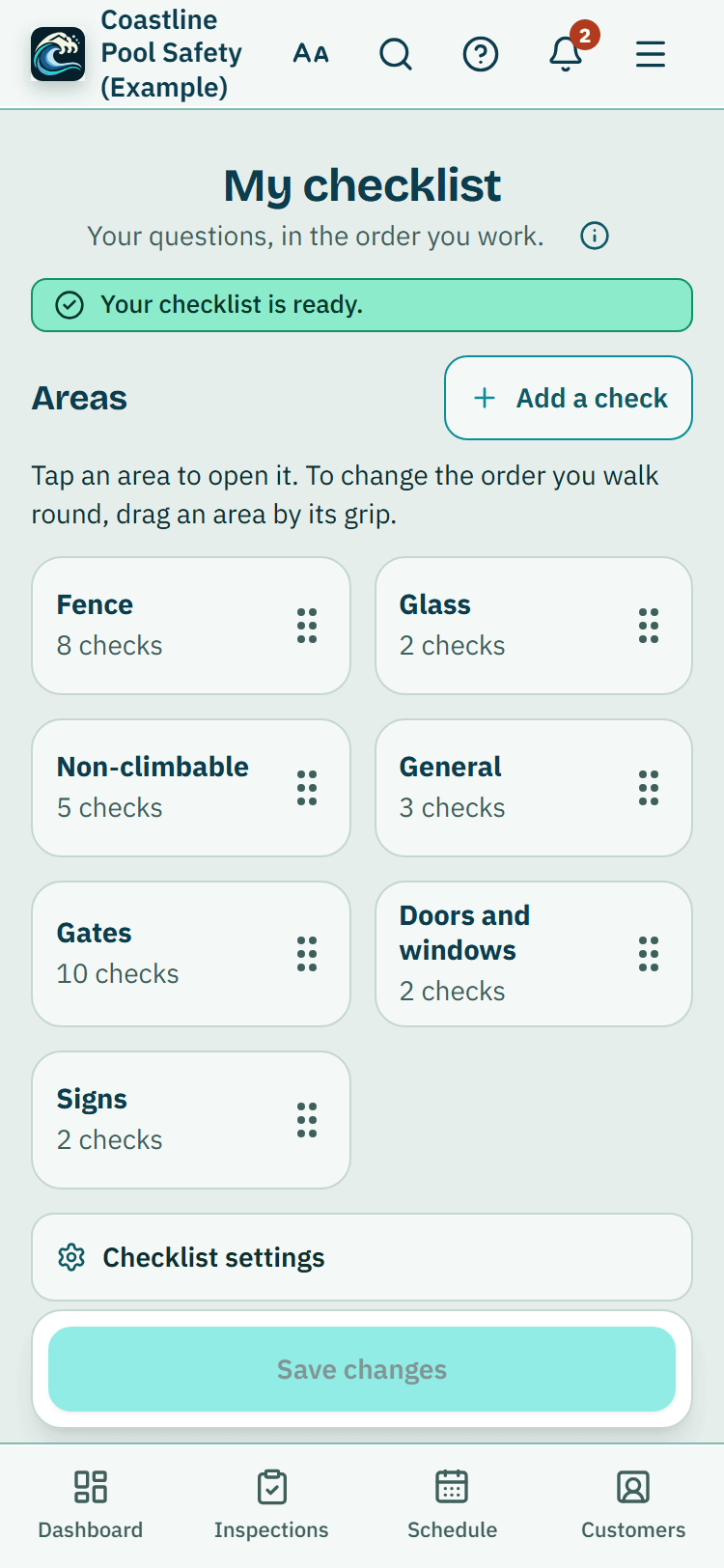
The first screen shows your checks grouped by area, each with how many checks it holds.
Press and hold the grip on an area and drag it to change the order you walk round. Tap an area to open it, and press Back to areas to come out. On a phone the page does not scroll while you drag a grip.
Inside an area each check is one short line.
More detail
Drag it by the grip on its right to a new place, or tap the grip to pick it up: it waits in a bar at the bottom, Put it here appears between the lines, you scroll and tap one. Tap a line to open it for the full wording, Move to top and Move to bottom.
On a keyboard: focus the grip, press the space bar, use the arrow keys and press the space bar again.
To add your own check, press Add a check.
Say what you want to check, tick This check includes a measurement if you want a box to type a reading, choose the area, and press Add this check. It goes at the end of that area and is marked Yours.
To change one of your own checks, open its line and press Reword.
You can change the words, tick or untick This check includes a measurement, and press Done. Move to another area puts it at the end of the area you choose. PoolPreCert's own questions keep their wording because they follow the Queensland rules.
Show the other 3 steps
To take out a question, open its line, press Remove and confirm.
Press Undo to put the last one back until you save. Critical safety questions carry a padlock and cannot be removed.
Press Save changes.
A bar at the bottom says You have unsaved changes while there are any, and Discard changes throws them away. After you save, a message says Saved.
If you have more than one copy, choose the one to work on under Which checklist, and press Use this one for new inspections to make it the one new inspections start with.
Take care: Critical safety questions carry a padlock and cannot be removed.
Tip: Discard changes throws away anything you have not saved.
New PoolPreCert questions, and questions you took out
When PoolPreCert adds questions, New PoolPreCert questions are available shows above your list. Press Bring them in and they are added at the end, ready for you to move. Nothing else moves.
If you removed a PoolPreCert question and want it back, open Put back a PoolPreCert question you removed, tick it and press Put the ticked ones back. Save any changes first.
What your own checks are
A check you add has the same four answers as any other (Pass, Fail, Unable to verify, Not applicable), a notes box and photos. It is marked Yours on screen.
Read more
If it includes a measurement, the inspection shows the same box as the PoolPreCert measurement items, with mm, cm or m and Add another reading. Typing a reading is optional, a Pass without one stays a Pass, and the reading is never compared with a rule: the report shows it as Measured 42 mm, as your own check.
Your own checks are your record. They never change the overall result of the inspection, which comes only from the PoolPreCert questions and rules, and PoolPreCert does not judge them. On the finished inspection page and in the report they are listed under Your own checks, with your answer, any reading and your notes.
Anything you marked Not applicable is listed, with the reason you gave. An item you mark Fail still becomes a task like any other.
What the report says about removed questions
If you take a PoolPreCert question out of your copy, the report lists it under Not on this inspector's checklist, so it is clear that it was not asked. The same list is in the record pack.
Inspections already started do not change
An inspection keeps the checklist it started with. Changes you save apply to inspections you start after that, and an inspection you have scheduled but not started uses the latest version when you start it.
Settings, Inspection checklist
Settings, Inspection checklist is a short page with an Open My checklist button: reorder, add, reword and remove questions in My checklist.
Read more
Its folds hold what is only there: New inspection starts with (the checklist, type, barrier types and how often it repeats), Your checklists (switch a copy off or on, or add a check with how-to notes or a photo prompt), and Start again from the PoolPreCert checklist.
What it does not do
- It does not let you remove a critical safety question.
- It does not decide whether a pool meets the standard. Only a licensed pool safety inspector decides that.
- It does not copy PoolPreCert's changed wording into your copy. New questions come in when you press Bring them in, and existing questions keep the wording they had when you copied them.
- It does not change inspections that have already finished.
Common questions
Can I put the gates first?
Yes. Drag the Gates area to the top of the areas, or a gate check to the top of its area, then press Save changes. The order you save is the order the inspection follows.
Do my own checks change the result?
No. The overall result of the inspection comes only from the PoolPreCert questions. Your own checks are recorded and reported as yours.
What if I remove a question by mistake?
Before you save, press Undo. After you save, open Put back a PoolPreCert question you removed on My checklist and tick it. Questions you took out are listed in the report as not on your checklist.
I left the page and my changes are gone.
Changes are only kept when you press Save changes. If you try to leave with changes unsaved, the page asks first.
Can my team use my copy?
Yes. Press Use this one for new inspections and everyone who starts an inspection on your account uses it. Only the owner or an administrator can change it.
PoolPreCert helps you do and record your work. It does not decide whether a pool meets the Queensland standard. Only a licensed pool safety inspector does that.
Related articles
Inspections: the checklist, photos and finishing
How an inspector records an inspection: start it, answer the barrier checklist, add measurements and photos, and finish. A finished inspection is locked.
Add anything else to an inspection
Add as many of your own items as you like before you finish, each with a measurement, an answer, notes and photos, and have them remembered for next time.
Was this helpful?
YesNo, tell us what was missing
This opens an email to the PoolPreCert team. Please do not include passwords or personal details.
Still stuck? Contact support
Email support@poolprecert.com and tell us what you were trying to do and which screen you were on. Please do not send passwords or card numbers. The PoolPreCert team will reply.