

For pool safety inspectors
QBCC Form 23 and 26 data sheet, links and records
This page covers the QBCC side of an inspection: a data sheet that gives you a pre-filled Form 26 and the Form 23 steps with Copy buttons, links to QBCC's own register and Portal, and a Records page for what QBCC asks inspectors to keep.
Read more
PoolPreCert does not issue certificates and does not submit anything to QBCC.
Pilot offer: the first 20 businesses to sign up get 3 months at no charge (no card needed), then 25% off for as long as you stay a member. 17 of 20 places left. How it works
 Pilot offer: the first 20 businesses to sign up get 3 months at no charge (no card needed), then 25% off for as long as you stay a member. 17 of 20 places left.
The demo is your own private copy with made-up example data. No sign-up, and it's deleted automatically.
Prices include GST.

What you get with QBCC records
A pre-filled Form 26 and the Form 23 steps
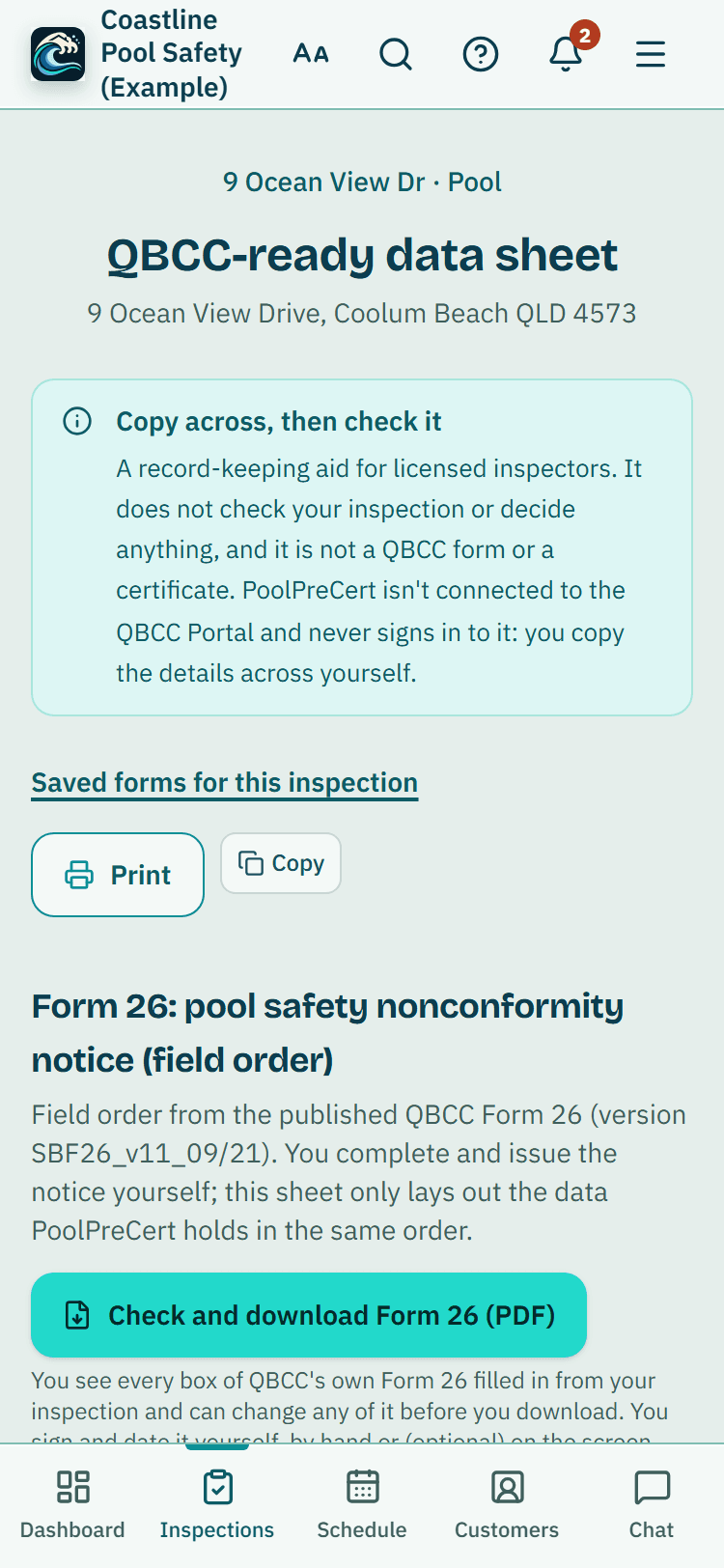
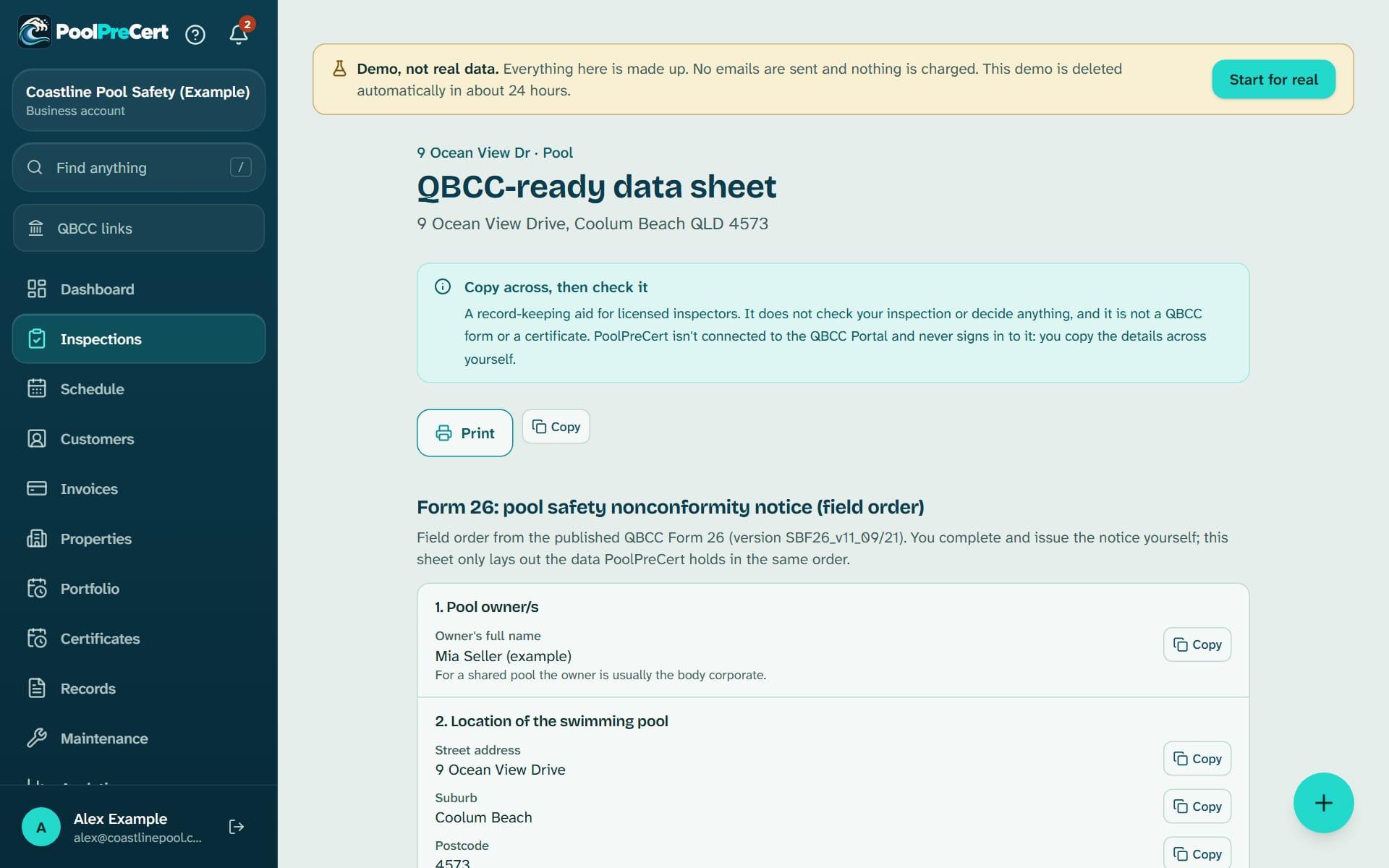
Looking for a Form 26 template? Open an inspection's Records row, choose QBCC-ready data sheet, then Check and download Form 26 (PDF).
Read more
You see every box of QBCC's own form (version SBF26_v11_09/21) filled in from your inspection, and you can change any of it: the owner, the address with lot, plan and council area, shared or non-shared, the problems and actions, the date, your name and licence number. A box too long for its squares is flagged and left empty rather than cut off. Sign and date it by hand, or choose Sign on the screen (optional).
The Form 23 section follows the steps of QBCC's own guide for the pool register, written in 2018 when the Portal was called myQBCC: find the property, check the register record, confirm the certificate details (you choose the issue date, which can't be in the future or more than 15 days back, add a description and say whether an exemption or alternative solution applies), add minor repairs, then pay. Each field has a Copy button, and you can Print the sheet. The Portal's screens may have changed since 2018, so check each step. Details the QBCC forms ask for, on the same page, saves the owner's name, lot, plan and council area.
Check a pool, then lodge in the QBCC Portal
Open the menu and choose QBCC links. Three buttons open QBCC's own site in a new tab: Check a pool on the QBCC register, Open QBCC Portal and QBCC forms and guides. Copy address copies an address the way QBCC's search expects; you paste it in and pick the match.
Read more
After you finish an inspection, Lodge in QBCC Portal opens QBCC's sign-in. You sign in with your own details; PoolPreCert never holds them. To lodge lists those not yet ticked off. What the register shows is QBCC's information, so read it on their site.
Pool safety inspector record keeping: what QBCC asks you to keep
QBCC's fact sheet for inspectors lists what good records contain, and PoolPreCert gives you a place for each. Review and finish has Who was present and an optional Inspector's notes box for anything the questions did not cover; the notes go in the report and the record pack.
Read more
Photo and video times come from the camera's own record, with the upload time beside them. Gate items take video of up to 60 seconds. Non-climbable zone items have a note for side, justification and items assessed. The Inspection records page holds a barrier layout sketch, exemptions or variations, performance solutions, the reasons for your decision and a dated log of conversations and advice.
A Records for QBCC list shows what has and has not been captured. It does not judge the inspection. Everything locks when you finish.
Form 26 reminders
When you give an owner a nonconformity notice, add it to the Form 26 reinspection tracker on the Records page with the date you gave it. Form 26 counts three months from that day. You get an in-app notice and an email 14 days before and on the day.
Read more
The notice itself is yours to issue; the dates are reminders.
Keeping records for five years
QBCC's fact sheet says records must be kept for at least five years. Each finished inspection shows a keep until date, five years after completion. While your account is open, photos, videos and the inspection cannot be deleted inside that time.
Read more
If you close your account, they are deleted with it, and the delete-account form asks you to tick that you have downloaded them.
Download one inspection's Full record (ZIP) (photos, videos, report PDFs, saved forms, a web page and checksums), Download my inspection records (ZIP), or the Index (CSV). The ZIP opens in any browser offline, and you can download after a plan ends. Open on a saved form shows the PDF in the app, with Share, Save and Email it to me (to your own address only).



The pool inspector app page shows where this paperwork sits in an inspector's day, between the checklist on site and your invoice.

How to start
Finish the inspection
Fill in Who was present on Review and finish, add any Inspector's notes, then press Finish inspection.
Open the data sheet
In the inspection's Records row, press QBCC-ready data sheet (QBCC details to copy on Records) and fill in the owner, lot, plan and local government area.
Download Form 26
Press Check and download Form 26 (PDF), edit, download, then sign by hand or on screen.
Copy and lodge
On To lodge, tap one, copy each field into the Portal and lodge it, then press Done, I've lodged it.
Track any notice
On Records, add the date you gave a Form 26 so the reminders start.
Download your records
Download each Full record (ZIP) before you ever close your account.
What QBCC records does and does not do
What it does
- Pre-fills a Form 26 PDF you can edit, download and sign
- Lists the Form 23 steps with Copy buttons
- Keeps a To lodge list and Form 26 reminders
- Helps you keep the records QBCC asks inspectors to keep
What it does not do
- It does not issue certificates, sign in to the QBCC Portal, lodge a form or submit anything. You enter everything yourself.
- Its Form 23 steps come from a 2018 QBCC guide, so check the Portal's screens.
- It does not check or judge an inspection. The records list is a reminder of what was captured.
- It is not a backup service.

Features that go with it
Inspection checklist
Walk the Queensland barrier checklist one question at a time, with measurements, photos, AI photo notes you control, defect tasks, re-inspections and a finished report.
Offline mode
Answers and photos wait on your phone when there is no signal and upload on their own when you are back online. Here is how it works, and where it stops.
Reports and exports
A branded PDF report with photos and a private link for inspectors, a short summary for agencies, and CSV, PDF, ZIP and accountant exports for everyone.

Guides that give the background
Step by step instructions: Help centre. All features are listed on the features page.
Common questions
Where do I lodge a Form 23 or Form 26, and does PoolPreCert do it?
You lodge in the QBCC Portal. PoolPreCert lists the details and gives you Copy buttons, but it does not sign in, lodge or submit anything. You sign in with your own details and enter the form there.
Is there a Form 26 template I can use?
Yes: QBCC's own Form 26 PDF, pre-filled. On the data sheet press Check and download Form 26 (PDF). You see every box filled in from your inspection, change what you want, then download it. You sign it and give it to the owner.
Can PoolPreCert fill in the Form 23 or lodge it for me?
No. The Form 23 is issued inside the QBCC Portal, which fills in most of the certificate itself from the pool register and your licence. The sheet follows the Portal's steps and has the dates and details ready to copy. PoolPreCert has no connection to the Portal and never signs in to it.
How long must a pool safety inspector keep records?
QBCC asks inspectors to keep records for at least five years. Inside the account they are protected from deletion for five years after each inspection is completed, and they are deleted with the account, so download them first.
What if QBCC changes a form?
The pre-filled Form 26 uses the September 2021 edition (SBF26_v11_09/21). Always check QBCC's site for the current form, and tell us at support@poolprecert.com if it has changed.

What it needs and what it costs
The data sheet, QBCC links and Records are part of the inspector app with no separate charge; closing an account deletes the records, so download them first. See the plans and prices. The first 20 businesses to sign up get 3 months at no charge, no card required. Prices include GST. Start 3 months at no charge
Try it before you pay
The first 20 businesses to sign up get 3 months at no charge, no card required. Prices include GST. The demo at the top of the page needs no sign-up.
Related help articles
Sources
- QBCC: Record keeping for pool safety inspectors (fact sheet, effective May 2026) (opens in a new tab)
- QBCC: Form 26, Pool safety nonconformity notice (effective September 2021) (opens in a new tab)
Last checked against QBCC guidance: 19 November 2026.