

For pool safety inspectors
Offline pool inspection app: keep inspecting when the signal drops
Offline mode makes this an offline pool inspection app for sites with no signal. An inspector can open a checklist, lose signal, keep answering and taking photos, and even close and reopen the installed app with no signal.
Read more
Your work is saved on the phone and uploads when you are back in range. It has real limits, and this page lists them.
Pilot offer: the first 20 businesses to sign up get 3 months at no charge (no card needed), then 25% off for as long as you stay a member. 17 of 20 places left. How it works
 Pilot offer: the first 20 businesses to sign up get 3 months at no charge (no card needed), then 25% off for as long as you stay a member. 17 of 20 places left.
The demo is your own private copy with made-up example data. No sign-up, and it's deleted automatically.
Prices include GST.

What you get with Offline mode
What keeps working on a site with no signal
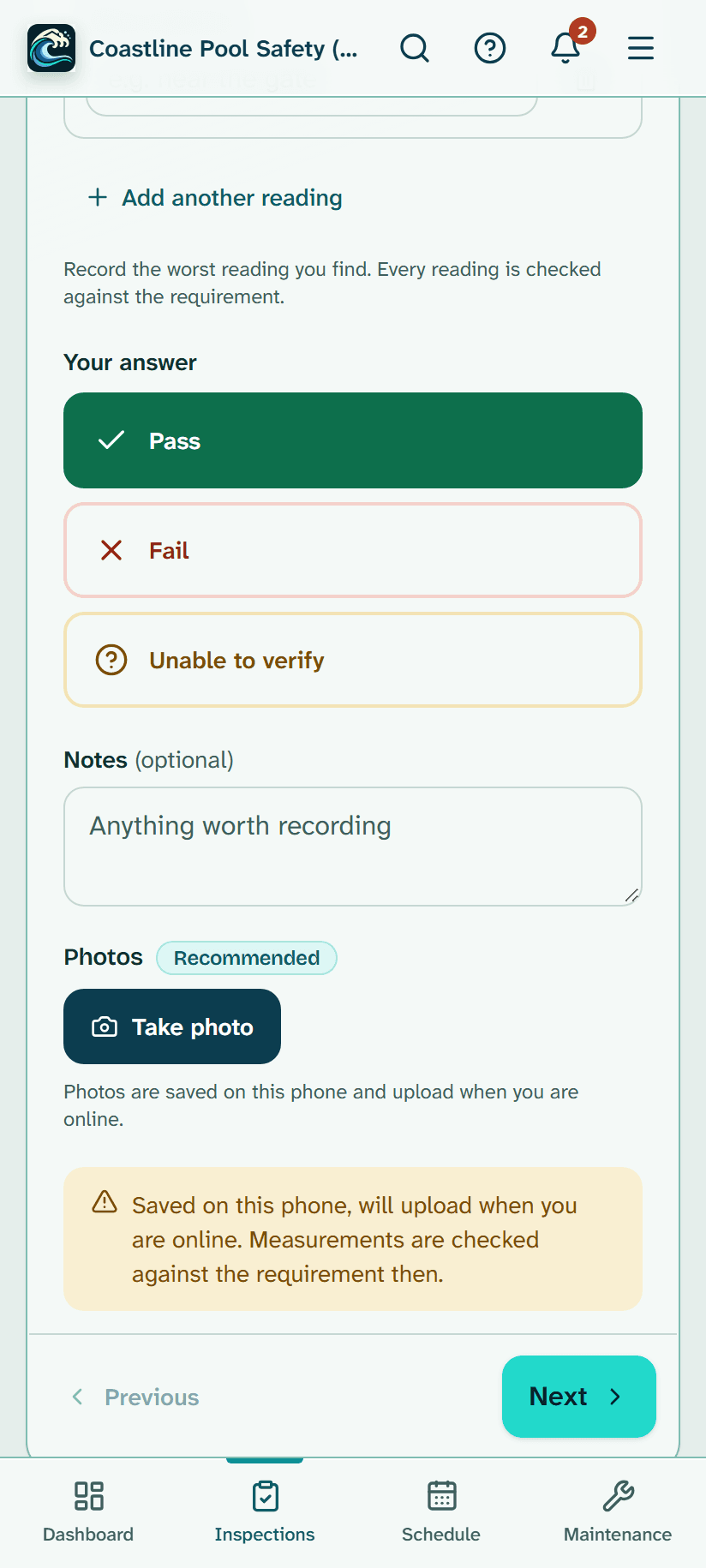
Answers, notes and measurements on the checklist keep working, and photos taken in the checklist or in Photo mode are saved on the phone. That helps on acreage or in regional Queensland, where mobile reception drops out. You can also open the app again from your Home Screen.
Read more
A strip across the screen says Saved on this phone, will upload when you are online, with a count of what is waiting.
If you reopen the app with no signal, go to the Saved on this phone list and open the checklist from there. Photo mode reopens the same way, and photos already uploaded show as Already uploaded without a picture until you have a connection.
Before you head out: open each checklist once
The first install and the first open of a checklist need a connection. With signal, open each inspection's checklist once. That saves a copy on your phone, refreshed a second after each change.
Read more
Photo mode works offline only for an inspection whose checklist or photo mode you opened once online on that phone.
A saved copy is removed after 14 days, when you remove it, when you sign out, or when the server says the inspection is finished. It is kept longer while answers or photos for it are still waiting. Add PoolPreCert to your Home Screen for the best result.
Uploading when you are back in range
When signal returns, upload starts and answers go first, then photos, oldest first. The strip shows Last uploaded with a time, and an Upload now button.
Read more
If an answer takes longer than 20 seconds, or a photo longer than 90, the app stops waiting, keeps it on the phone and tries again later, so one stuck item never blocks the rest.
Nothing doubles up. A photo is uploaded under its own ID, so a retry after a lost reply cannot create a second copy. If someone else gave a newer answer to the same question, the newer one is kept and your phone tells you.
Uploads only run while the app is open
Nothing uploads in the background while the app is closed, and an iPhone does not upload in the background at all. Uploading starts when the phone is back online and when you bring the app back to the front.
Read more
If you close it with work waiting, it uploads the next time you open it with a connection.
Limits on iPhone, long waits and shared phones
Once something has waited for 3 days the strip says so. On an iPhone, Safari can clear a website's saved data after about a week without use, unless the app is on the Home Screen. Open the app with a connection to upload before then.
Read more
Signing out with work waiting asks you first. That work stays on the phone and uploads when you sign back in with the same account. If a different person signs in on the same phone, their sign-in does not upload your work. The strip says so, with Remove it and Hide. Demo work is cleared without asking. If your own sign-in has run out, it says Sign in again to upload what is saved on this phone. Nothing has been lost.
When something cannot be kept
If the phone has no room or blocks storage, the screen says the answer or photo was NOT saved and does not move on. Before keeping a photo the app checks for room, and refuses with a plain message if less than 25 MB would be left.
Read more
When a new version of PoolPreCert is ready, a bar says so with Reload and Later buttons. Reload at a good stopping point: what is saved on the phone is kept.



Working with no signal is built into the pool inspector app, which covers the rest of the inspection day too, from bookings to the invoice.
How to start
Open the checklist with signal
Before you leave, open the inspection's checklist once while you are online. This saves a copy on your phone.
Add the app to your Home Screen
Do this once. It also protects waiting work on an iPhone.
Work as normal
Answer items and take photos. Watch for Saved on this phone, will upload when you are online.
Reopen with no signal if you need to
Open the app from the Home Screen and choose the checklist from the Saved on this phone list.
Upload when you are back
Keep the app open until the count reaches zero, or press Upload now.
What Offline mode does and does not do
What it does
- Saves your answers and photos on your phone when there is no signal
- Uploads them by itself when you are back online
- Lets you reopen the checklist from Saved on this phone
- Works best if you open each checklist once before you leave
What it does not do
- It does not work on a phone that has never opened the app or that checklist with a connection.
- It does not lodge anything with QBCC. You inspect with no signal, then lodge the form in the QBCC Portal yourself once you have signal.
- Gate videos and the AI photo check need a connection, and a photo taken offline cannot show an AI check until it uploads.
- It does not upload while the app is closed.
- The saved copy is a snapshot. Edits made on another device while you are offline appear after you reconnect.
- Pictures already uploaded are not kept on the phone, so they cannot be retagged or deleted until you are online.

Features that go with it
Inspection checklist
Walk the Queensland barrier checklist one question at a time, with measurements, photos, AI photo notes you control, defect tasks, re-inspections and a finished report.
QBCC records
A pre-filled Form 26 PDF, the Form 23 steps with Copy buttons, links to QBCC and the records QBCC asks inspectors to keep. You lodge on QBCC's own site.

Guides that give the background
Step by step instructions: Help centre. All features are listed on the features page.
Common questions
What happens to my photos when there is no signal?
They are saved on the phone, and the strip says Saved on this phone, will upload when you are online with a count of what is waiting. Photos upload after your answers, oldest first, once you are back in range.
How long can work wait before it must be uploaded?
Answers and photos stay on the phone while they wait. After 3 days the strip says so. On an iPhone, Safari can clear a website's saved data after about a week without use unless the app is on the Home Screen, so open the app with a connection before then.
Does the inspection app work on iPhone and Android offline?
It is built for both, installed to the Home Screen. An iPhone never uploads in the background, so keep the app open when you are back in range.
Can I lodge a Form 23 with no signal?
No. PoolPreCert does not connect to the QBCC Portal or submit anything to QBCC. You inspect with no signal, then sign in to the QBCC Portal yourself when you have signal.
Can I install and open the app for the first time with no signal?
No. The first install and the first open of each checklist need a connection, because the phone saves its files and a copy of the checklist while online.
What if two people answer the same question?
The newer answer wins. If yours is older, it is not uploaded over the newer one, and your phone tells you.

What it needs and what it costs
Offline mode is part of the inspector app on the business plans and trial, with no separate charge; see the plans and prices. See the plans and prices. The first 20 businesses to sign up get 3 months at no charge, no card required. Prices include GST. Start 3 months at no charge
Try it before you pay
The first 20 businesses to sign up get 3 months at no charge, no card required. Prices include GST. The demo at the top of the page needs no sign-up.