

For pool safety inspectors, fence contractors, pool builders and property managers
Branded inspection reports, spreadsheets and an accountant link
Reports and exports covers two things. Inspectors make a branded PDF report from a finished inspection, with photos, and share it by private link.
Read more
Every business can run reports for a date range, download them as CSV or PDF, take everything out as a ZIP, or share quotes and invoices with an accountant.
Pilot offer: the first 20 businesses to sign up get 3 months at no charge (no card needed), then 25% off for as long as you stay a member. 17 of 20 places left. How it works
 Pilot offer: the first 20 businesses to sign up get 3 months at no charge (no card needed), then 25% off for as long as you stay a member. 17 of 20 places left.
The demo is your own private copy with made-up example data. No sign-up, and it's deleted automatically.
Prices include GST.

What you get with Reports and exports
A branded pool inspection report with photos (inspectors)
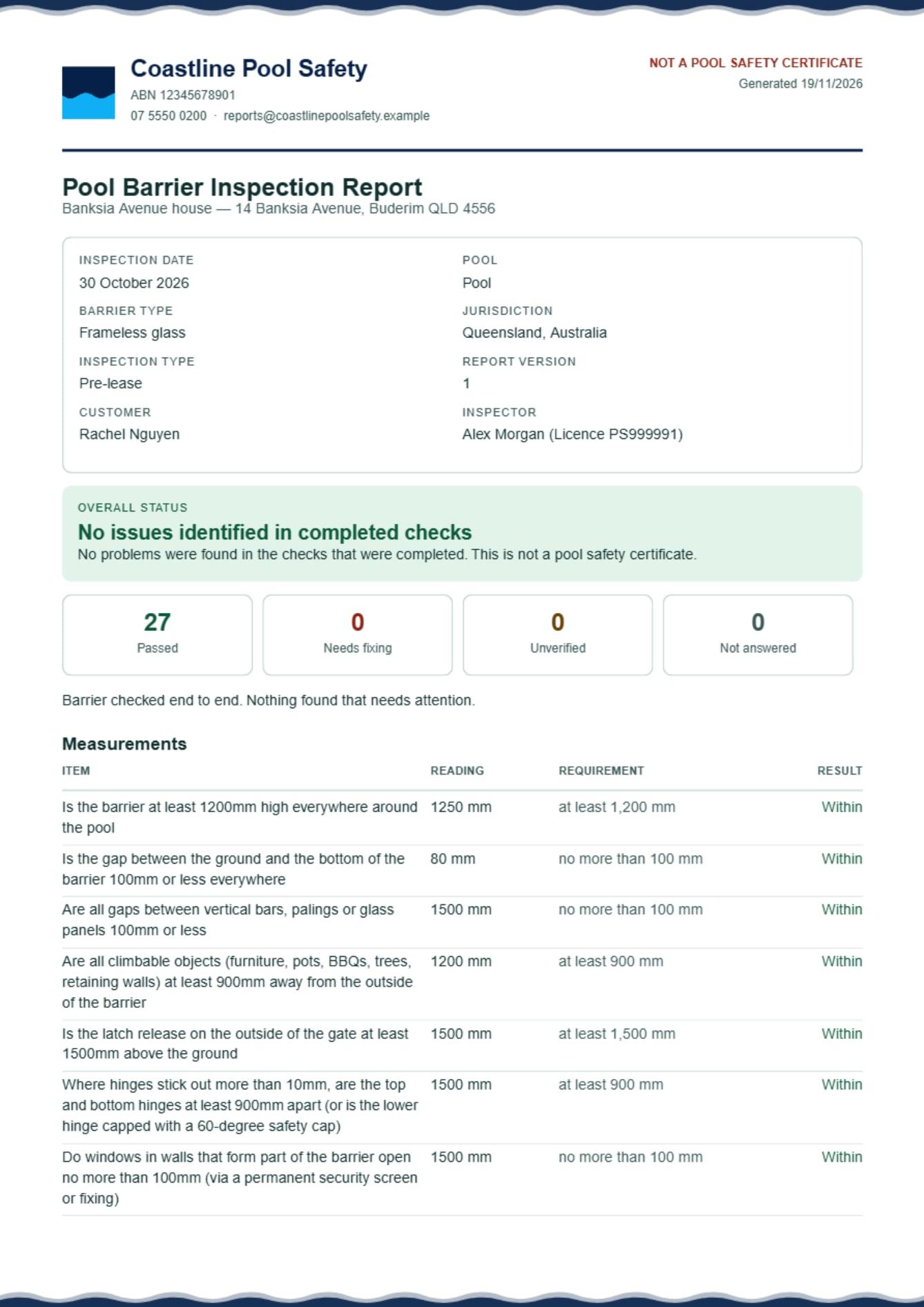
A blank pool inspection report template leaves you to type everything again. Here the report is built from the inspection you recorded. Once an inspection is finished, press Generate PDF report at the top of the inspection: one tap makes it.
Read more
Once a report exists, the top button becomes Send report, which opens the email form for the newest one. Once the report has gone, the top button moves on to Create invoice if the inspection has no invoice yet. When your quotes and invoices are set up in PoolPreCert and Settings, Invoicing is on Ask me, Create invoice comes first instead: its Email it sends the report on the same email, and Generate PDF report is under More. The report shows your business name, ABN and licence number, the inspection details, the answers and measurements, up to 24 photos with any markings, and before and after photos of repairs at the same property. When your plan includes branding, the report goes out with your logo, colours and footer as well as the photos. You set that up under Settings, then Organisation.
Making a report can take up to about a minute. If it does not finish it says so and you can try again. Each time you press Generate new version you get a numbered version, and older ones stay in the list.
Share a report with a client or agency
To send the pool inspection report PDF to a client or agency, download the PDF, or press Email to customer, which sends a private link that works for 14 days, to one or several addresses (each gets its own link).
Read more
You can also press Create secure share link, type who it is for, choose 1, 7, 14, 30 or 90 days, and copy the link. It is shown once. The Active share links list shows how many times each was opened and has a Revoke button that stops it.
Agencies keep property visit records
An agency is not a licensed pool safety inspector, so it does not make an inspection report with a licence on it. An agency records property visits instead: the date, who went, notes and photos. It is a property visit record, not an inspection, with no checklist and no report.
Read more
Summary reports from earlier routine checks are kept and can still be downloaded and shared.
Export inspection data to a spreadsheet: reports for a date range
To export your data to a spreadsheet, use Reports and exports in the menu. It works for all four kinds of business. Pick a report: Quotes and invoices, Jobs in the schedule, Completed inspections, or Certificate expiries (fence contractors and pool builders see the first two).
Read more
Choose the dates: last 30 or 90 days, this calendar year, this or last financial year, or chosen dates. Press Show report to see the first 40 rows with totals, then download a CSV, which opens in Excel, or a PDF with totals.
Fence contractors and builders do not use inspection reports, but they use the jobs, certificate and money reports. Quotes and invoices is for owners and administrators, and is hidden for a person whose prices switch is off. A person whose downloads switch is off can read reports but not save them.
Download everything and the accountant link
Owners and administrators can press Download my business data (spreadsheets, ZIP): customers, properties, completed inspections, jobs, repeating jobs, quotes and invoices, and certificates, as CSV files with a README. Photos, videos and report PDFs are not in it.
Read more
On the Quotes and invoices report, press Share with your accountant. Type who it is for if you like, choose 7, 14 or 30 days and press Make a link. Your accountant opens it without signing in and sees document numbers, dates, customer names, status and amounts, with no phone numbers, emails, addresses or photos. The link is shown once, stops on its own, and you can revoke it.




For a pool safety inspector, the pool inspector app page shows how the report fits the day: after the checklist, before the invoice.

How to start
Finish the inspection
Complete the checklist and finish. The finished inspection leads with one button, Generate PDF report.
Generate the PDF
Press Generate PDF report at the top. Then press Send report to email it, or open the Reports row to press Open report (the PDF) or Create secure share link.
Run a report for a period
Open Reports and exports, choose a report and dates, and press Show report.
Download or share
Press CSV or PDF, or Download my business data (spreadsheets, ZIP), or Share with your accountant on the money report.
What Reports and exports does and does not do
What it does
- Makes a branded PDF report with photos from a finished inspection (inspectors)
- Shares a report by private link
- Runs reports for a date range with CSV and PDF downloads
- Downloads your business data and shares a money report with your accountant
What it does not do
- A report is not a pool safety certificate. A Form 23 is issued by a licensed inspector through the QBCC Portal.
- Email to customer sends a link, not the PDF as an attachment.
- Money reports use the amounts recorded when you mark a document accepted or paid, or that your accounting software shows. They are not tax advice.
- Fence contractors and builders have no inspection reports, because they do not do inspections in the app.

Features that go with it
Inspection checklist
Walk the Queensland barrier checklist one question at a time, with measurements, photos, AI photo notes you control, defect tasks, re-inspections and a finished report.
Quotes and invoices
Make a quote or invoice from a job, property or customer, in PoolPreCert with no accounting software or in your own Xero. Optional follow-up emails chase quiet quotes.
Customers
An address book that ties each customer to their properties, jobs and paperwork, with dated notes, a private link, CSV import and a duplicate finder.
QBCC records
A pre-filled Form 26 PDF, the Form 23 steps with Copy buttons, links to QBCC and the records QBCC asks inspectors to keep. You lodge on QBCC's own site.

Guides that give the background
Step by step instructions: Help centre. All features are listed on the features page.
Common questions
Is the report a pool safety certificate?
No. It records what you saw and measured. Only a licensed pool safety inspector decides about a pool, and a Form 23 is issued through the QBCC Portal.
Can I put my logo on the report?
Yes, when your plan includes branding. Your logo, colours and footer are added to the PDF, and you set them up under Settings, then Organisation. Your business name, ABN and licence number are on the report.
Can I export my data to a spreadsheet?
Yes. Pick a report, choose the dates, press Show report and download a CSV, which opens in Excel, Numbers or Google Sheets. The PDF version includes totals, and Download my business data (spreadsheets, ZIP) gives owners and admins CSV files with a README.
Can a pool owner open my report?
Only if you send them the link. A private link opens the report without signing in, and works until it expires or you revoke it. You choose 1, 7, 14, 30 or 90 days.
Can my accountant see my customers' phone numbers?
No. The accountant link shows document numbers, dates, customer names, status and amounts only. It lasts 7, 14 or 30 days, and you can revoke it.
Does it cost extra?
No. It comes with the business plans. Starter is $49 a month and Business is $99 a month (incl. GST). The first 20 businesses to sign up get 3 months at no charge (no card needed), then 25% off for as long as you stay a member. After the places are gone, plans start with a 14-day trial, no card required.

What it needs and what it costs
Reports and exports come with the business plans and trials. Your logo and colours on reports need a plan that includes branding. See the plans and prices. The first 20 businesses to sign up get 3 months at no charge, no card required. Prices include GST. Start 3 months at no charge
Try it before you pay
The first 20 businesses to sign up get 3 months at no charge, no card required. Prices include GST. The demo at the top of the page needs no sign-up.
Related help articles
Sources
Last checked against QBCC guidance: 13 November 2026.