

For pool safety inspectors, fence contractors, pool builders and property managers
Quotes and invoices from the job, made in PoolPreCert or in your own Xero
Make a quote or an invoice from an inspection, a property, a customer or a finished job.
Read more
With no accounting software connected, PoolPreCert numbers it, works out the GST if you are registered, makes a PDF with your details and emails it. If you connect Xero, it is created in your own Xero file instead. PoolPreCert lists what you have made and can send one follow-up email when a customer goes quiet.
Pilot offer: the first 20 businesses to sign up get 3 months at no charge (no card needed), then 25% off for as long as you stay a member. 17 of 20 places left. How it works
 Pilot offer: the first 20 businesses to sign up get 3 months at no charge (no card needed), then 25% off for as long as you stay a member. 17 of 20 places left.
The demo is your own private copy with made-up example data. No sign-up, and it's deleted automatically.
Prices include GST.

What you get with Quotes and invoices
No accounting software? Make quotes and invoices in PoolPreCert
If you have not connected Xero, Create invoice and Create quote make the document in PoolPreCert. It numbers it (INV-0001, QU-0001) and makes a PDF with your logo, brand colour, name, ABN and contact details, to download or email to several people, each on their own email.
Read more
A reply goes to your business email. It can also carry the inspection report, certificate file or another file (10 MB in all).
You answer one question once under Settings, Invoicing: are you registered for GST? If yes, the price you enter includes GST, and the document is headed Tax invoice with the GST included (one eleventh of the total), your ABN, the date, each item with its quantity and price, and your customer's name. If no, it is headed Invoice and says No GST has been charged. Invoices show your bank account and ask the customer to use the invoice number as the reference.
Finishing an inspection can make its invoice for you, unsent, at your usual price for its type (Settings, Invoicing). Check it, then press Email it.
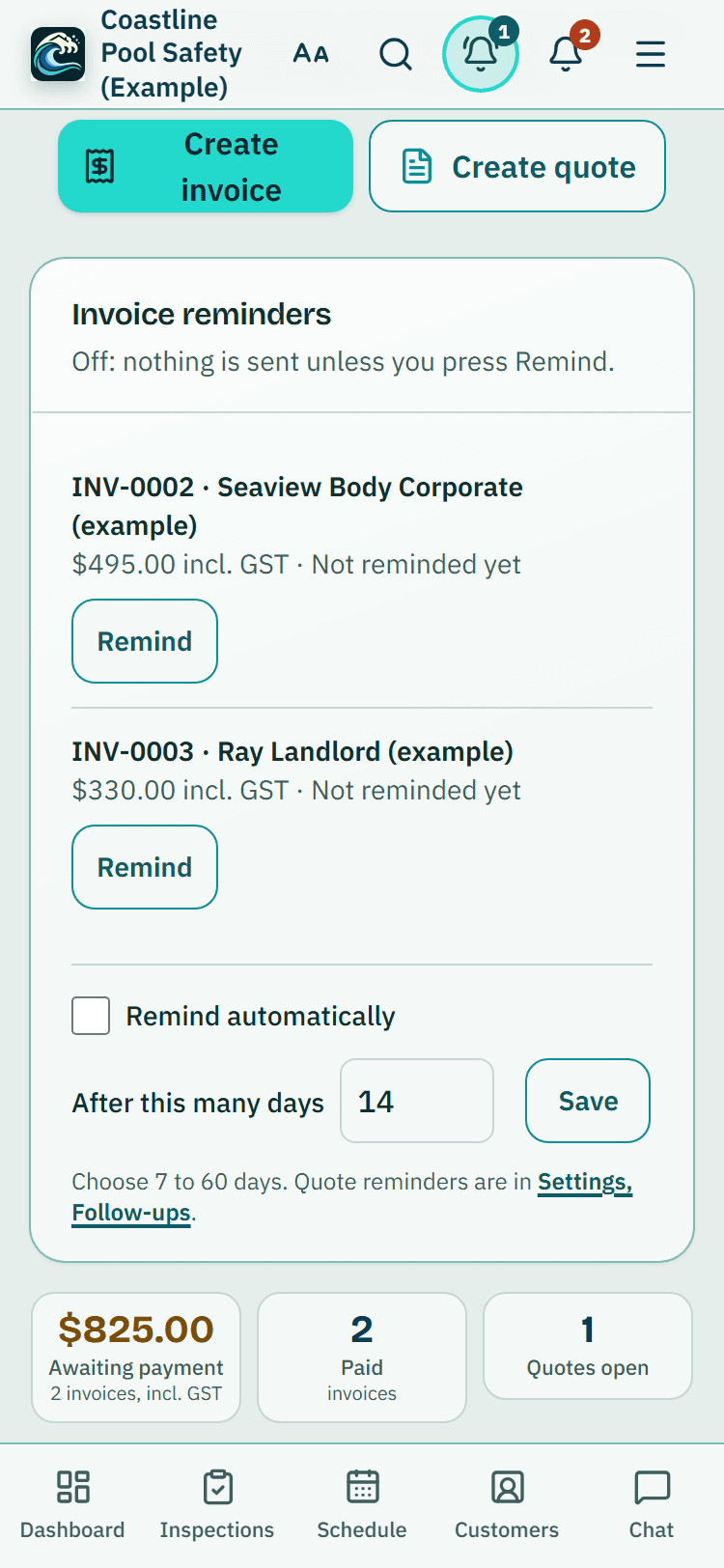
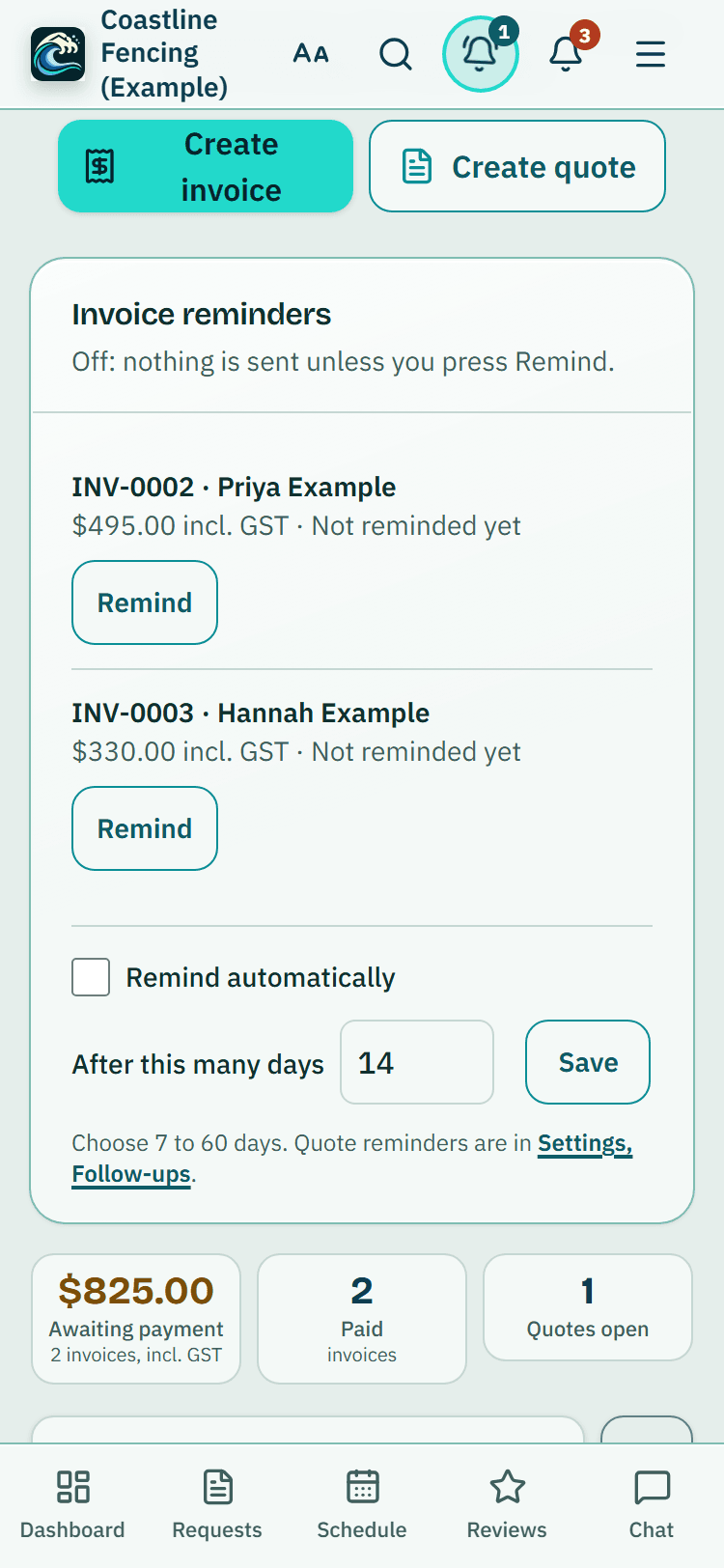
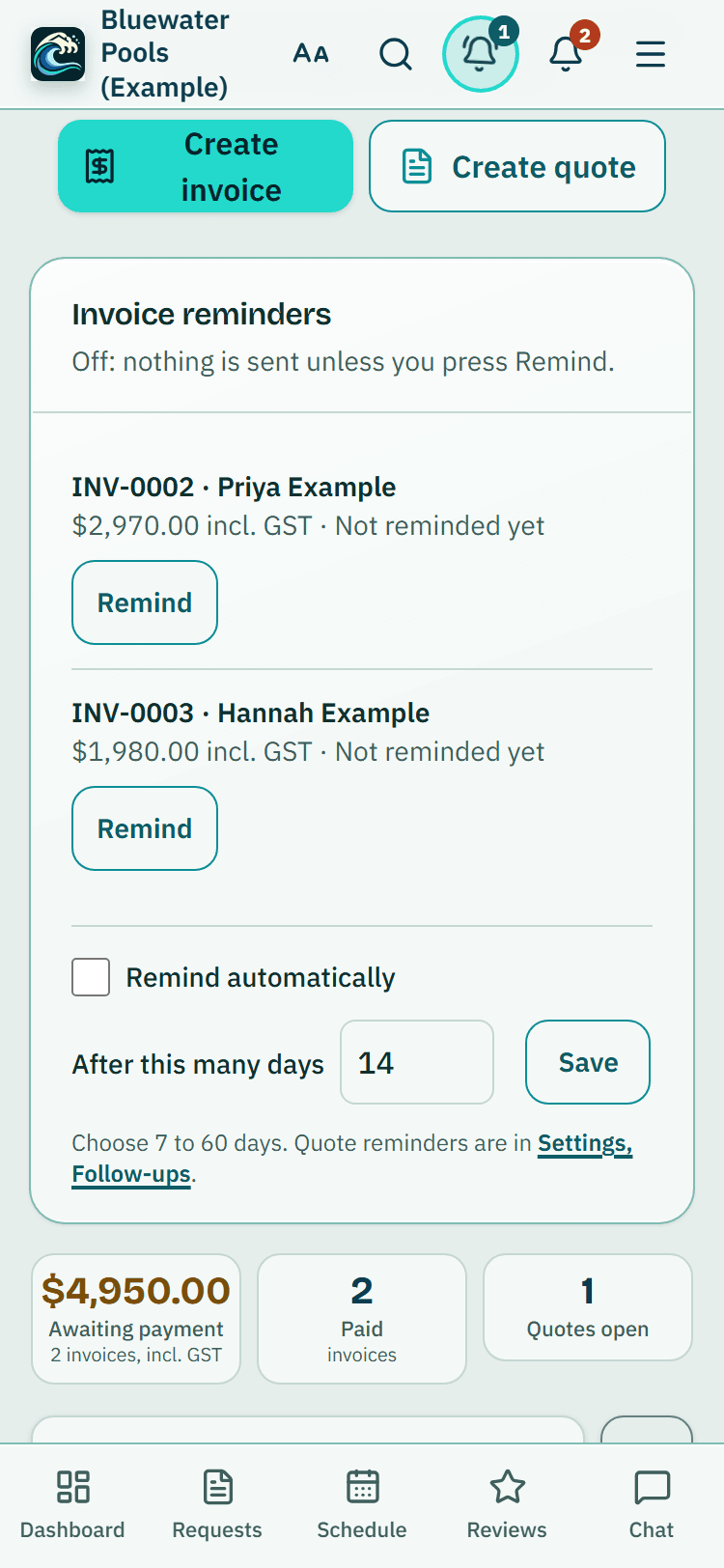
When the money reaches your bank, press Mark as paid and choose the day; still waiting, press Remind in the Invoice reminders box at the top of Invoices. For a quote, press Accepted or Declined, and an accepted quote offers Book the job and Create invoice. Pressed one by mistake? Undo takes it back until invoiced. A paid invoice carries a PAID mark on its PDF, and a cancelled document carries a CANCELLED mark and keeps its number.
- Choose Quote or Invoice, the customer and, if you like, the property, then write the work and the price incl. GST.
- Open Add more line items for up to four more lines.
- Tick Email it to the customer now, or send it later.
Or create them in your own Xero file
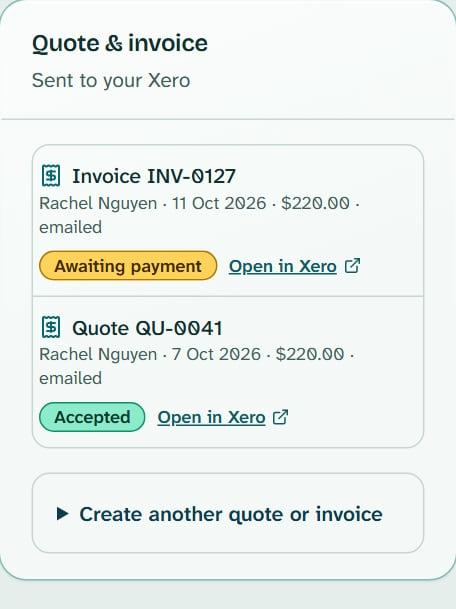
With Xero connected, PoolPreCert hands Xero the customer, the item you chose and your description. Xero applies that item's price and tax code, numbers the document, emails it and keeps the record. PoolPreCert never works out GST for a Xero document.
The Invoices page: awaiting payment and paid
Invoices lists what you made, with three totals at the top: Awaiting payment, Paid and Quotes open. Each row shows its status, such as Overdue or Paid. You can search, filter by status and export a CSV. Xero documents refresh when you open the page.
Your own wording on every quote
An owner or admin can set Quote defaults in Settings: a starting heading, an intro line and a closing line, how many days a quote stays valid, and whether the Email box starts ticked. You can change each one on the quote.
Follow-up emails for quiet quotes and unpaid invoices
These are off until an owner or admin switches them on in Settings. You choose the wait: 3 to 30 days for a quote with no answer and 7 to 60 days for an unpaid invoice. Each customer gets one polite email per document.
Read more
It names your business, gives your phone and email, and carries your name.
Quote approved notes and who can use it
A business can keep a note that it approved a contractor's quote (Record the approval, on a property or job). PoolPreCert is not a party to the quote, the work or the payment.
Read more
Owners, admins and inspectors can create quotes and invoices; a viewer can look but not create. An owner or admin can turn off Prices, quotes and invoices for one named person on the Team page. All four kinds of business have Invoices in the menu.




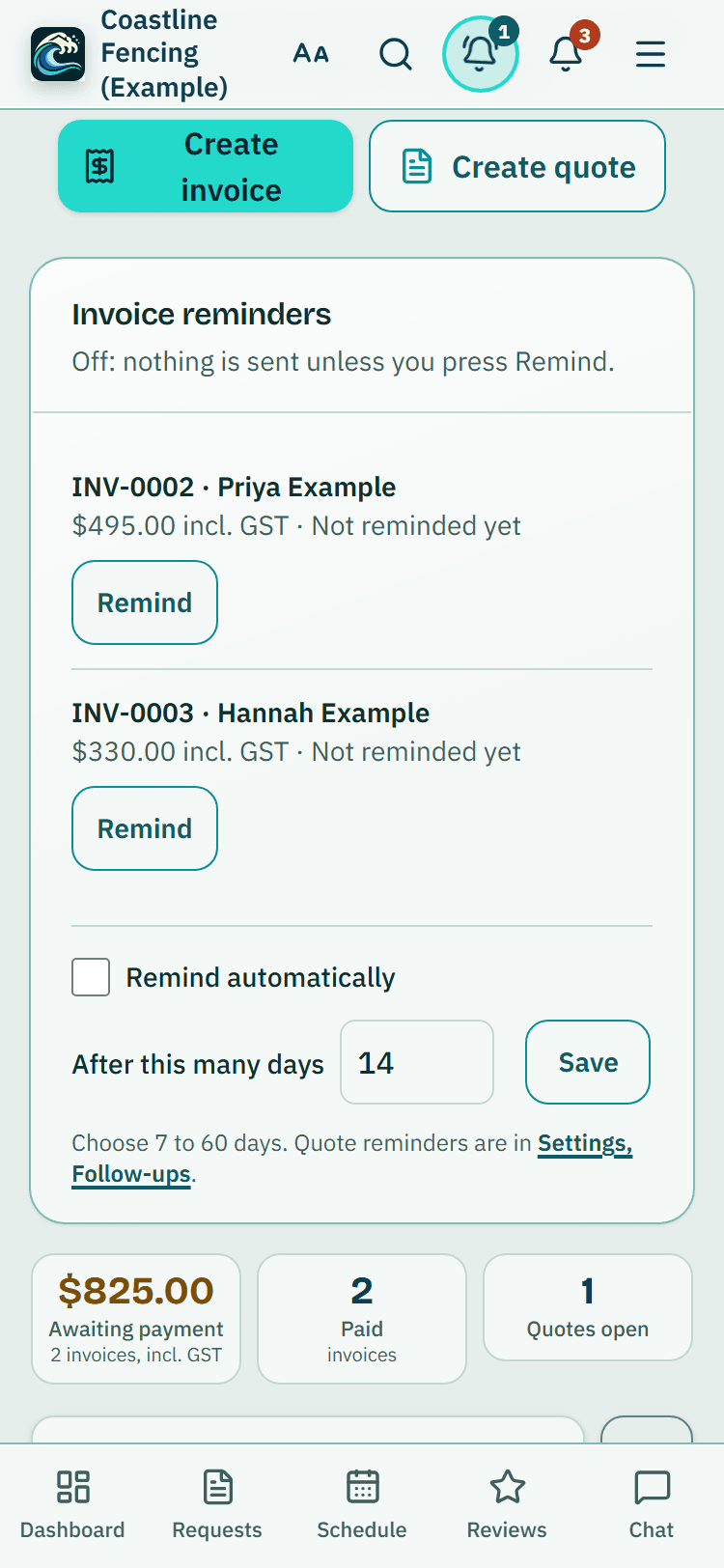
A pool fence contractor's Invoice reminders box, example data. 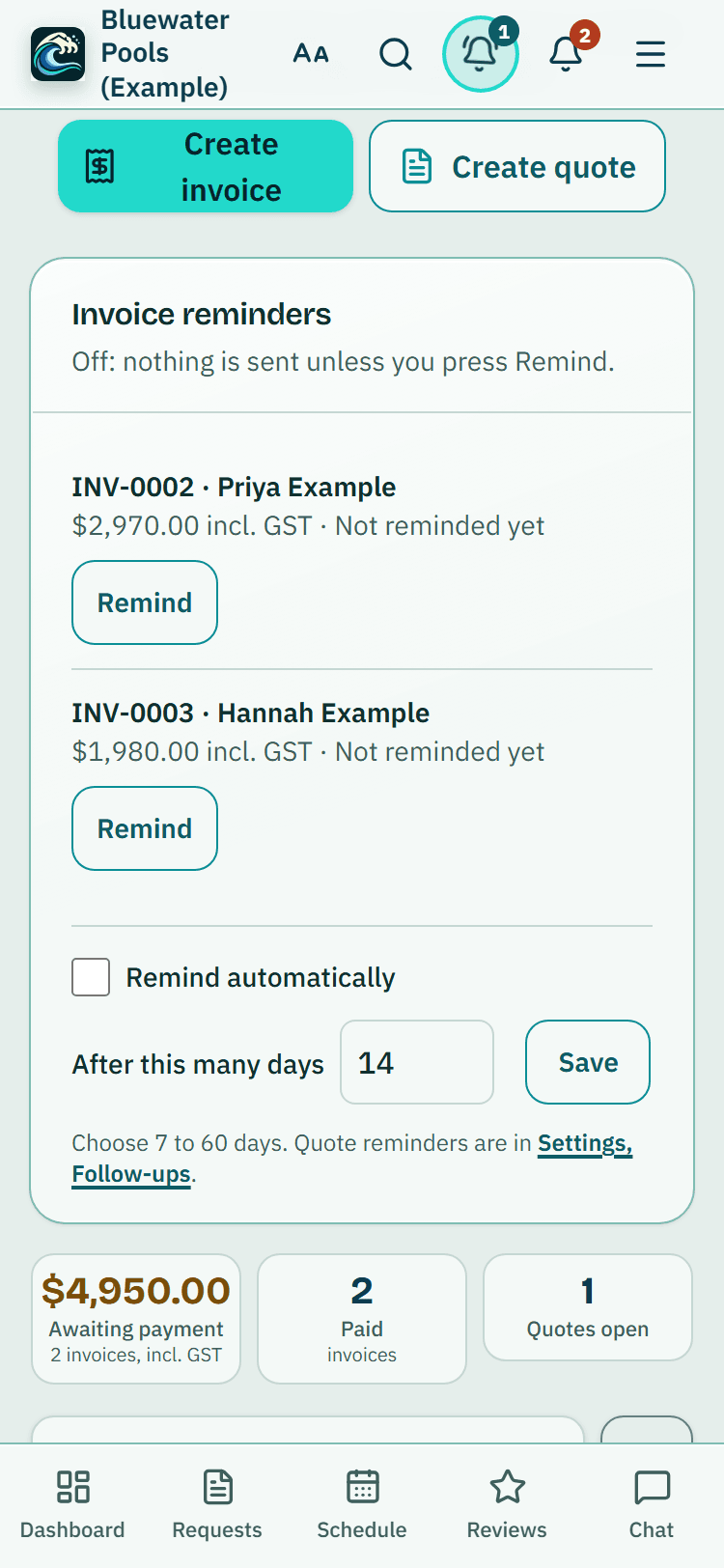
A pool builder's Invoice reminders box, example data.

How to start
Choose how you make them
No accounting software: open Settings, then Invoicing, and answer the GST question and add your bank account. Using Xero: open Settings, then Integrations, and press Connect next to Xero.
Start a document
On Invoices, or under More on a customer, property or inspection, press Create quote or Create invoice.
Check and create
Fill in the lines, decide whether to email it, then press Create invoice (or Create quote), or Create in Xero.
Keep it up to date
Made in PoolPreCert: open the document and press Mark as paid, Accepted or Declined, and Undo if you slip. Made in Xero: the status refreshes by itself.
Set your invoice reminders
On Invoices, tick Remind automatically and choose 7 to 60 days. Quote reminders are in Settings, Follow-ups.
What Quotes and invoices does and does not do
What it does
- Numbers your quotes and invoices and works out GST if you are registered
- Works with no accounting software, or creates documents in your own Xero
- Shows what is awaiting payment and what is paid
- Sends optional follow-up emails for quiet quotes and unpaid invoices
What it does not do
- It does not take payment, hold money or check your bank. Customers pay your bank account, or pay through Xero if you use it.
- It does not give tax advice. Made in PoolPreCert, GST is shown only if you say you are registered. With Xero, your Xero item works it out.
- QuickBooks is not connected. Xero is the only accounting software it connects to.
- A quote or invoice says nothing about a pool's condition. Only a licensed pool safety inspector decides that.
- Follow-ups send one email each. PoolPreCert does not phone or text anyone.

Features that go with it
Pool fence quote builder
Turn a few answers about a pool fence job into a priced quote from your own price list. Offer Good, Better and Best. PoolPreCert numbers and emails it.
Customers
An address book that ties each customer to their properties, jobs and paperwork, with dated notes, a private link, CSV import and a duplicate finder.
Reports and exports
A branded PDF report with photos and a private link for inspectors, a short summary for agencies, and CSV, PDF, ZIP and accountant exports for everyone.
Price list and suppliers
Keep your costs and markup for fencing materials and labour in one list. Then find fencing, glass and hardware suppliers near a job and email them a materials list.


Guides that give the background
Step by step instructions: Help centre. All features are listed on the features page.
Common questions
Do I need Xero to send an invoice?
No. With nothing connected, PoolPreCert makes the quote or invoice itself: numbered, as a PDF with your details, and emailed to your customer if you choose. You answer the GST question and add your bank account once under Settings, Invoicing. If you later connect Xero, new documents are made there and the old ones stay in PoolPreCert.
Is my invoice a tax invoice?
If you say you are registered for GST, it is headed Tax invoice and shows what the Tax Office asks for: your name and ABN, the date, each item with its quantity and price, the GST included and your customer's name. If not, it is headed Invoice and says No GST has been charged. PoolPreCert does not give tax advice, so ask your accountant if you are unsure.
Does it work with QuickBooks?
No. QuickBooks is not connected. Connect Xero, or make quotes and invoices in PoolPreCert itself. If the Xero button says it is not switched on for your account, email support@poolprecert.com.
Will follow-up emails go out without me knowing?
No. They are off until an owner or admin turns them on. Once on, they send one email per quote or invoice and skip customers with no email address.
Does it cost extra?
No separate charge. It is part of the business app. Starter is $49 a month and Business is $99 a month (incl. GST). The first 20 businesses to sign up get 3 months at no charge (no card needed), then 25% off for as long as you stay a member. After the places are gone, plans start with a 14-day trial, no card required. Xero, if you use it, is a separate cost paid to Xero.

What it needs and what it costs
Quotes, invoices and follow-ups are part of the business app with no separate charge. You do not need accounting software; if you use Xero you need your own Xero subscription with an item set up for PoolPreCert to use. See the plans and prices. The first 20 businesses to sign up get 3 months at no charge, no card required. Prices include GST. Start 3 months at no charge
Try it before you pay
The first 20 businesses to sign up get 3 months at no charge, no card required. Prices include GST. The demo at the top of the page needs no sign-up.