


Quotes and invoices without Xero
No accounting software? Make quotes and invoices in PoolPreCert: numbered, with GST worked out, as a PDF you can email, with your bank details on invoices.
For: Pool safety inspectors, Pool fence contractors, Pool builders, Property managers and agencies · Last updated 19 November 2026
What it is
If you do not use Xero, you can make quotes and invoices inside PoolPreCert.
Read more
It numbers them (INV-0001, QU-0001), works out the GST if you are registered, makes a PDF with your business details, and can email it to your customer. You tell it when the customer has paid.
Who it is for
Inspectors, fence contractors, pool builders and agencies. Owners, admins and inspectors can create them; viewers cannot. An owner or admin does the one-off Invoicing settings.
How to do it
Open Settings, then Invoicing, and answer Are you registered for GST?
Yes or No.
Add the bank account customers pay into: account name, BSB and account number.
It is printed on invoices only. You also need your ABN under Business and branding.
Choose Days to pay (14 means due two weeks after the invoice is made).
Leave the next numbers as they are, unless you want to carry on from an invoice book.
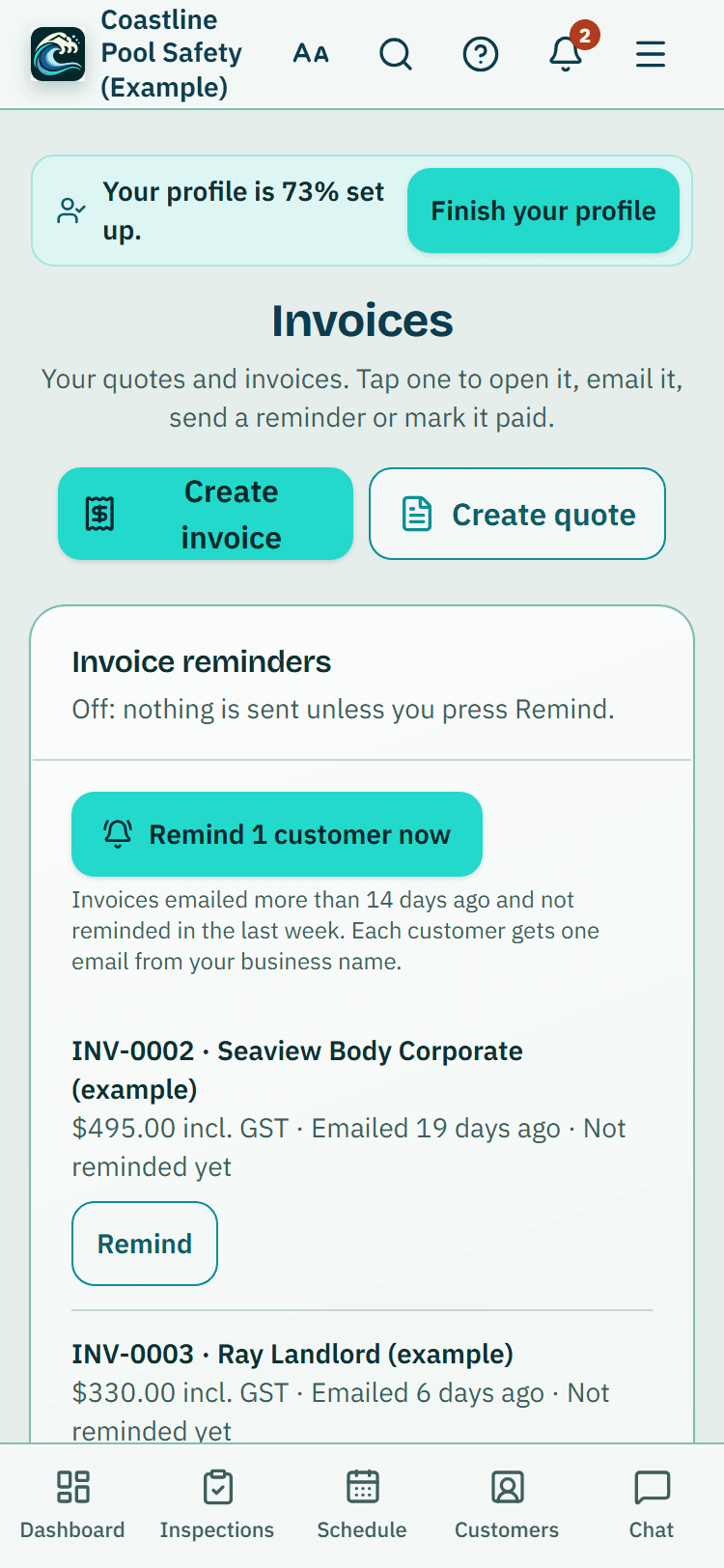
Open Invoices and press Create invoice or Create quote, or open a customer, property or finished inspection and choose Create invoice or Create quote under More.
Once an inspection's report has been sent, Create invoice is the main button at the top of the inspection instead. Choose the customer and write what the work is and the price, or use Add a saved item just above the lines (it has a search box once you have more than 8 saved items).
Charge for the same thing often?
More detail
Tick Save for next time on the line. When you create the quote or invoice, each ticked line with a price is added to your saved items (without the property address the form put after it), and the message after creating says how many ("Saved 2 items for next time").
A line already saved with the same price is left as it is; the same description with a new price updates the price. Change or delete them under Settings, Prices and emails (Manage saved items on the form).
Tick Email it to the customer now to send the PDF straight away, or leave it unticked.
On the next page you can press See the PDF (it opens on the screen, on a phone too, with Share, Save and Email it to me, which goes to your own sign-in address only), Email it, or come back to it later from the Invoices page. Tap anywhere on a row in Invoices to open it.
Show the other 8 steps
To send other files in the same email, use Files to send with it, beside Email it.
More detail
Inspection report (PDF) is the report from this app for the linked inspection (it is not a certificate). It starts ticked, so the report and the invoice go together; untick it to send the invoice alone. With no report yet on a finished inspection, Make the inspection report now and attach it makes one as you send.
Pool safety certificate (the file you attached) is the certificate file saved under Certificates for that pool. Add another file takes a PDF, JPG or PNG up to 10 MB, kept private to your account. On the email lists every file with its size, and everything together can be up to 10 MB.
The email says Attached: with the file names, and the invoice page lists what was sent and when.
Send the invoice to (or Send the quote to) takes up to 10 addresses: type or paste them, or tap a suggestion such as their accounts email, agency or property manager.
More detail
With Inspection report (PDF) ticked, Also send the report to adds people who get the report only, not the invoice, such as the buyer or their solicitor. Each person gets their own email, and Send me a copy sends one to your business email. Addresses marked Don't send to this one or that unsubscribed are skipped and named.
If one fails, the others still go and only that one stays in the box to try again.
An invoice you emailed that is still unpaid has Send a payment reminder.
More detail
It emails your customer a polite reminder with the PDF and the amount still due (incl. GST if you are registered), at most once a day and never on the day the invoice itself went. Until the invoice is due, the page leads with Mark as paid and the reminder waits below it.
An invoice past its due date shows Overdue.
When the money reaches your bank, open the invoice and press Mark as paid (on an unpaid invoice it is under Already paid?
More detail
Mark it paid, right below the reminder or Email it button). For a quote, press Accepted or Declined when the customer answers. An accepted quote has Book the job and a Create invoice from this quote button, which copies the customer and lines into a new invoice.
A declined quote has Make a new quote from this one, which starts a new quote with the same lines.
Taking a deposit or paid in stages?
On the accepted quote, open Invoice a deposit or progress payment, choose Deposit or Progress payment, then 10%, 30% or 50% of the quote, another percentage, or an amount, and press Create the invoice. It has one line, such as "Deposit (30%) for quote QU-0004 - Pool build", and is linked to the quote.
Fence contractors and pool builders see A deposit and A progress payment as two separate choices.
More detail
The deposit starts on QBCC's limit for a job that size, from the quote's total: 20% for $3,300 or less, 10% up to $19,999.99 and 5% from $20,000.
Choose more and you see a warning that going over can be an offence, but the invoice can still be made (QBCC allows up to 20% when more than half the price is custom work made away from the site).
A deposit already invoiced on the quote counts toward the limit: the form says Deposit already taken with its invoice number and how much is left under the limit, ticks nothing first, and warns if the new deposit would go over.
A progress payment is for a stage of the work already done, as a percentage or an amount, with no deposit limit. QBCC's page is linked beside the choice.
Every invoice made from a quote is linked to it.
More detail
The quote shows Invoiced so far and Left to invoice, with each of its invoices. Once part is invoiced, the button becomes Invoice the rest: that invoice lists the quote's lines and takes off each earlier invoice on its own line (such as "Less deposit paid: INV-0012"), so the total and its GST are only for what is still owed.
When nothing is left the quote says Fully invoiced. A job booked from the quote does the same: its Done: create invoice bills only what is left, with Invoice the rest as the main button. Each invoice made from a quote shows From quote QU-0004 as a link back to the quote.
A quote that isn't filed under a customer shows Link to a customer, so it can be booked as a job and shows on their page.
Pick a matching customer, or save the person as a new one.
Tip: When the money reaches your bank, open the invoice and press Mark as paid. PoolPreCert does not take the payment.
GST and what the document says
Prices are what the customer pays. If you are registered for GST, the price includes GST and the document shows the GST included, one eleventh of the total.
Read more
It is headed Tax invoice and carries what the Tax Office asks for on a tax invoice: your name and ABN, the date, each item with its quantity and price, the GST amount, and your customer's name.
Read more
If you are not registered, the document is headed Invoice, shows no GST and says No GST has been charged. Quotes are headed Quote and show how long they are valid, 30 days unless you chose another number in Quote defaults.
If you are not sure whether you should be registered, ask your accountant or check at abr.business.gov.au. PoolPreCert records the answer you give. It does not give tax advice.
After an inspection
Settings, Invoicing has one Save button at the bottom for everything on the page. When I finish an inspection has three choices.
Read more
Ask me is the default: Create invoice is the main button on the finished inspection straight after Finish, filled in with the customer, property and inspection, and Email it on the invoice sends the report on the same email (only sending the report? Generate PDF report is under More).
Create the invoice for me: pressing Finish makes the invoice, not sent, and the inspection says Invoice INV-0007 is ready to check and send, with Open the invoice as the main button. Check it, then press Email it; the inspection report can go on the same email. Nothing is emailed by itself.
Do nothing: no invoice step and no invoice suggestion, though Create invoice stays under More.
Read more
No invoice is made for you if the inspection or its job already has one, the work was quoted (bill the quote instead), there is no customer or no price, or Xero is connected. The inspection says why, and Create invoice is the next step. Pressing Finish twice makes one invoice.
It applies to your own inspections only, never to a homeowner's self-check or an agency's routine check, and nothing is made for a person whose prices, quotes and invoices are turned off.
Your usual prices, on the same card, holds a price for each inspection type (incl. GST if you are registered); leave a box blank for none. Starting an inspection for a new property asks What kind of inspection? (Routine, Pre-sale, Pre-lease, Re-inspection and so on), so the right usual price is used.
An invoice for an inspection starts with the price picked when the job was booked, else your usual price for its type, and a small line under the customer says where the price came from. You can change any line. With Xero connected the price comes from your item in Xero instead.
The finished inspection then leads you one step at a time: the report, the invoice, Email it, and Mark as paid when the money arrives.
Emailing, paying and changing your mind
The email comes from PoolPreCert with your business name, the PDF and any files you ticked attached, and a one-click unsubscribe line. Your customer is greeted by first name on their own email; anyone else you add, and a company or agency, gets Hello.
Read more
The invoice is billed to the contact's billing name, company and address when they have one, also when it is made for you after an inspection. If someone in the box was not sent it (marked Don't send to this one, or unsubscribed), the invoice page says so after sending. Payment reminders and automatic follow-ups carry no extra files.
Settings, Invoicing sets whether Inspection report (PDF) starts ticked. A reply goes to the business email you added under Business and branding. Nothing is emailed from a demo workspace.
Read more
PoolPreCert does not take payment. Your invoice shows your own bank details and asks the customer to use the invoice number as the reference. Mark as paid only records the day you tell it. Pressed Mark as paid, Accepted or Declined by mistake? Undo takes it back.
Once an invoice is made from a quote, the quote can no longer be taken back, declined or cancelled; cancel its invoices first if it really was a mistake.
The PDF uses the logo and brand colour from Settings, Business and branding. A paid invoice carries a PAID mark and a cancelled one a CANCELLED mark, and a cancelled invoice asks the customer not to pay it.
Cancel this invoice marks it Cancelled. It stays in your records with its number, and that number is not used again. If you change your bank details or GST answer later, documents you already made keep what they said.
What it does not do
- It does not take payments or hold money. Customers pay you by bank transfer.
- It does not check that a customer has paid. You press Mark as paid.
- It does not give tax advice, and it does not decide whether you should be registered for GST.
- A quote or invoice says nothing about a pool's condition. Only a licensed pool safety inspector decides that.
Common questions
I use Xero. Does this change anything?
No. With Xero connected, quotes and invoices are still made in Xero. The Invoicing settings only apply when no accounting software is connected.
Can I move to Xero later?
Yes. Connect it under Settings, then Integrations. Quotes and invoices made in PoolPreCert stay in PoolPreCert, and new ones are made in Xero.
It says I need to finish my invoice settings.
An owner or admin needs to answer the GST question, and for invoices add the bank account and your ABN. The page that stopped you has a button to do it and bring you back.
I already have invoices numbered in a book.
Set the next invoice number under Settings, then Invoicing. A number that has been used is never used again.
Can the same quote be billed twice?
Not by mistake. Every invoice made from a quote counts against it, and the last one only bills what is left. If an invoice for a quote would bill more than is left, you are asked to check the prices first. Cancelling an invoice puts its amount back on the quote.
How is GST worked out on a deposit?
Each invoice shows the GST included in its own total, one eleventh if you are registered. The last invoice takes the deposit off before the GST is worked out, so GST is never charged twice on the same amount.
Related guides
 Related guides
Official links
 Official links
- ATO: Tax invoices (Read 11 November 2026)
PoolPreCert helps you do and record your work. It does not decide whether a pool meets the Queensland standard. Only a licensed pool safety inspector does that.
Related articles
Quotes and invoices with Xero
Connect Xero, then create quotes and invoices from PoolPreCert. They live in your accounting software and show on the Invoices page.
Automatic follow-ups for quotes and invoices
Switch on one polite email reminder for a quote with no answer and one for an unpaid invoice, sent once each to the customer's email.
Reports and exports, and the accountant link
Run reports for quotes and invoices, jobs, completed inspections and certificate expiries, download CSV or PDF, and share with an accountant by private link.


Was this helpful?
YesNo, tell us what was missing
This opens an email to the PoolPreCert team. Please do not include passwords or personal details.
Still stuck? Contact support
Email support@poolprecert.com and tell us what you were trying to do and which screen you were on. Please do not send passwords or card numbers. The PoolPreCert team will reply.