

For pool safety inspectors and property managers
Staff permissions for pool businesses: invite staff and choose what each can do
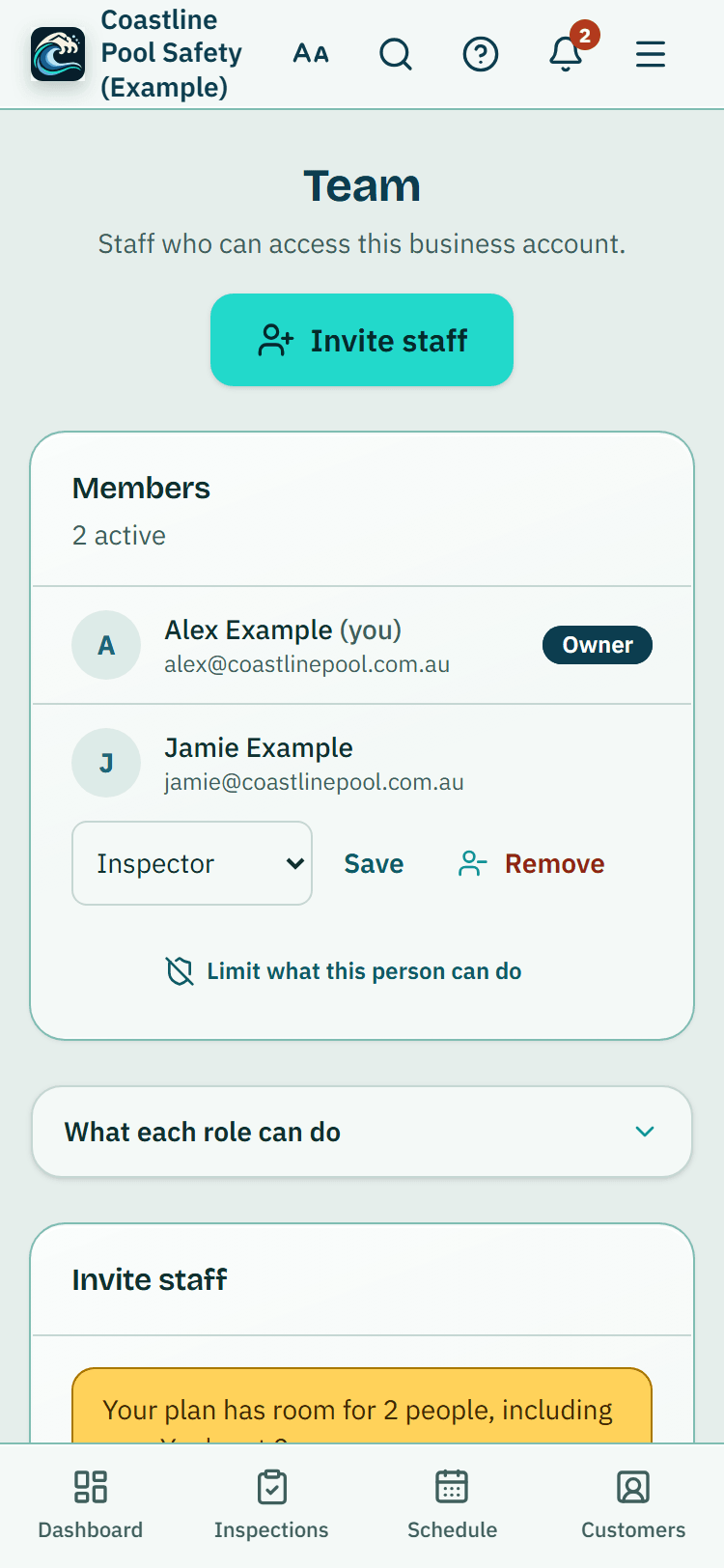
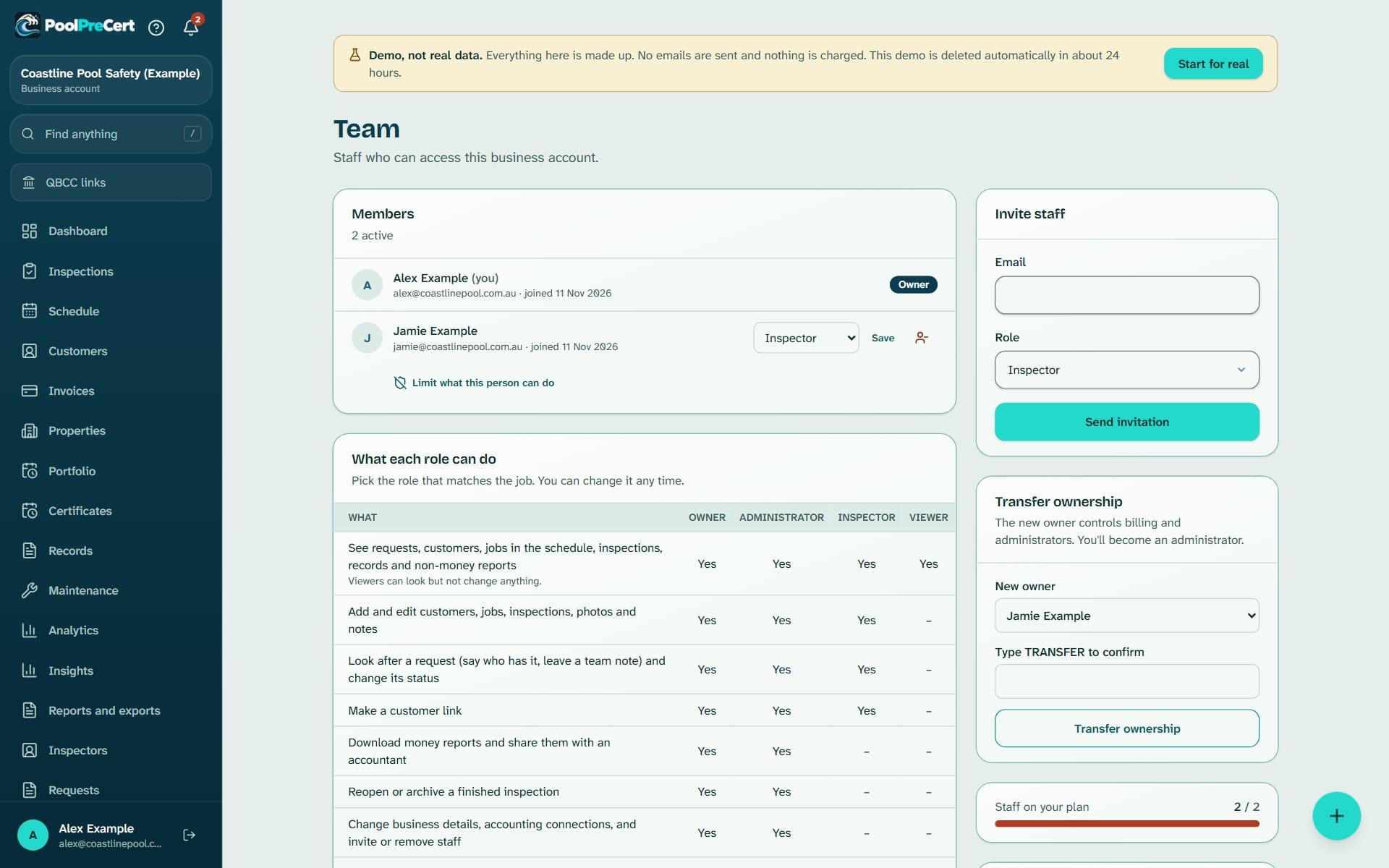
Team is where the owner and administrators add staff to the app, choose a role for each and see exactly what that role can do. These are the staff permissions for your pool business.
Read more
You can also take away one thing from one person, such as seeing prices or downloading customer lists. Agencies use the same page to invite property managers.
Pilot offer: the first 20 businesses to sign up get 3 months at no charge (no card needed), then 25% off for as long as you stay a member. 17 of 20 places left. How it works
 Pilot offer: the first 20 businesses to sign up get 3 months at no charge (no card needed), then 25% off for as long as you stay a member. 17 of 20 places left.
The demo is your own private copy with made-up example data. No sign-up, and it's deleted automatically.
Prices include GST.

What you get with Team and permissions
Staff roles: owner, administrator, inspector and viewer
Each person gets one role. The Team page shows a table of what each role can do, so you can check before you choose.
- Owner: full control, including billing and the plan. There is one owner, and only the owner can hand the business over.
- Administrator: manages staff, settings, business details, accounting connections, money reports and accountant sharing.
- Inspector (called Property manager for an agency): adds and edits customers, jobs, inspections, photos and notes, looks after requests, and makes customer links.
Read more
- Viewer: can look at requests, customers, jobs, inspections, records and non-money reports, but cannot change anything.
Add or remove a team member
To add staff to the app, open Team (in the menu or in Settings), type their email in Invite staff (Invite a property manager for an agency), choose a role and press Send invitation. They get an email, and when they accept they join your business.
Read more
Pending invitations are listed with a Revoke button. Only owners and administrators can see the Team page.
You can change a role from the list with Save, or remove someone with the remove icon. You cannot change the owner or yourself. If someone is locked out, the owner (or an administrator, for staff) presses Password link next to their name: they get an email to choose a new password, and you never see the link or the password. A person who belongs to more than one business switches between them from the business name at the top of the menu.
Who can see invoices: taking one thing away from one person
To keep invoices and prices from one person, go under their name and press Limit what this person can do. You can turn off any of three things for them.
- Prices, quotes and invoices: they cannot open invoices, quotes, the price list or job costs.
- Downloading customer lists and exports: they can use lists on screen but cannot save a CSV or ZIP.
- Deleting and archiving: they can add and change things but cannot delete or archive them.
How limits behave
A limit only ever takes something away. It never gives a person more than their role allows. The person sees a plain notice, such as Your administrator has turned off downloading customer lists and exports for you. Only the owner can limit an administrator, and the owner cannot be limited.
Read more
Recent changes to limits lists who changed what and when.
How many staff you can add, and handing over the business
Your plan sets how many people can be on the team, and the Team page shows Staff on your plan. Pending invitations count towards that number. The invite card says how many people your plan has room for, including you, before you type.
Read more
If the plan is full, it says so and offers Upgrade plan. To hand the business over, the owner chooses a New owner, types TRANSFER to confirm and presses Transfer ownership. The new owner takes over billing and the previous owner becomes an administrator.


How to start
Open Team
Choose Team in the menu (under More). You need to be the owner or an administrator.
Check the roles
Read What each role can do on the page to see which role fits the job.
Send an invitation
Type the email, choose a role and press Send invitation.
Limit what a person can do
If needed, press Limit what this person can do, tick what to turn off and press Save limits.
What Team and permissions does and does not do
What it does
- Invites staff by email with a role: owner, administrator, inspector or viewer
- Shows what each role can do
- Switches off prices, downloads or deleting for one person
- Lets you remove a team member
What it does not do
- It does not make custom roles. There are four, and a limit can only take things away.
- It does not let anyone but the owner see billing or hand over the business.
- Nobody, not even the owner, can read another person's AI assistant chats in the app.
- It does not set up passwords for staff. They accept the emailed invitation and sign in themselves.

Features that go with it
Schedule
Your jobs by day, week or month, with drag and drop, repeat visits, clash warnings, best order for the day and a private calendar link.
Customers
An address book that ties each customer to their properties, jobs and paperwork, with dated notes, a private link, CSV import and a duplicate finder.
Reports and exports
A branded PDF report with photos and a private link for inspectors, a short summary for agencies, and CSV, PDF, ZIP and accountant exports for everyone.


Guides that give the background
Step by step instructions: Help centre. All features are listed on the features page.
Common questions
Can staff see prices and invoices?
Not if you take that away. Press Limit what this person can do and tick Prices, quotes and invoices. They will not be able to open invoices, quotes, the price list or job costs. A viewer also cannot see money reports.
What can a viewer do?
A viewer can look at requests, customers, jobs, inspections, records and reports that are not about money, but cannot change anything.
What is the Property manager role?
It is the Inspector role under the name an agency sees. A property manager adds and edits customers, jobs, inspections, photos and notes, looks after requests, and makes customer links.
How many people can I add?
It depends on your plan. The Team page shows a Places used on your plan meter, and pending invitations count. Starter is $49 a month and Business is $99 a month (incl. GST). The first 20 businesses to sign up get 3 months at no charge (no card needed), then 25% off for as long as you stay a member. After the places are gone, plans start with a 14-day trial, no card required.
Can I make someone else the owner?
Yes. The owner chooses the person under Transfer ownership, types TRANSFER and confirms. The new owner controls billing and administrators, and you become an administrator.
Do fence contractors and builders get Team?
Not in the menu at present. Inspectors and agencies see Team, and this page describes that screen.

What it needs and what it costs
Team accounts are part of the business plans and trials, and each plan sets how many people can be on it. See the plans and prices. The first 20 businesses to sign up get 3 months at no charge, no card required. Prices include GST. Start 3 months at no charge
Try it before you pay
The first 20 businesses to sign up get 3 months at no charge, no card required. Prices include GST. The demo at the top of the page needs no sign-up.