


Roster and time off for your team
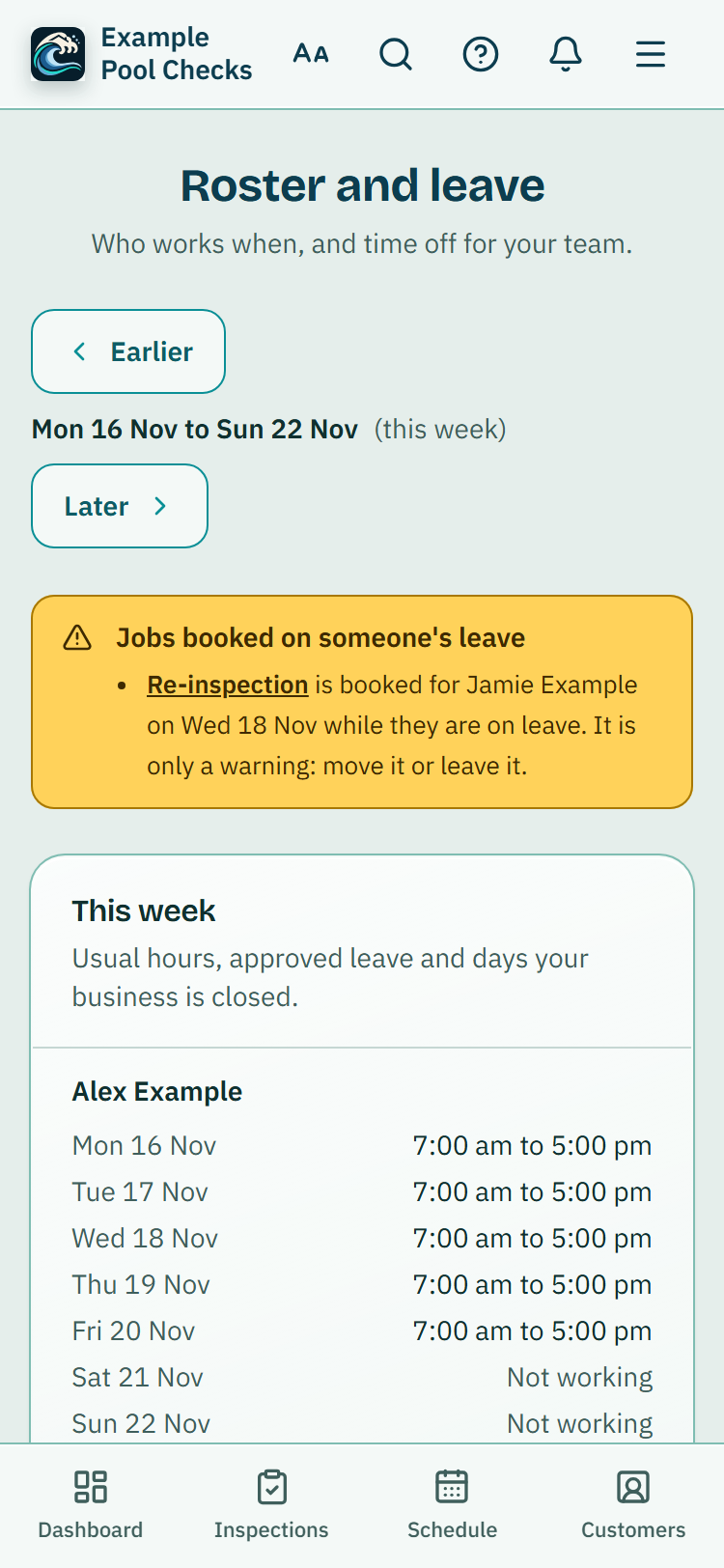
See who works which days, ask for time off, and approve or decline it. A job booked on someone's approved leave shows a warning.
For: Pool safety inspectors, Pool fence contractors, Pool builders · Last updated 21 November 2026
What it is
The roster shows each person's week: their usual hours, approved time off, and the days your business is closed. Staff ask for time off here and the owner or an admin answers.
Who it is for
Owners and admins see everyone and decide time off. Staff see their own week and ask for time off. Viewers don't have the roster.
How to do it
Open Settings, then Roster and leave.
The page opens on this week. Use Earlier and Later to move a week at a time.
To ask for time off, choose the first day and, for more than one day, the last day.
Add a short note if you like, then press Ask for time off. You will see the answer on this page and get a notice when it is decided.
Owners and admins: requests waiting for you are listed under Time off waiting for you.
Add an optional note and press Approve or Decline. The person is told.
Owners and admins can also add time off for someone else.
Choose their name in For and it is approved straight away. An owner's own time off is approved straight away too.
Owners and admins: open Edit days and hours on a person.
Tick the days they work and set a start and finish for each day, so Friday can be a half day. The Schedule uses these same hours.
Good to know: A job booked for someone on approved time off shows a warning. It is only a warning: you can move the job or leave it.
Switching the roster off
The owner can switch Roster and time off off for the whole business under Settings, Team tools, and switch it back on later. Nothing is deleted.
Who decides
The owner can decide anyone's request. An admin can decide staff requests and other admins' requests, but not their own and not the owner's: those wait for the owner.
Jobs on someone's leave
When a job is booked for a person on approved time off, the roster, the job page and the Schedule show a plain warning. It never stops you booking. You can move the job, give it to someone else, or leave it as it is.
What it does not do
- It does not stop a job being booked on someone's leave. It only warns.
- It does not count leave days, pay or leave balances, and it does not work out wages.
- A request that is only waiting for a decision does not change the warnings on jobs. Only approved time off does.
Common questions
Why can't I approve my own request?
An admin's own request is decided by the owner, so no one approves their own time off. The owner's own time off is approved when they add it.
Can I cancel time off?
Yes. You can cancel your own request while it is waiting. Once it is approved, ask the owner or an admin to cancel it.
PoolPreCert helps you do and record your work. It does not decide whether a pool meets the Queensland standard. Only a licensed pool safety inspector does that.
Related articles
Team members and what each role can do
Invite people by email, choose owner, admin, inspector or viewer, switch between businesses and see what each role can do.
Team schedule, clashes and best order for the day
Give jobs to team members, see whose schedule you are looking at, fix a clash in one tap and put a day's jobs in a shorter driving order.
Schedule basics: jobs, the calendar and reminders
How the Schedule works: the week board, adding and moving jobs, jobs with no time yet, repeating jobs, confirmation emails and starting a quote or invoice.

Was this helpful?
YesNo, tell us what was missing
This opens an email to the PoolPreCert team. Please do not include passwords or personal details.
Still stuck? Contact support
Email support@poolprecert.com and tell us what you were trying to do and which screen you were on. Please do not send passwords or card numbers. The PoolPreCert team will reply.