

For pool safety inspectors, fence contractors, pool builders and property managers
AI assistant for pool businesses: ask how the app works or draft a quote you confirm
The AI assistant is a chat inside the business app. Ask it how something works, tell it who to quote and for what, or ask for the official page on a topic.
Read more
It drafts, and you decide: nothing is created or sent until you press the confirm button. It uses an AI provider, can make mistakes and never gives a verdict on a pool.
Pilot offer: the first 20 businesses to sign up get 3 months at no charge (no card needed), then 25% off for as long as you stay a member. 17 of 20 places left. How it works
 Pilot offer: the first 20 businesses to sign up get 3 months at no charge (no card needed), then 25% off for as long as you stay a member. 17 of 20 places left.
The demo is your own private copy with made-up example data. No sign-up, and it's deleted automatically.
Prices include GST.
What you get with AI assistant
What the AI assistant can do for a pool business
Built for tradies running a pool business in Australia, the assistant has three jobs, and nothing else.
- Ask how the app works. It answers from PoolPreCert's own help articles: where to add a customer, how requests work, how the numbers on Where the work is are counted.
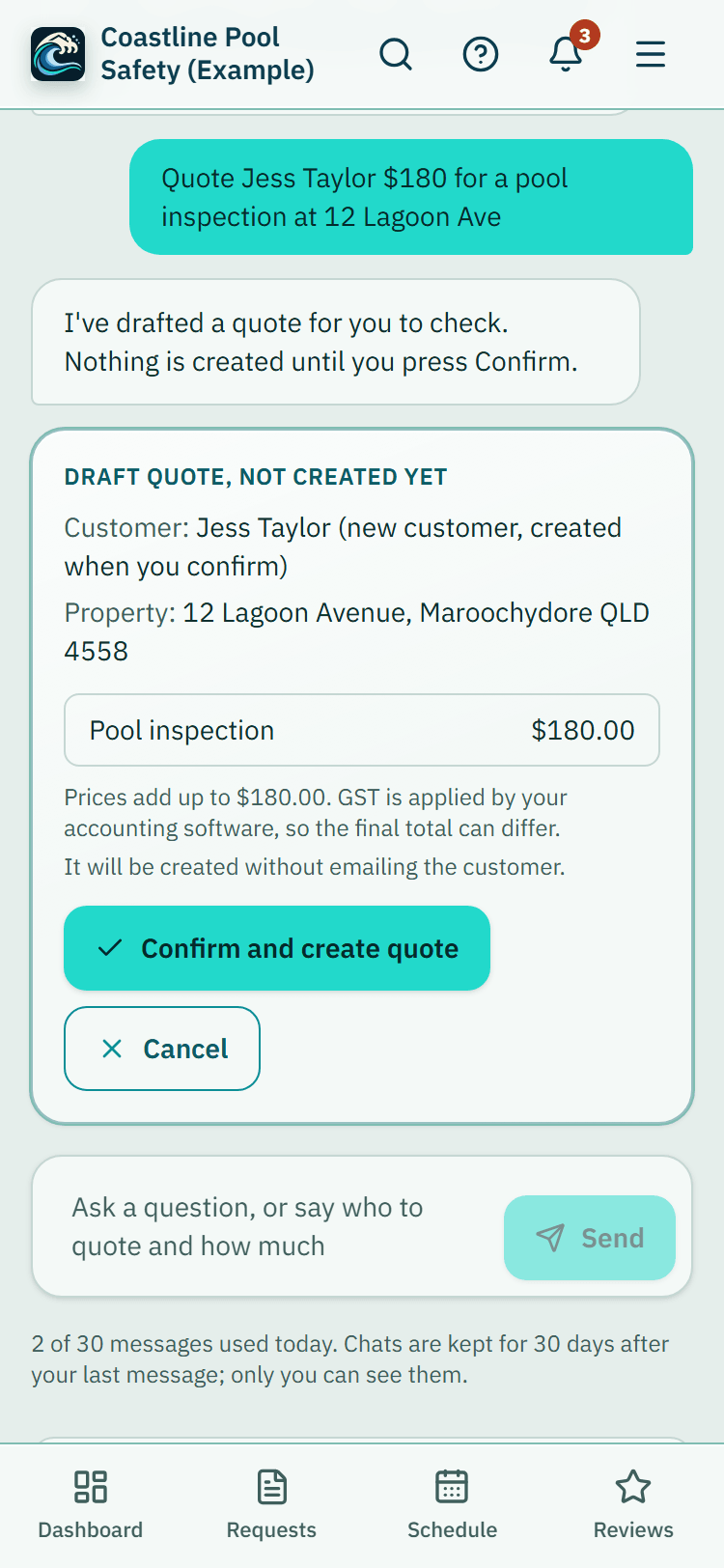
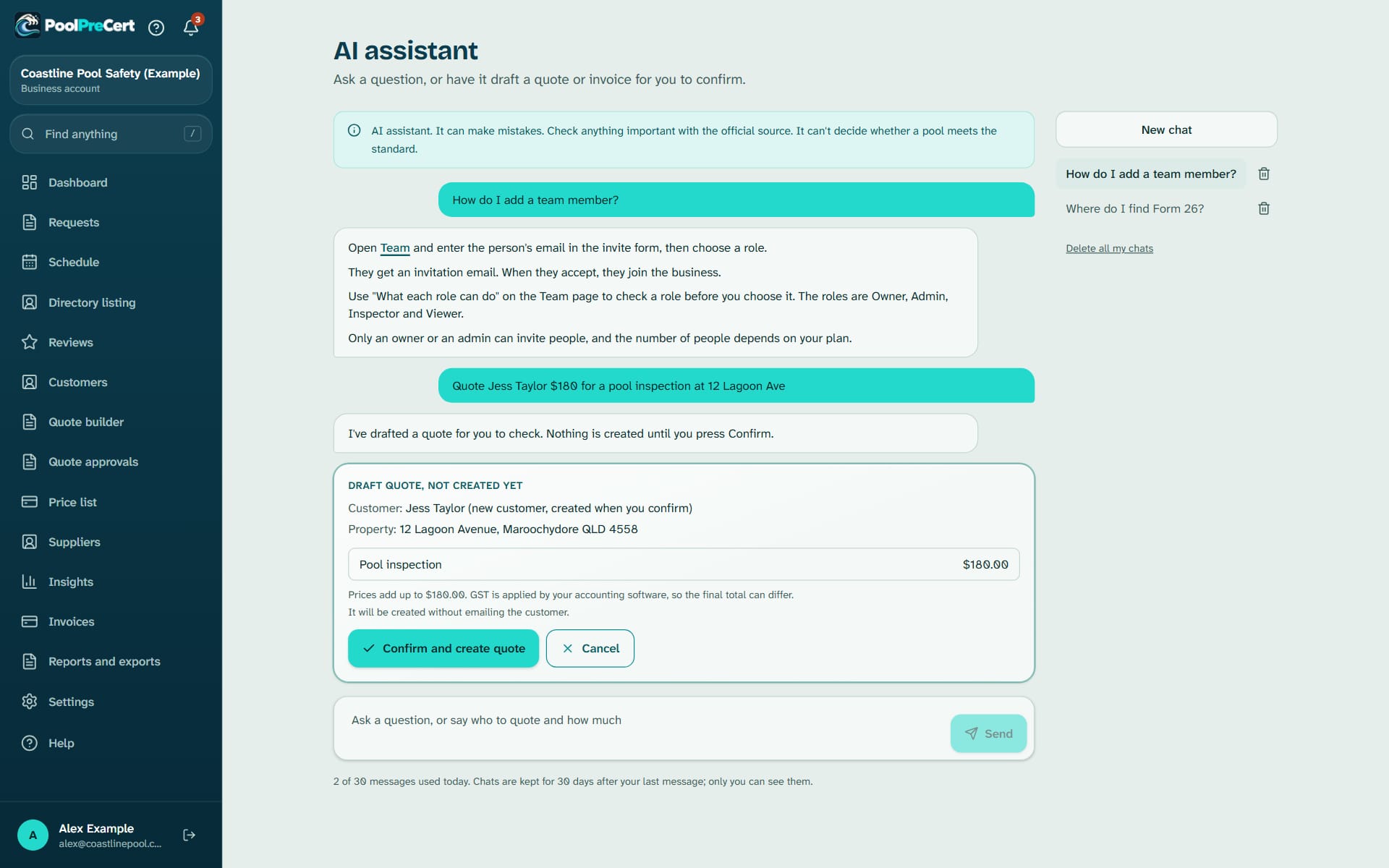
- Draft a quote or invoice with AI. Type something like who to quote, what for and how much. It finds the customer and property, shows a preview of up to 5 lines, and waits.
Read more
- Find official QBCC pages. It links to QBCC and Queensland Government pages and forms, each with the date we last checked the link.
Draft a quote or invoice from a sentence, then confirm it
A draft is only a preview. Press Confirm and create to make the real quote or invoice in your connected Xero, or Cancel to stop.
Read more
For now the assistant can only create them in a connected Xero, so your Xero must already be connected and your role must be allowed to create quotes and invoices. If you do not use Xero, make quotes and invoices yourself from the Invoices page. A draft you ignore expires after 24 hours.
The assistant can look up your customers and properties, but only to find the right one. It sees a customer's name, suburb and whether they have an email, never the email or phone number. It cannot send, change or delete anything, and it cannot look at your inspections, certificates or reports.
What it will not do
It will not give a verdict on any pool. Only a licensed pool safety inspector decides whether a pool meets the standard. If a reply drifts into that, PoolPreCert replaces the sentence with a plain refusal.
Read more
Any web address that is not on our checked list of official pages is removed from a reply.
It can still get things wrong, so check anything important with the official source.
An AI provider is involved: your data and chats
The assistant uses a third-party AI provider, Anthropic. What you type, your earlier messages in that chat and the customer and property details it looks up are sent to Anthropic to produce the reply.
Read more
Please do not type passwords, card numbers or other people's sensitive details, and only enter customer details if you have permission. This is covered in clause 7 of the Terms of Service and in the AI section of the Privacy Policy.
Chats are kept for 30 days after the last message and only the person who wrote them can see them. You can delete one, or all of yours, whenever you like.
Limits, turning it off and where to find it
Each person has a daily message limit and each business a monthly one, and the whole assistant can be paused if the platform budget runs out. A message that fails does not count.
Read more
Find it with the round assistant button at the bottom right of each business page on a computer, or the Ask the AI assistant button at the end of Home on a phone. It is left out of Simple view. Each person can hide that button under Settings, Appearance, AI features, and an owner or admin can turn AI features off for the whole business.



How to start
Open the assistant
On a computer, press the round assistant button at the bottom right of any business page. On a phone, press Ask the AI assistant at the end of Home.
Ask or describe
Ask a question, or say who to quote and for what, for example the customer's name, the job and the price.
Read the preview
A quote or invoice shows as a draft with its lines. Check the customer, the lines and the prices.
Confirm or cancel
Press Confirm and create, or Cancel. Nothing is made until you confirm.
Clean up
Delete a chat from the assistant page when you are done with it.
What AI assistant does and does not do
What it does
- Answers how-to questions about the app
- Drafts a quote or invoice from a sentence, for you to confirm
- Points to official QBCC pages
- Makes nothing until you press Confirm and create
What it does not do
- It does not decide anything about a pool, and it will not say how a pool will fare at an inspection.
- It does not create, send, change or delete anything until you press confirm, and then only the one quote or invoice you reviewed.
- It does not read your inspections, certificates or reports. Answers about those come from the help articles.
- It is not a replacement for QBCC's guidance or advice from a licensed inspector.
- It does not work in demo workspaces.

Features that go with it
Quotes and invoices
Make a quote or invoice from a job, property or customer, in PoolPreCert with no accounting software or in your own Xero. Optional follow-up emails chase quiet quotes.
Customers
An address book that ties each customer to their properties, jobs and paperwork, with dated notes, a private link, CSV import and a duplicate finder.
Team and permissions
Invite staff by email, pick owner, administrator, inspector or viewer, and switch off prices, downloads or deleting for one person.


Guides that give the background
Step by step instructions: Help centre. All features are listed on the features page.
Common questions
Which plans include it?
The paid plans: Starter at $49 a month and Business at $99 a month (incl. GST). It is not part of a trial (the pilot months at no charge included) or pool owner accounts.
Does it send my customers' details to an AI company?
Yes, to the provider that runs the assistant, Anthropic. That includes what you type and the customer and property details it looks up, not their email or phone. Check clause 7 of the Terms and the Privacy Policy, and turn AI features off in Settings if you would rather not use it.
Can the AI decide whether a customer's pool is OK?
No. It will not give a verdict on any pool. A licensed pool safety inspector decides that, and the assistant will point you to the official source.
Does it send quotes without me?
No. A draft is only a preview, and nothing is made until you press Confirm and create. Even then it only creates the one quote or invoice you reviewed, in your connected Xero. It cannot send, change or delete anything, and a draft you ignore expires after 24 hours.
Why did it stop answering?
Each person has a daily message limit and each business a monthly one. The platform can also pause it if its monthly budget is reached. It starts again when the limit resets.
Can I switch it off for my whole business?
Yes. An owner or admin can turn AI features off for everyone under Settings, Appearance, AI features. Anyone can also hide the round button for themselves.

What it needs and what it costs
The AI assistant comes with the paid business plans and is not part of the trial; a daily and monthly message limit applies. See the plans and prices. The first 20 businesses to sign up get 3 months at no charge, no card required. Prices include GST. Start 3 months at no charge
Try it before you pay
The first 20 businesses to sign up get 3 months at no charge, no card required. Prices include GST. The demo at the top of the page needs no sign-up.