

For pool safety inspectors, fence contractors and pool builders
Staff roster and time off requests for a pool inspection or fence business
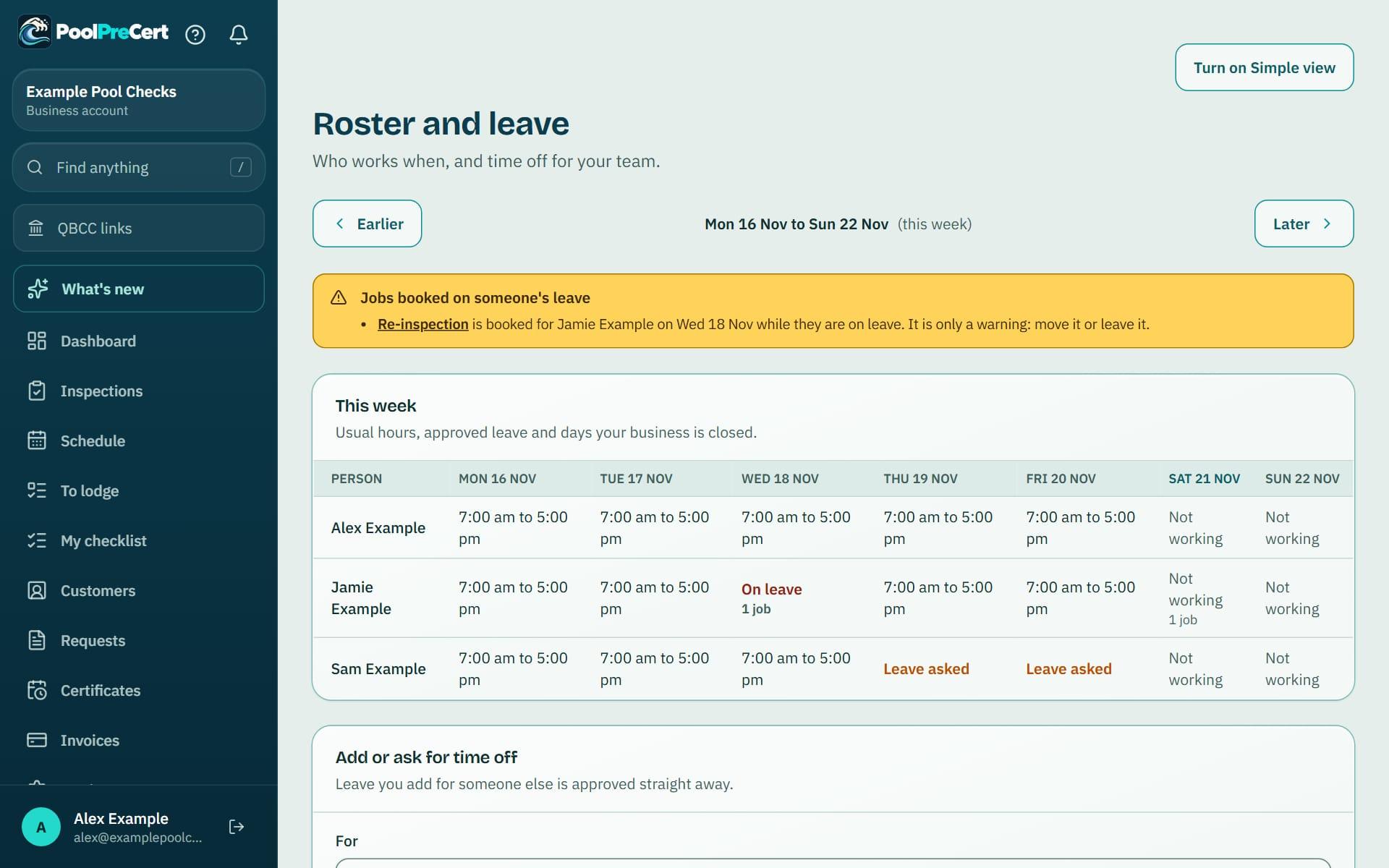
The roster shows each person's week: their usual hours, approved time off and the days your business is closed. Staff ask for time off on the same page, and the owner or an admin approves or declines it.
Read more
If a job is booked for someone on approved leave, you get a plain warning on the job and in the Schedule. It never blocks the booking.
Pilot offer: the first 20 businesses to sign up get 3 months at no charge (no card needed), then 25% off for as long as you stay a member. 17 of 20 places left. How it works
 Pilot offer: the first 20 businesses to sign up get 3 months at no charge (no card needed), then 25% off for as long as you stay a member. 17 of 20 places left.
The demo is your own private copy with made-up example data. No sign-up, and it's deleted automatically.
Prices include GST.

What you get with Roster and time off
One week, one row for each person
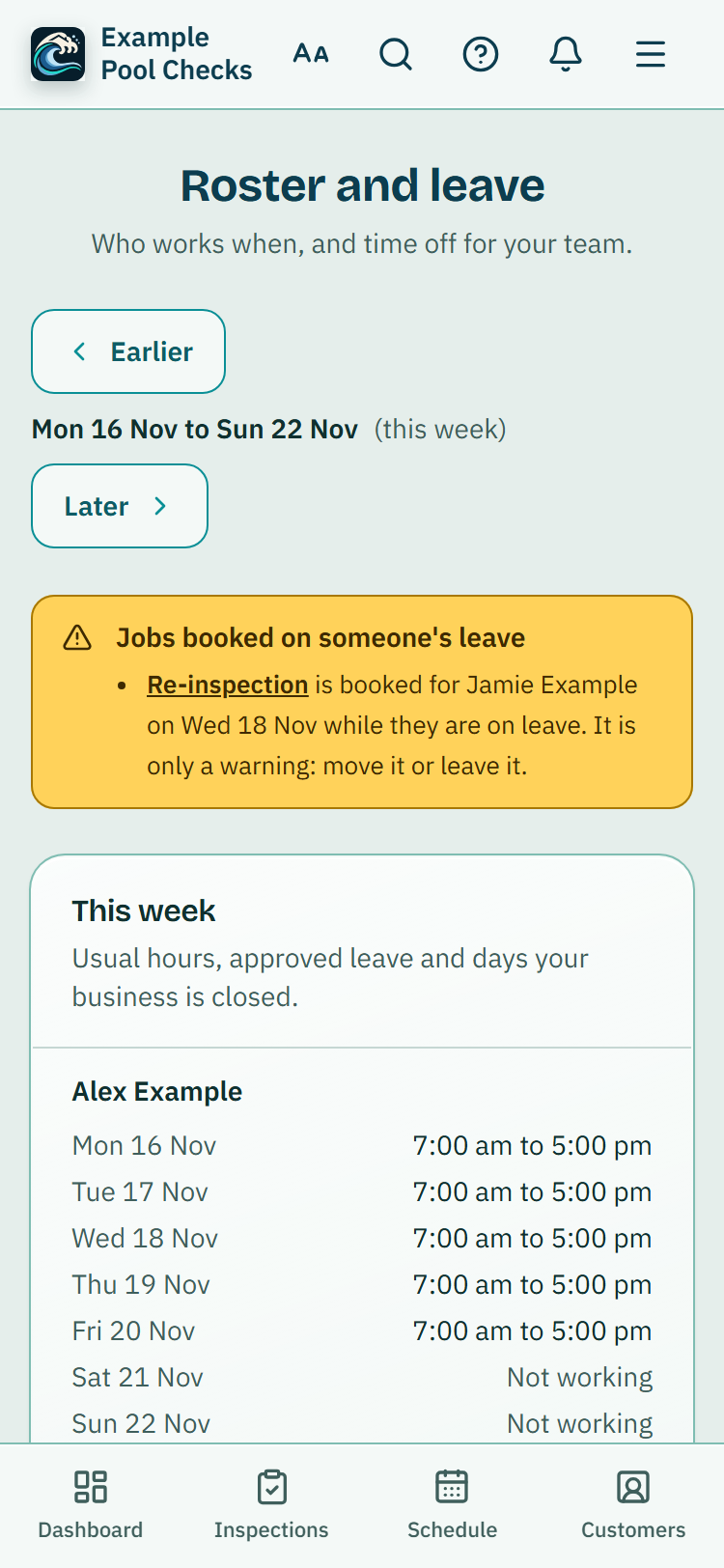
Roster and leave opens on this week, Monday to Sunday in Queensland dates. Earlier and Later move a week at a time, and Back to this week brings you home.
Read more
Each person's day shows one plain label: their usual hours, On leave, Leave asked, Day off, a day your business is closed, or Not working. It also shows how many jobs they have that day.
On a phone the roster is one card for each person, so a week reads from top to bottom without sideways scrolling.
Asking for time off, and the answer
To ask for time off, choose the first day and, for more than one day, the last day. Add a short note if you like and press Ask for time off. You can cancel your own request while it is waiting.
Read more
When it is decided you see the answer on the roster and get a notice and an email, using the Team updates switch under Settings, Notifications.
Owners and admins see requests waiting for them under Time off waiting for you. They add an optional note and press Approve or Decline. An owner or admin can also add time off for someone else, which is approved straight away, and an owner's own time off is approved straight away too.
- The owner can decide anyone's request.
- An admin can decide staff requests and other admins' requests, but not their own and not the owner's. Those wait for the owner.
- The rule is checked in the database as well as on the screen, so it cannot be skipped.
Jobs booked on someone's leave
When a job is booked for someone on approved time off, the job page, the Schedule and the roster show a warning that says who is on leave and on which day, and that you can still book it.
Read more
The next available time and the suggestions for who is available skip leave days. A request that is only waiting does not change any warning.
You decide what to do: move the job, give it to someone else, or leave it as it is.
Usual days and hours
Owners and admins open Edit days and hours on a person. Tick the days they work and give each day its own start and finish, so Friday can be a half day while the rest of the week stays the same.
Read more
The Schedule uses the same hours, so there is one set for each person, not two. Use the business hours puts someone back on the business hours.
Who sees what
Staff see only their own week and their own requests. Owners and admins see everyone. A person with the Viewer role does not get the roster at all, and another business never sees yours.




How to start
Set usual hours
Owners and admins open Settings, then Roster and leave, then Usual days and hours, and set each person's working days and hours.
Ask for time off
A team member opens Roster and leave, chooses the first and last day, adds a note and presses Ask for time off.
Answer the request
The owner or an admin finds it under Time off waiting for you, adds an optional note and presses Approve or Decline.
Plan around it
Open the week to see who is working. A job booked on approved leave shows a warning, and you can move it or give it to someone else.
What Roster and time off does and does not do
What it does
- Shows each person's week: usual hours, time off and days you are closed
- Lets staff ask for time off and the owner or an admin answer it
- Warns you when a job is booked for someone on approved leave
- Keeps one set of usual hours, shared with your Schedule
What it does not do
- It does not stop a job being booked on someone's leave. It only warns.
- It does not count leave balances or leave types, and it does not work out pay or wages. Leave is whole days only.
- It does not close your online booking page to a person on leave. The warning is for bookings you make yourself.
- Owners and admins are not emailed when someone asks for time off. They see the request on the roster page.

Features that go with it
Schedule
Your jobs by day, week or month, with drag and drop, repeat visits, clash warnings, best order for the day and a private calendar link.
Team and permissions
Invite staff by email, pick owner, administrator, inspector or viewer, and switch off prices, downloads or deleting for one person.
Clock on and timesheets
Staff clock on, take breaks and clock off on their phone. You can edit hours, approve each week and download a spreadsheet, and every change is recorded.

Step by step instructions: Help centre. All features are listed on the features page.
Common questions
Why can't I approve my own request?
No one approves their own time off. An admin's own request goes to the owner, and an owner's own time off is approved when they add it.
Can I cancel time off?
Yes. You can cancel your own request while it is waiting. Once it is approved, ask the owner or an admin to cancel it.
Does the roster change my Schedule hours?
It uses them. Usual days and hours on the roster are the same hours as in Schedule, Hours and days off, so there is only one set.
Does it work out wages?
No. It shows who works and who is away, not pay or leave balances.
Can I switch the roster off?
Yes. The owner can switch Roster and time off off under Settings, Team tools, and back on later. Nothing is deleted.
Can a one-person business use it?
Yes, and the owner's own time off is approved straight away. It is most useful once you have staff.

What it needs and what it costs
Roster and time off is part of the business plans and trials; see the plans and prices for what each plan lists. See the plans and prices. The first 20 businesses to sign up get 3 months at no charge, no card required. Prices include GST. Start 3 months at no charge
Try it before you pay
The first 20 businesses to sign up get 3 months at no charge, no card required. Prices include GST. The demo at the top of the page needs no sign-up.