

For pool safety inspectors, fence contractors, pool builders and property managers
Staff clock on and weekly timesheets for pool inspection and fence teams
Each person taps Clock on when they start, Start break and End break, and Clock off when they finish. PoolPreCert adds the taps into a weekly timesheet for each person, with hours for each day and each job.
Read more
Owners and admins check the week, edit any hours that are wrong, then approve and lock it and download a spreadsheet of hours.
Pilot offer: the first 20 businesses to sign up get 3 months at no charge (no card needed), then 25% off for as long as you stay a member. 17 of 20 places left. How it works
 Pilot offer: the first 20 businesses to sign up get 3 months at no charge (no card needed), then 25% off for as long as you stay a member. 17 of 20 places left.
The demo is your own private copy with made-up example data. No sign-up, and it's deleted automatically.
Prices include GST.

What you get with Clock on and timesheets
Clocking on from a phone
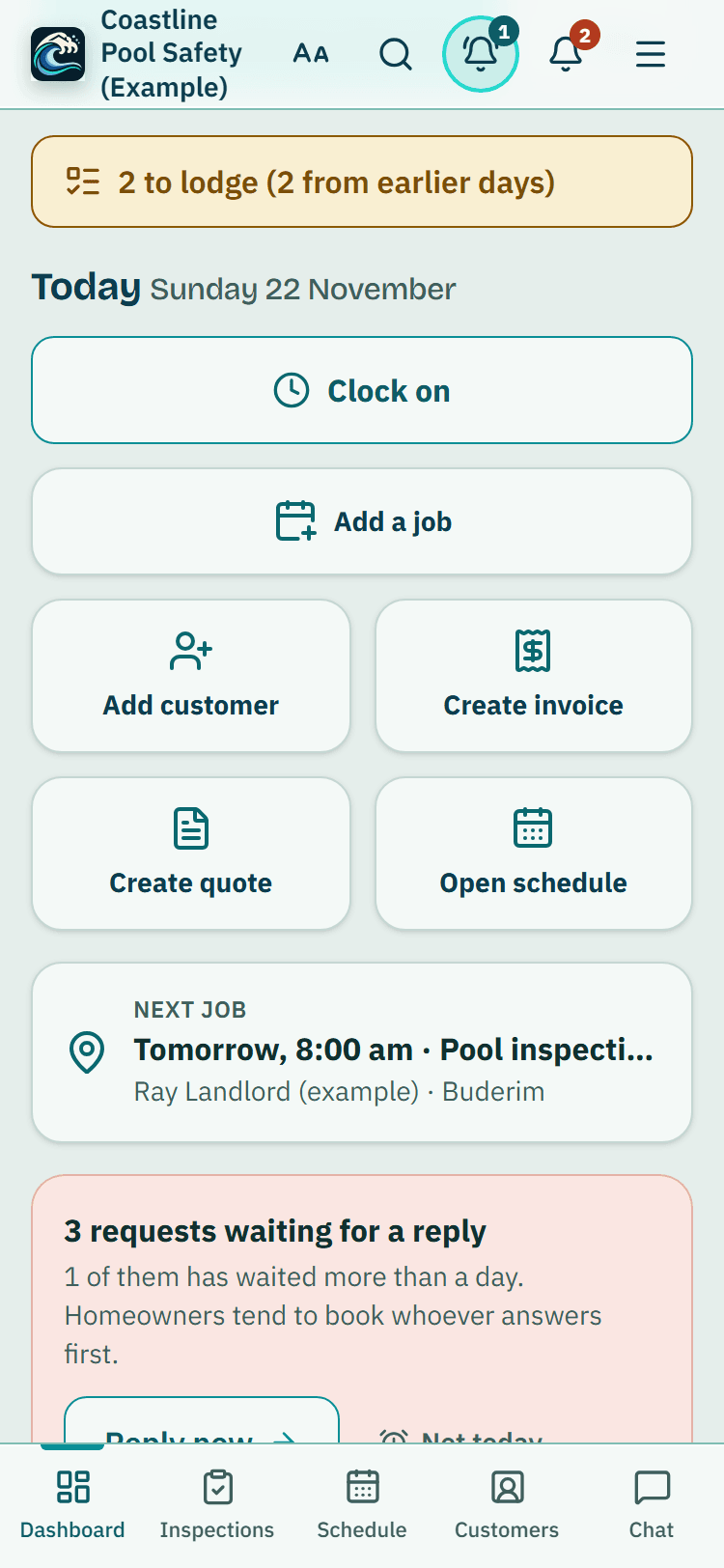
Press Clock on, the button at the top of your dashboard just above Add a job. Once you are working, the same spot shows since when, with Start break and Clock off. The Clock on page in the menu lets you choose today's job first.
Read more
If the job has a crew, each person clocks on to it themselves.
Every tap is saved with the time on PoolPreCert's own clock, so a phone cannot back-date a tap. A tap needs a connection, so there is no offline clocking.
Time on a job, and moving to the next job
Two people, or the whole crew, can be clocked on to the same job at the same time. Each person's hours are counted separately and added up on the job's page under Time on this job: the total, each person's share, and who is clocked on now.
Read more
On the job's page, press Start my time on this job, then Stop. Owners and admins can Start everyone on the job and Add missed time. Staff see only their own time.
Moving from one job to the next without clocking off: while you are clocked on, choose the next job under Moving to another job? and press Switch job. Your time on the first job stops and your time on the next one starts at once. Crew helpers can pick any job they are crewed on.
Your week
The page shows your week, Monday to Sunday in Brisbane time: each day's taps, your break time and your hours, a total for the week and hours for each job. A shift that runs past midnight is split at midnight.
Read more
If a shift is still open after 16 hours, it is flagged as a forgotten clock off and not counted until it is corrected.
Fixing a mistake: you can edit hours
If a tap is wrong or missing, scroll to Something wrong?, choose what to fix (add a forgotten tap, change a time or remove a tap), give a reason and send it to your manager.
Read more
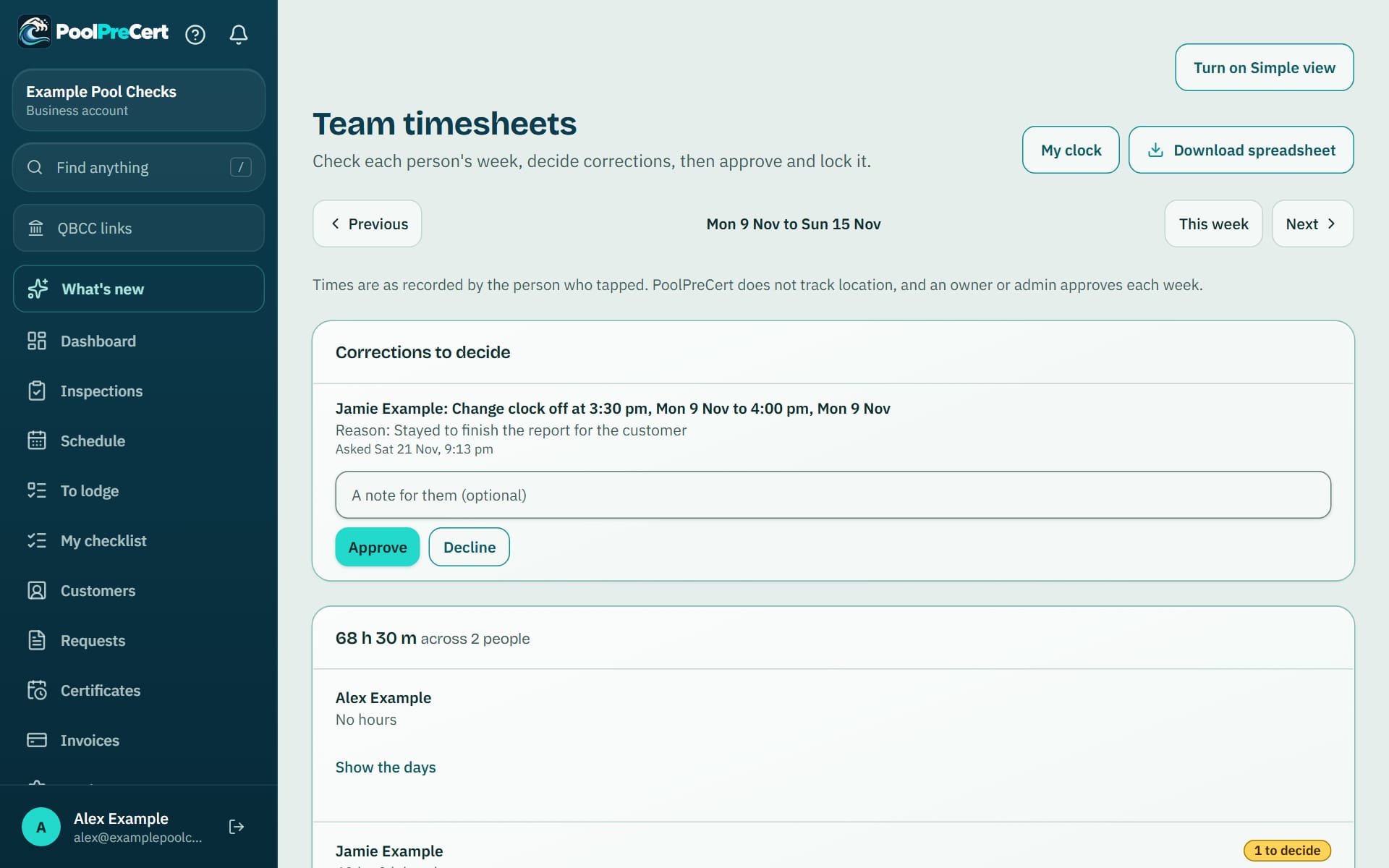
Owners and admins can also change anyone's hours themselves: on Team timesheets, open Edit hours or clock them on or off under the person, add a missed tap, change a time or remove a tap, and give a reason. That saves at once, which is also how you clock someone on or off.
If you turn on Let staff edit their own hours under Settings, Team tools, a staff member's fix saves at once instead of waiting, and you still see every change on Team timesheets. Nothing is overwritten. A change is added alongside the original tap with who made it and why, and the person sees it in their list. An admin cannot change their own hours. The owner can.
Approving and locking the week
Owners and admins open Team timesheets, pick a week with Previous and Next, and see everyone's hours. Decide any corrections waiting, then press Approve and lock for each person, or Approve all ready.
Read more
A week can be approved once Sunday is over, and a locked week takes no new taps or corrections.
Download spreadsheet gives one line for each person in hours, for whatever way you pay. Only the owner can unlock an approved week, and must give a reason that is recorded. Make the corrections, then approve it again.
Who sees what, and honest limits
The owner can switch Clock on and timesheets off for the whole business under Settings, Team tools, and switch it back on later; nothing is lost.
Read more
Owners, admins and inspectors have their own clock and see only their own hours. Owners and admins see everyone's. A person with the Viewer role has no clock and no timesheet, and another business sees nothing.
Times are as recorded by the person who tapped. PoolPreCert does not track location and does not check where anyone is.




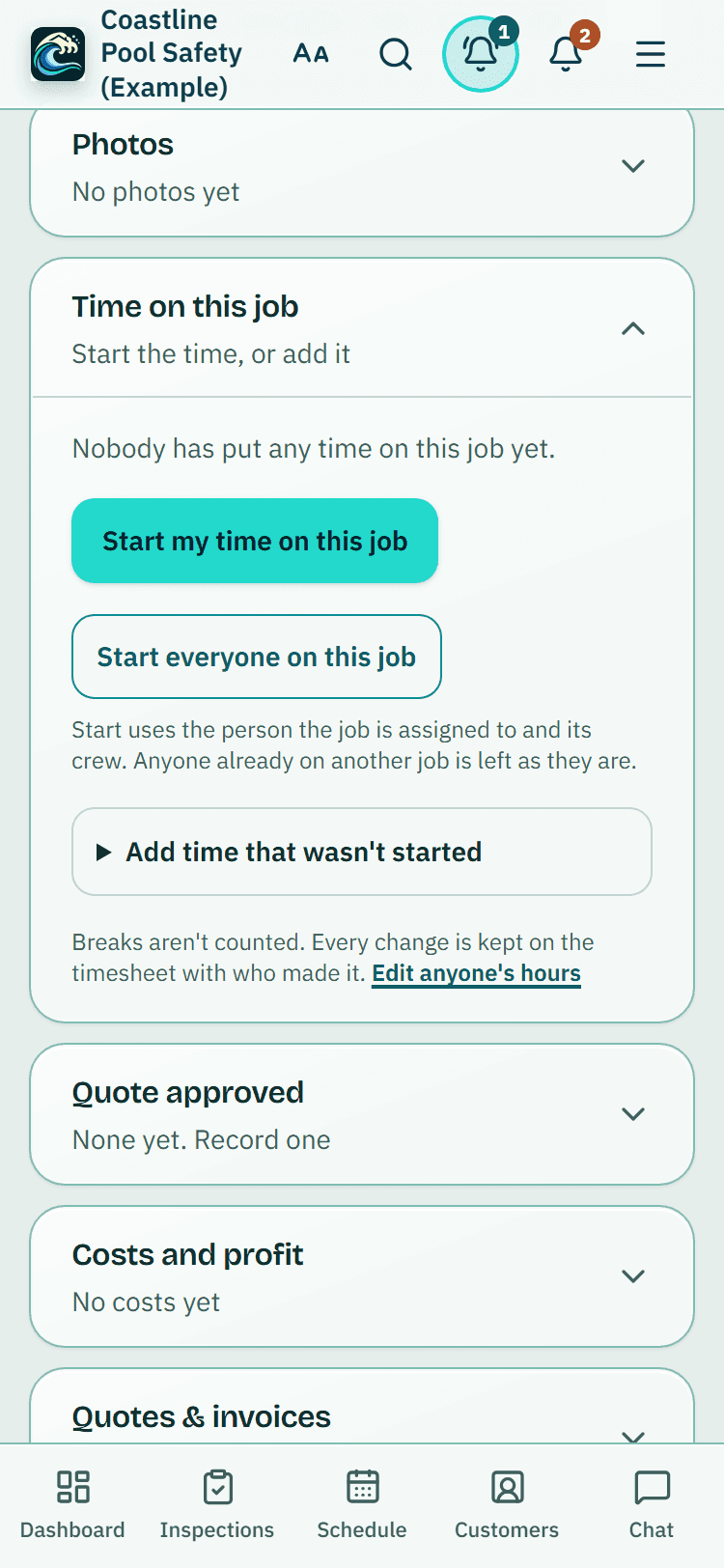
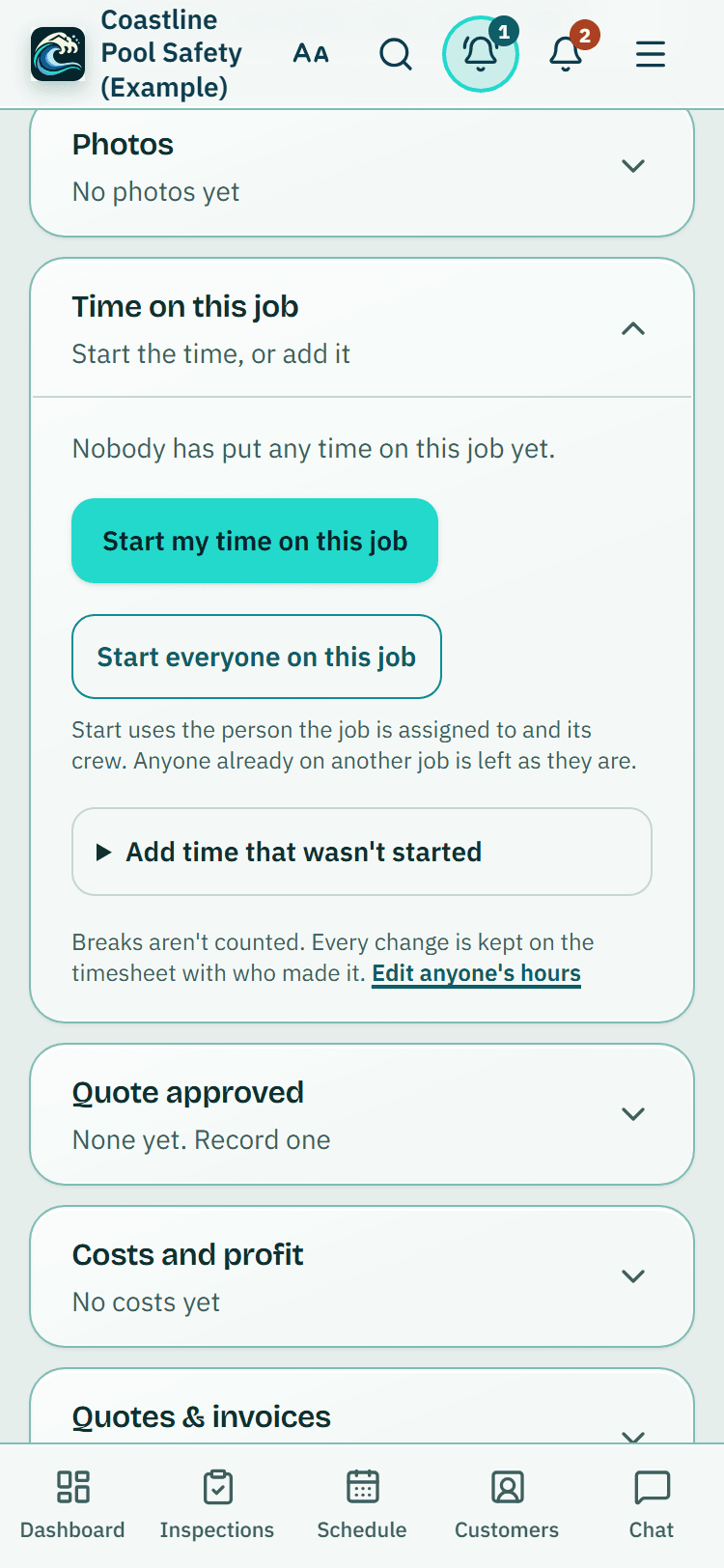
Time on this job, example data: start your own time or everyone's, or add time that wasn't started. 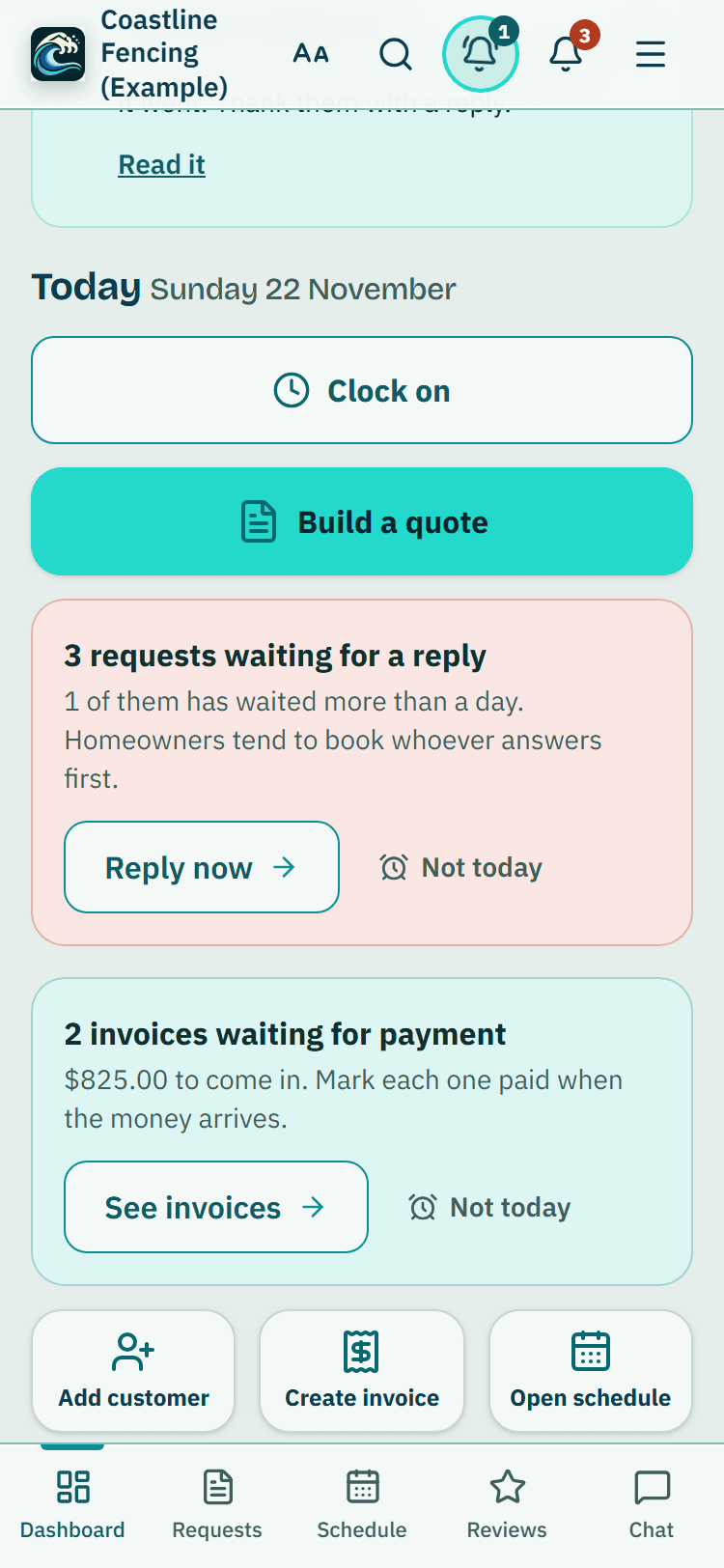
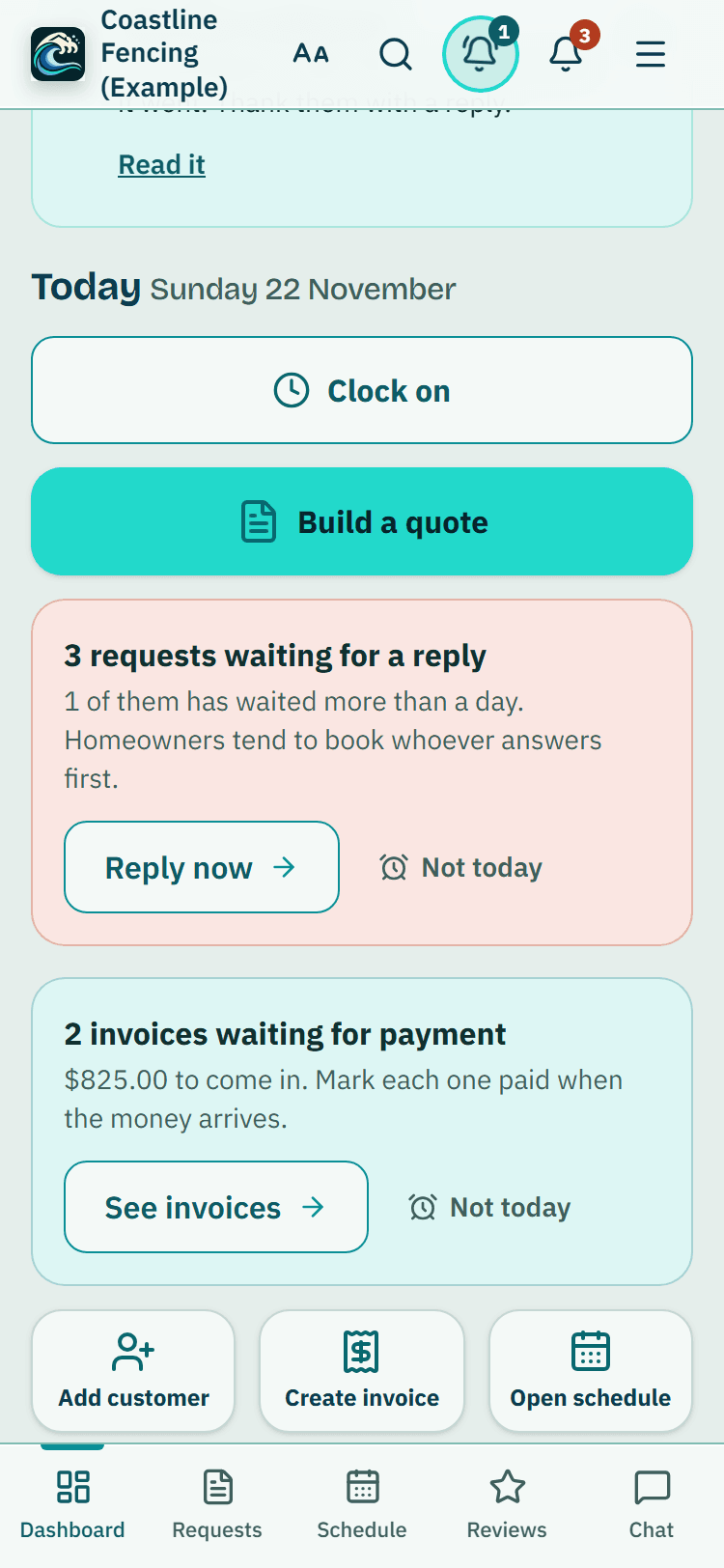
A pool fence contractor's dashboard, example data: the same Clock on button. 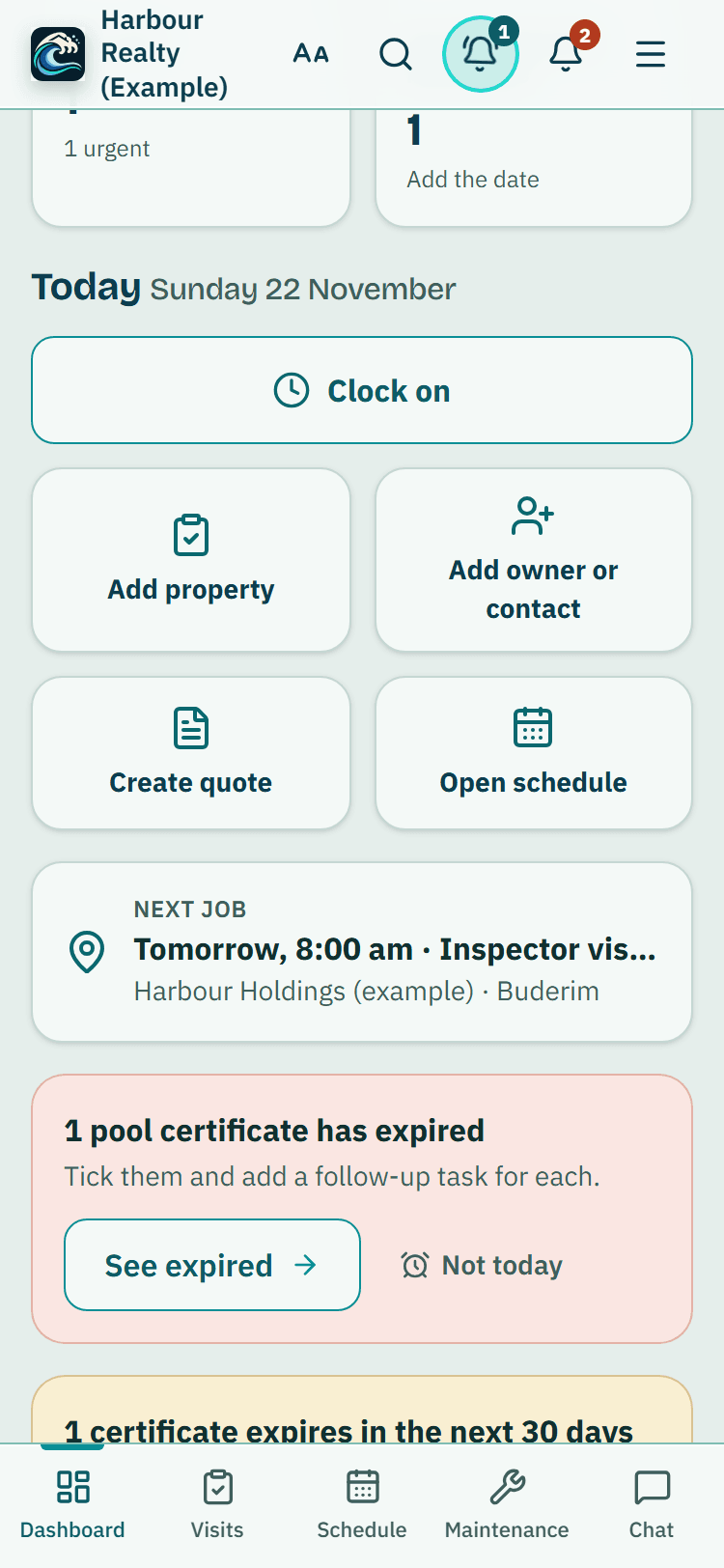
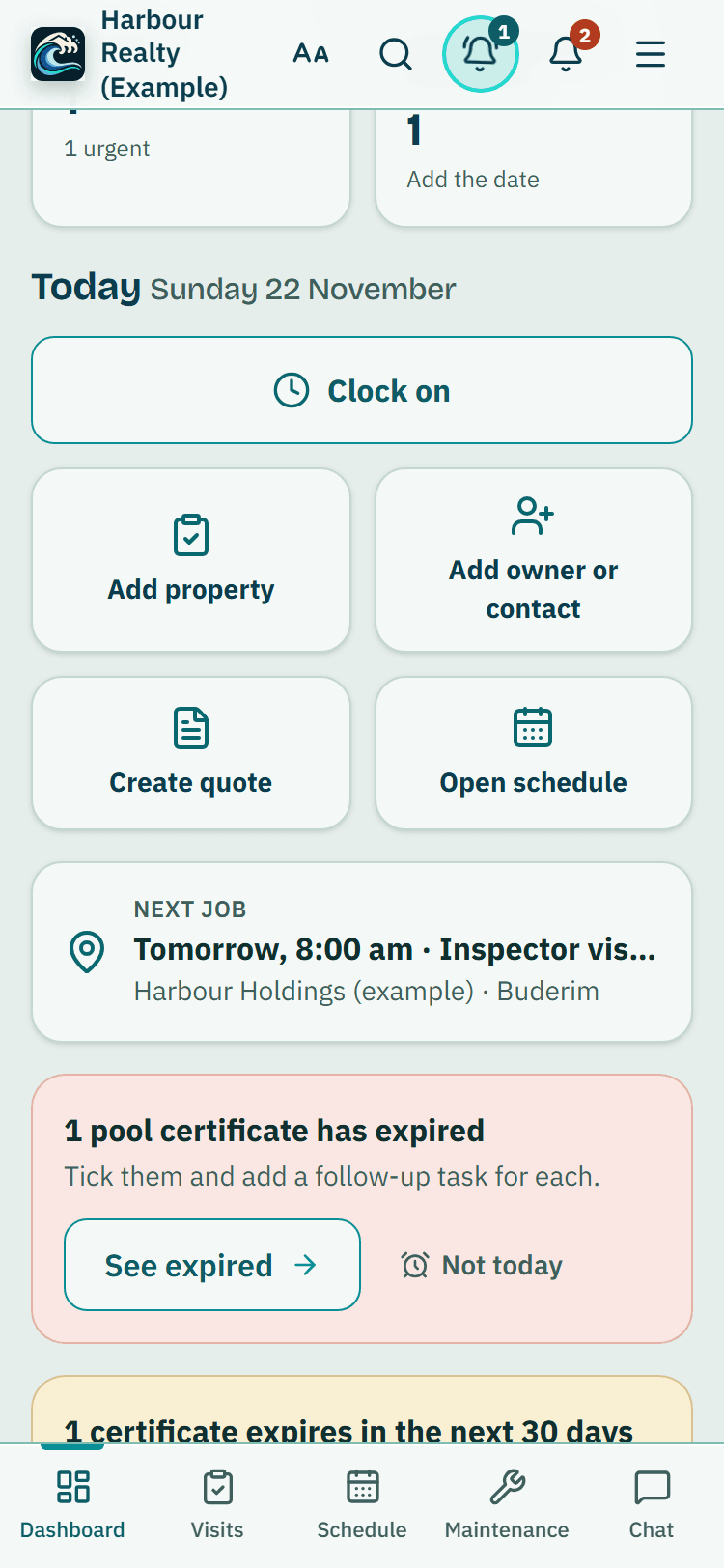
A real estate agency's dashboard, example data: the same Clock on button.

How to start
Open the clock
Look at the top of your dashboard, just above Add a job. Or open a job and press Start my time on this job.
Clock on
Press Clock on. To count the hours against a job, press Start my time on that job.
Take a break, switch job and finish
Press Start break and End break as you go. Going to another job? Choose it and press Switch job. Press Clock off when you finish.
Check the week
Your week shows each day's hours and a total. If something is wrong, use Something wrong? and give a reason.
Approve it
Owners and admins open Team timesheets, decide any corrections, then press Approve and lock for each person.
What Clock on and timesheets does and does not do
What it does
- Lets staff clock on, take breaks and clock off from their phone
- Adds the taps into a weekly timesheet with hours for each day and job
- Takes corrections as requests a manager approves, never as edits
- Locks each approved week and downloads a spreadsheet of hours
What it does not do
- It does not work out pay, overtime, leave or tax, and it does not send hours to payroll software yet. It gives you hours for each person each week.
- It does not track location or check where anyone is. Times are as recorded by the person who tapped.
- Time on a job is the hours people clocked on to it. It is not a quote, an invoice line or a payroll figure, and it is not yet added to invoices automatically.
- It does not overwrite a tap. Every change is added alongside the original with who made it and why.
- There is no offline clocking.
- A week cannot be approved before Sunday is over.

Features that go with it
Roster and time off
One week at a time: each person's usual hours, approved time off and your days closed, with time off requests the owner or an admin answers.
Team and permissions
Invite staff by email, pick owner, administrator, inspector or viewer, and switch off prices, downloads or deleting for one person.
Schedule
Your jobs by day, week or month, with drag and drop, repeat visits, clash warnings, best order for the day and a private calendar link.
Step by step instructions: Help centre. All features are listed on the features page.
Common questions
Can a staff member see someone else's hours?
No. Each person sees only their own taps, hours and requests. Owners and admins see everyone's.
I forgot to clock off. What do I do?
Choose Something wrong?, then I forgot to tap, pick Clock off and the time you finished, and say why. Your manager approves it and your hours are counted.
Can an owner change a tap that is wrong?
Yes. On Team timesheets, open Edit hours or clock them on or off under the person. The change is added alongside the original tap, and the person sees who changed it and why.
Can I switch it off, or let staff edit their own hours?
Yes to both, under Settings, Team tools. Switching Clock on and timesheets off hides it from staff and deletes nothing. Letting staff edit their own hours is off until you turn it on; a staff fix then saves at once and every change is listed for you.
Can two people be clocked on to the same job?
Yes. Each person clocks on to the job themselves, and the job's page adds up everyone's time under Time on this job.
Can I download hours for payroll?
Yes. Download spreadsheet on Team timesheets gives one line for each person for the week, in hours. There is no direct upload to payroll software yet.

What it needs and what it costs
Clock on and timesheets is part of the business plans and trials; see the plans and prices for what each plan lists. See the plans and prices. The first 20 businesses to sign up get 3 months at no charge, no card required. Prices include GST. Start 3 months at no charge
Try it before you pay
The first 20 businesses to sign up get 3 months at no charge, no card required. Prices include GST. The demo at the top of the page needs no sign-up.