

For property managers
Import rental properties by CSV: your rent roll and certificate dates, without retyping
The agency import wizard turns a CSV saved from your spreadsheet or property software into a Portfolio, with no retyping. It matches the columns, shows a preview and saves nothing until you press Import.
Read more
Upload a newer file later and it updates what is there instead of adding copies.
Pilot offer: the first 20 businesses to sign up get 3 months at no charge (no card needed), then 25% off for as long as you stay a member. 17 of 20 places left. How it works
 Pilot offer: the first 20 businesses to sign up get 3 months at no charge (no card needed), then 25% off for as long as you stay a member. 17 of 20 places left.
The demo is your own private copy with made-up example data. No sign-up, and it's deleted automatically.
Prices include GST.

What you get with Property import
Import your rent roll from a CSV file in three screens
Press Import on the Portfolio page to load your rent roll from a CSV file. Nothing is saved until the last button.
Read more
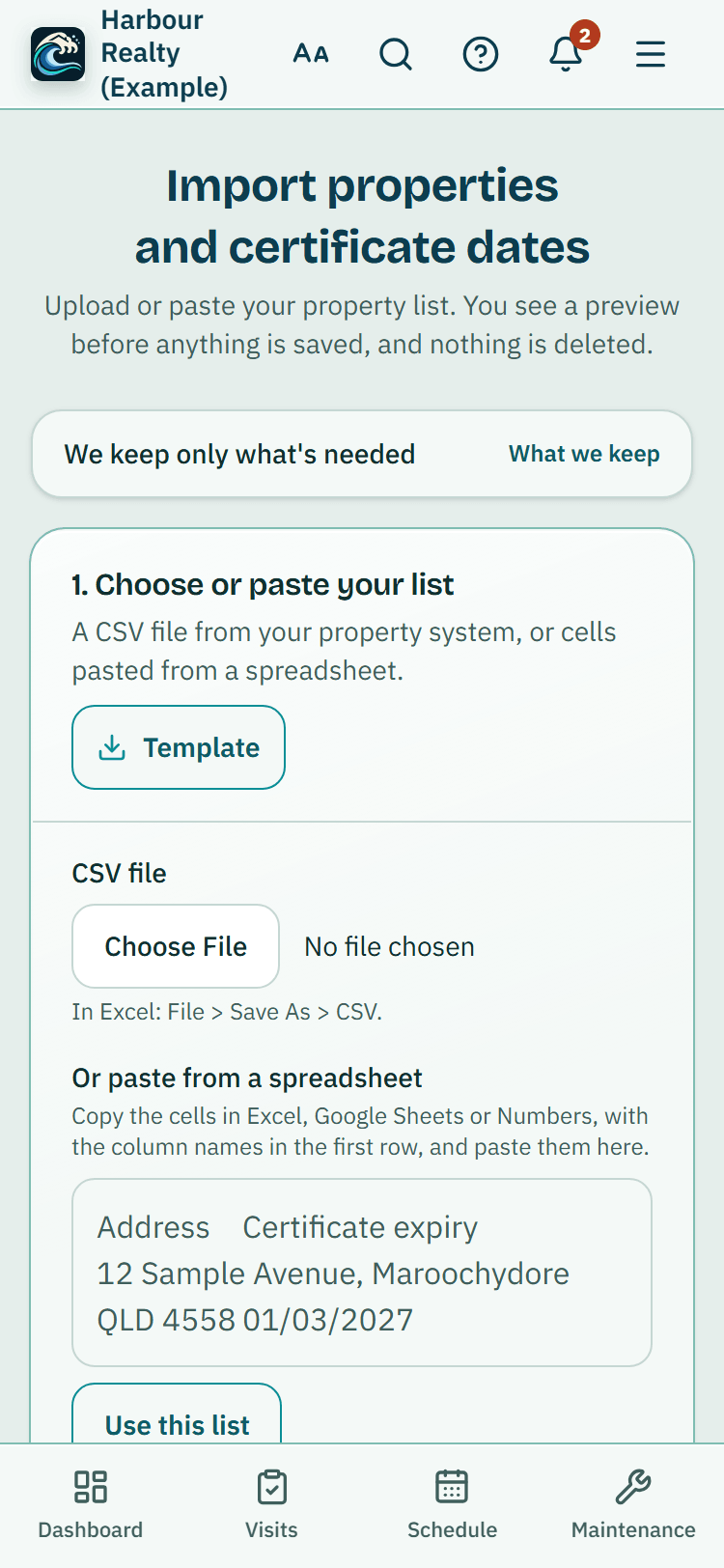
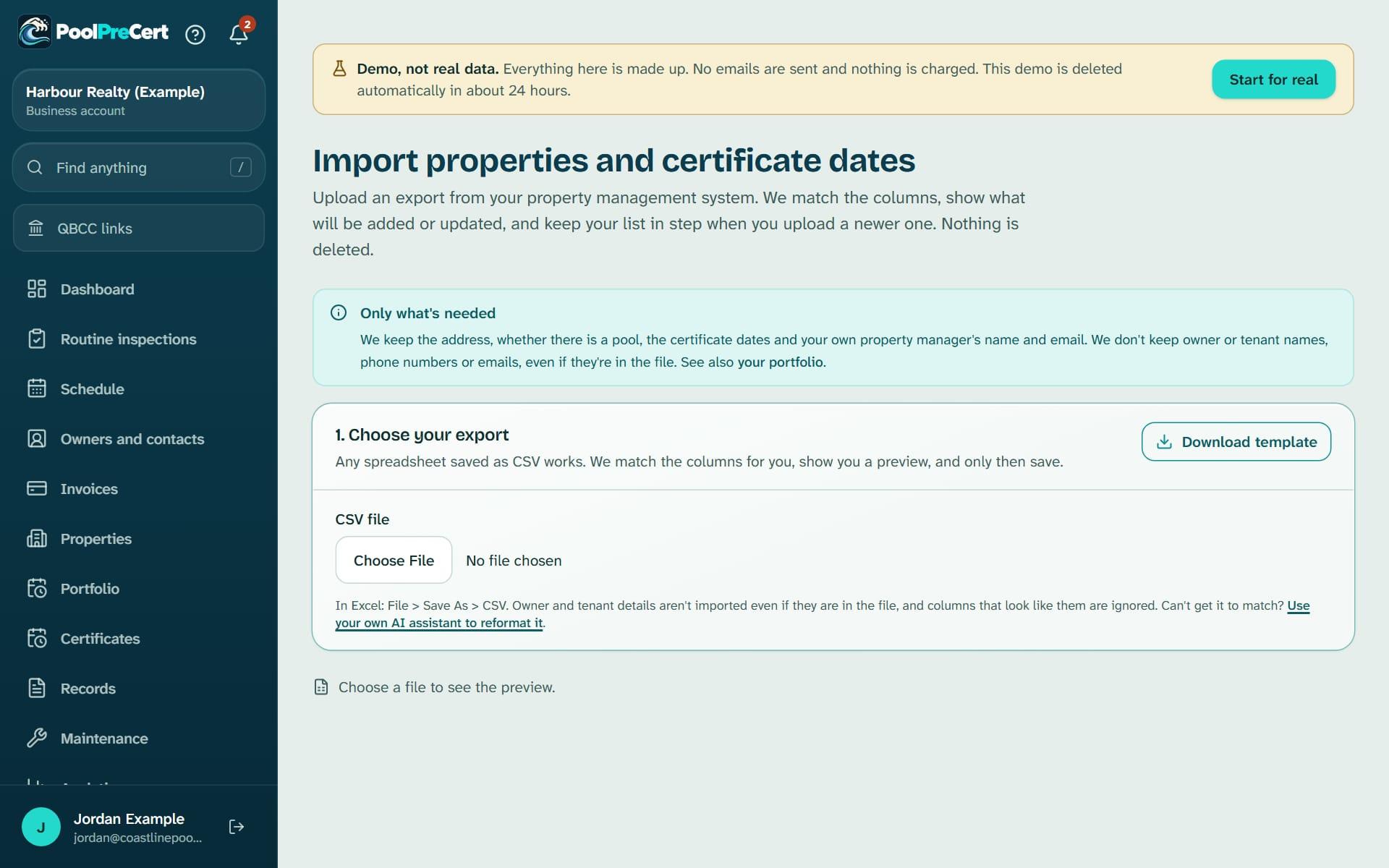
Step 1, Choose or paste your list: pick a CSV file, or paste cells and press Use this list, or press Download template to see the headings PoolPreCert already recognises. In Excel use File, Save As, CSV. A file can hold up to 1,000 properties and be up to 1.5 MB, so split a bigger one.
Step 2, Check the columns: PoolPreCert matches your headings to what it needs and says how many it matched. Press Change columns to pick a different column for any item. The optional question Which system is this from? helps us learn layouts and does not change what is imported. Matched layouts are remembered for the next file with the same headings.
Step 3, Preview: chips count the rows to add, to update, with no change, skipped, and needing a fix. Press a chip to see only those rows.
Fix problems and add pool and certificate dates on the spot
A row that needs a fix opens a small form under it, with Street address, Suburb, State, Postcode, Certificate expiry and Manager email. Correct it there; your original file is not touched. Dates are read the Australian way, so 5/3/2027 is 5 March.
Read more
If the state is missing it is worked out from the postcode, and a full address in one column is split for you.
If your file has no pool or certificate column, tick Every row in this list is a property with a pool; if it has one, rows with no date are added as No date recorded unless you untick that box. Rows marked as having no pool, rows repeated further down the file and the template's example row are skipped, and the preview says why. A row with only an issue date gets an expiry worked out using QBCC's terms: 2 years for a non-shared pool and 1 year for a shared pool.
Uploading again never doubles anything
Properties are matched by your own property code first, then by address, ignoring capitals, Street against St, and Unit 3 against 3/. A match is updated, never copied. An import never moves a certificate date backwards: if the file holds an older date, the later one is kept.
Read more
Nothing is ever deleted by an import.
When it finishes, Import finished shows how many were added, updated and already up to date, with a table of what changed. Rows that were not imported can be saved with Download the rows not imported. See your portfolio takes you to the list. If your plan's property limit is reached, the page tells you which rows were left out. Undo this import (10 minutes) removes what it added and restores what it changed.
What it keeps and what it leaves out
It keeps the address, whether there is a pool, whether it is shared, the certificate dates, number and inspector name, and your own property manager's name and work email. It does not keep owner or tenant names, phone numbers, emails, rent or lease details.
Read more
Columns that look like them are listed as Not imported and are never read.
If your export is awkward to match, Get help tidying your list opens a page with a prompt to copy into an AI assistant you already use. It tells you to remove owner and tenant details first, and nothing reaches PoolPreCert until you upload or paste the result.
Send properties from Zapier or Make
An owner or admin opens Calendar and connections, finds Send us properties from another tool and presses Make an API token. The token is shown once, so copy it then. You can hold up to 3, and Stop this token ends one straight away.
Read more
A connector or your software supplier then sends a POST to /api/v1/agency/import with the token as a Bearer token and a list of properties as JSON, up to 200 properties and 500 KB per call, 60 calls an hour for each token. Add ?dry_run=1 to see what would happen and save nothing. The reply counts added, updated, unchanged and skipped, and the same matching and no-delete rules apply.




How to start
Get your export
Save a spreadsheet of your properties as a CSV, or press Download template and paste your data into it.
Choose the file
On Import properties and certificate dates, choose your CSV and check the columns, pressing Change columns if one is wrong.
Read the preview
Press a chip such as need a fix, correct those rows in place, and tick the pool box if your file has no pool column.
Press Import
The button shows how many properties will be saved. Nothing is saved before this.
Check the result
Read What changed, then press See your portfolio.
What Property import does and does not do
What it does
- Reads a CSV export and matches the columns
- Shows a preview before anything is saved
- Lets you fix problems in place and add pool and certificate dates
- Can take properties from Zapier or Make
What it does not do
- It does not connect to your property software. You upload a file, or a connector sends one.
- It does not delete properties, and it does not move a certificate date backwards.
- It does not load owner or tenant details, rent or lease dates, or smoke alarm dates.
- It does not check certificates with QBCC. The dates are the ones in your file.

Features that go with it
Certificate portfolio
Each pool you manage with its certificate date and an optional PDF or photo of it, filters, CSV and PDF downloads, a calendar link and reminders at 60 days, 14 days and on the day.
Customers
An address book that ties each customer to their properties, jobs and paperwork, with dated notes, a private link, CSV import and a duplicate finder.
Smoke alarm dates
Agency accounts keep a smoke alarm date for each rental and email the team before each tenancy or on a chosen date. PoolPreCert reminds you. It does not test or check alarms.


Guides that give the background
Step by step instructions: Help centre. All features are listed on the features page.
Common questions
Do I have to give you owner or tenant details?
No. Only the property, its pool and certificate dates, and optionally your own property manager's name and work email. Owner and tenant columns are ignored even if they are in the file.
What happens if I upload an updated file next month?
Properties are matched by your property code, then by address, and updated. You get no duplicates, later certificate dates replace earlier ones, and nothing is deleted.
Which file do I upload to import my rent roll, and can it be an Excel file?
A CSV. In Excel use File, Save As, CSV first, or press Download template to see the headings it already recognises. The wizard reads up to 1,000 properties and 1.5 MB at a time.
Can I check the list before it is saved?
Yes. Step 3, Preview, counts the rows to add, update, leave unchanged, skip and fix. Nothing is saved until you press Import.
Which property software does it work with?
Any that can save a spreadsheet or CSV of your properties. Software suppliers do not publish the headings of their exports, so the wizard matches by plain-English heading and lets you correct the match.
Does it cost extra?
Import is part of the business plans. Starter is $49 a month and Business is $99 a month (incl. GST). The first 20 businesses to sign up get 3 months at no charge (no card needed), then 25% off for as long as you stay a member. After the places are gone, plans start with a 14-day trial, no card required. Your plan sets how many properties you can hold.

What it needs and what it costs
Import is part of an agency account on a business plan or trial, and your plan sets how many properties you can hold. See the plans and prices. See the plans and prices. The first 20 businesses to sign up get 3 months at no charge, no card required. Prices include GST. Start 3 months at no charge
Try it before you pay
The first 20 businesses to sign up get 3 months at no charge, no card required. Prices include GST. The demo at the top of the page needs no sign-up.
Related help articles
Sources
Last checked against QBCC guidance: 13 November 2026.