

Simple view for people who prefer simple
Simple pool inspection app: inspections made simple, one step at a time
Simple view turns PoolPreCert into four big buttons and one step at a time. Nothing sends until you press it, and the full app is one tap away.
The short answer
If you would rather keep it simple, so would we. Simple view is a setting in PoolPreCert that shows you four big buttons, large dark writing and one thing to do on each screen.
Read the rest
You don't need computer skills, and every part of the full app is still there whenever you want it.

A quieter screen to start from
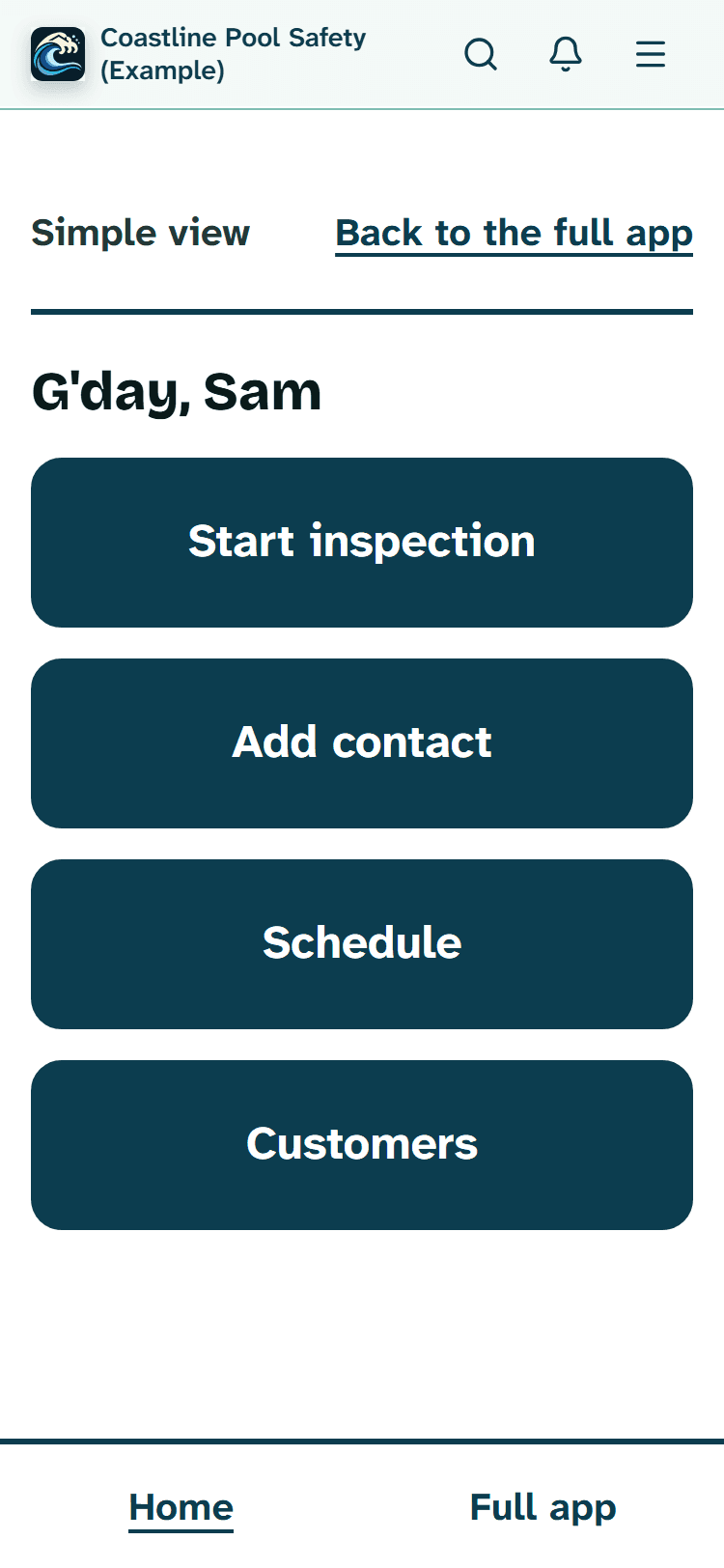
When Simple view is on, your Home holds just four big buttons. For an inspector they say Start inspection, Add contact, Schedule and Customers. There are no menus to learn first and no lists to scroll through. Press the one you need and the next screen asks for one thing.
Property managers, pool fence contractors, pool builders and pool owners get their own four buttons that suit their work, such as Build a quote or Start a self-check.

Turning it on is one tap
Pick whichever of these you come across first:
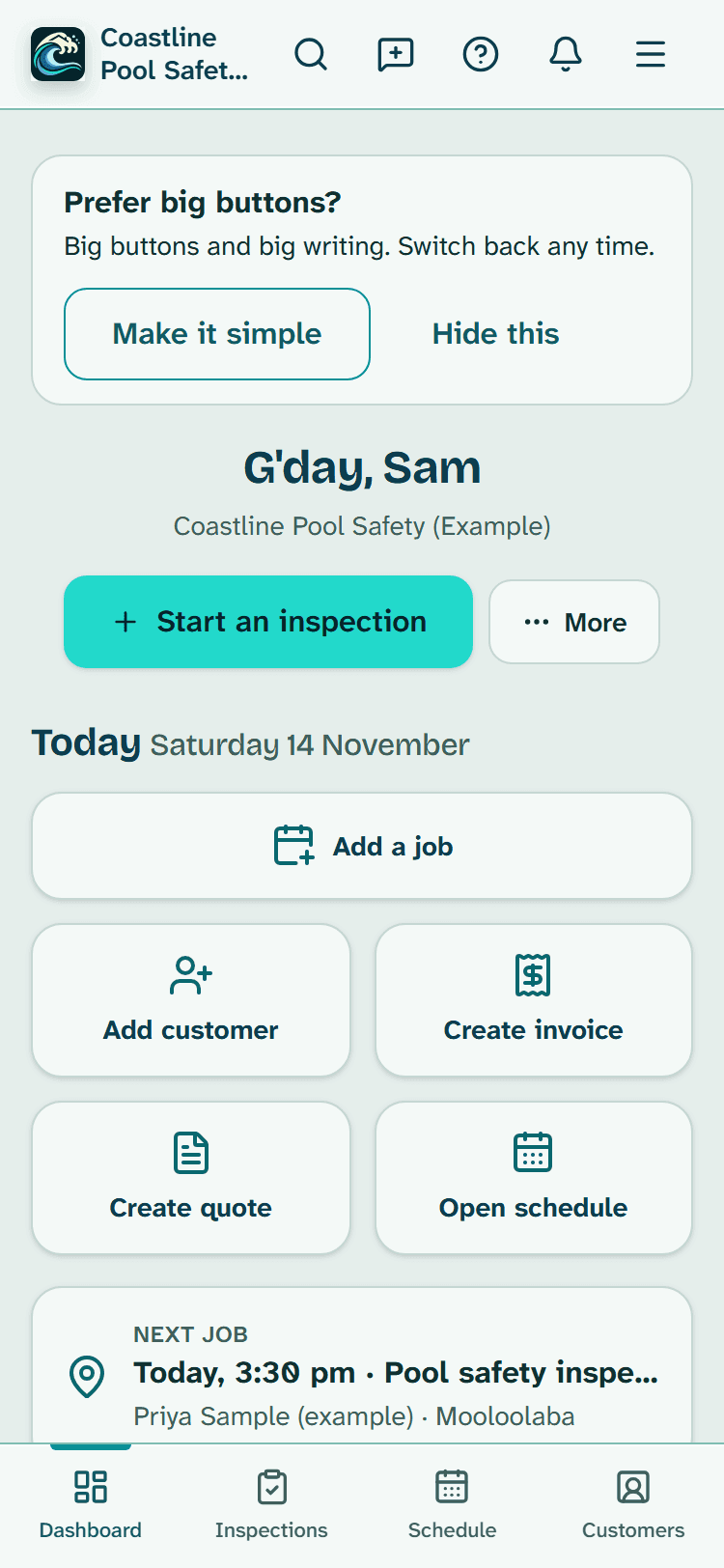
- press Make it simple, the strip that sits above everything else on your normal Home;
- say yes to Want it extra simple?, which we ask you once when you first sign in;
- or open Settings, then Appearance, and press Turn on Simple view.
It is your own setting. Turning it on doesn't change anything for the other people in your business.
Doing an inspection, one step after another
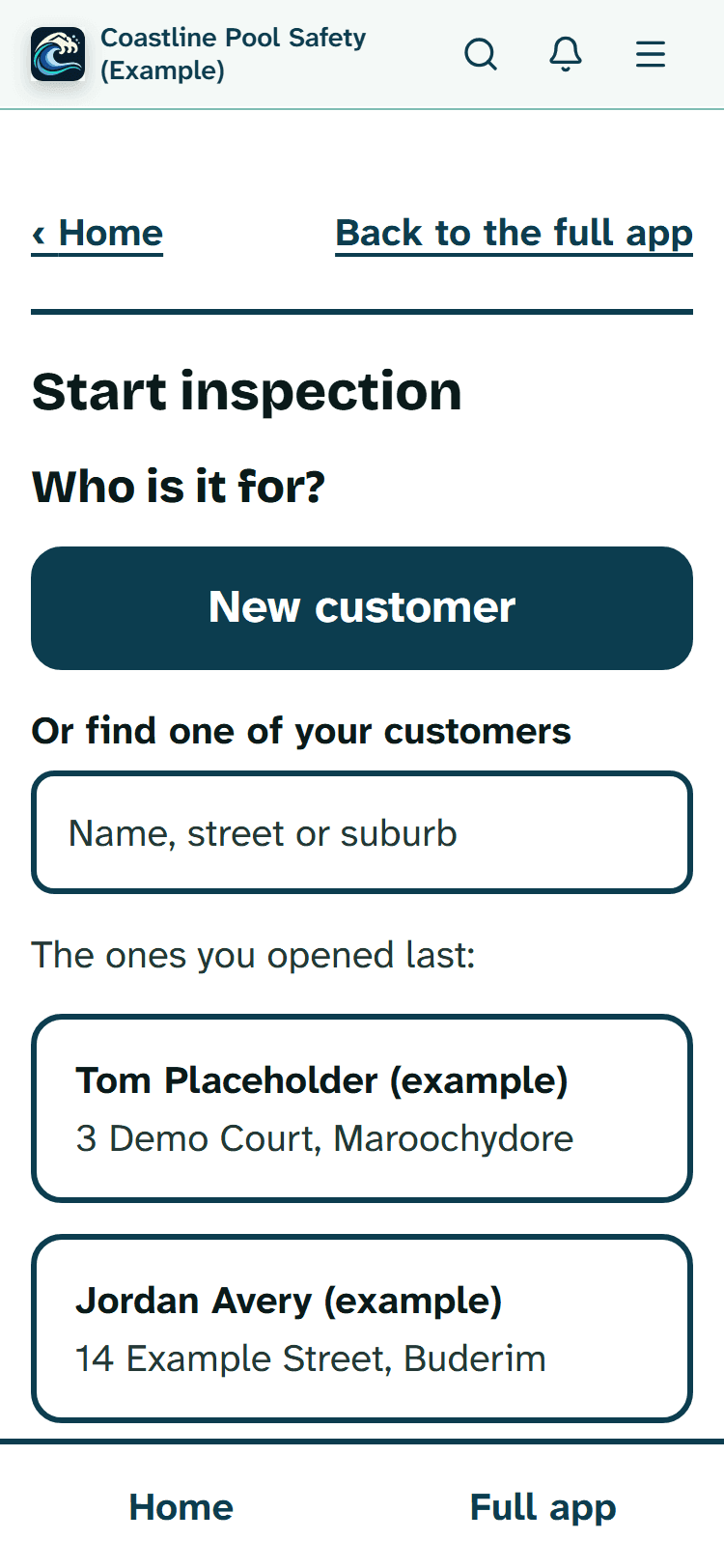
- Press Start inspection and tap the customer. The people you opened last are listed first, or you can search, or press New customer.
- Tap the property. Your usual kind of inspection is already chosen; change it if this one is different, then press the one big Start button.
- Answer the question on the screen, then press Next. There is only ever one question in front of you, with its number, like Question 4 of 27.
- After the last one, look over everything on Check my answers and tap any question you want to change.
- Press Finish the inspection. The app then offers one next step at a time: Create invoice, then Send, then Mark as paid.
Things people worry about, and what really happens
"What if I press the wrong thing?"
You can't break anything. Simple view only changes which screen you see first and how big things are. Your customers, jobs, inspections and invoices stay exactly as they were, and every page of the full app still opens.
"Will it send something by accident?"
Nothing goes to a customer until you press the button that sends it. Pressing Send a second time never sends the same email again.
"Can I go back?"
Yes, at every step. Back takes you to the screen before, whether you press Back on the screen or your phone's own Back button, and nothing you typed is lost on the way: an answer that isn't saved yet is kept on your phone, and Check my answers tells you so before you finish.
Read more
Once an inspection is finished, an owner or admin can press Change something, answer a plain question to confirm, fix it, then finish again.
"What if I want the normal screens?"
Press Back to the full app on any Simple view screen, or Full app on the bar that appears along the bottom of your phone once you scroll down. You stay where you were, and Check my answers opens the full Review & finish. An answer on the screen is saved first.
Read more
If it can't be saved yet (no answer chosen, say), you are told before you switch and can stay to finish it: the full app only shows saved answers, and Simple view keeps the unsaved one on your phone for when you come back. Switch back and forth as often as you like.
"Who can I ask?"
A real person. Email support@poolprecert.com and someone from the PoolPreCert team will write back to help you.

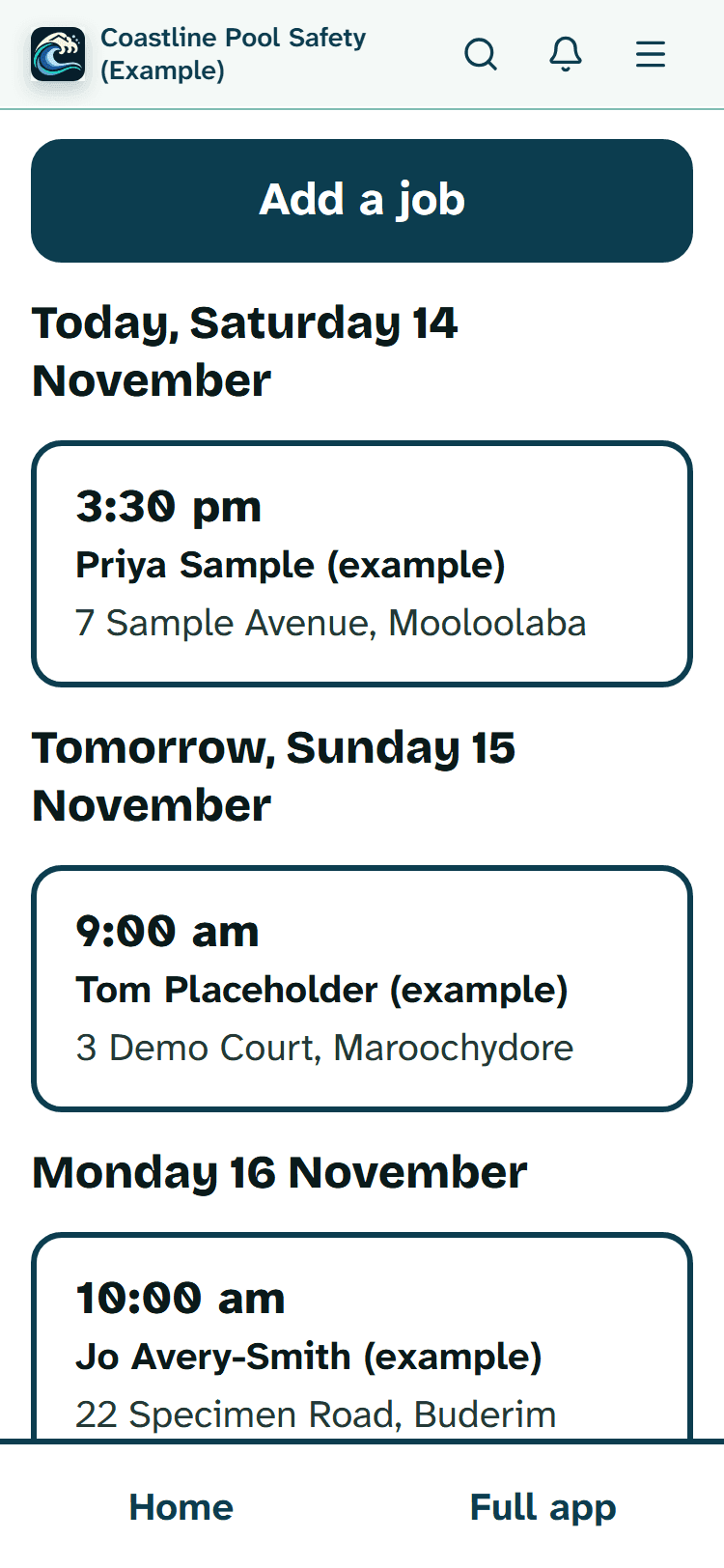
What the screens look like
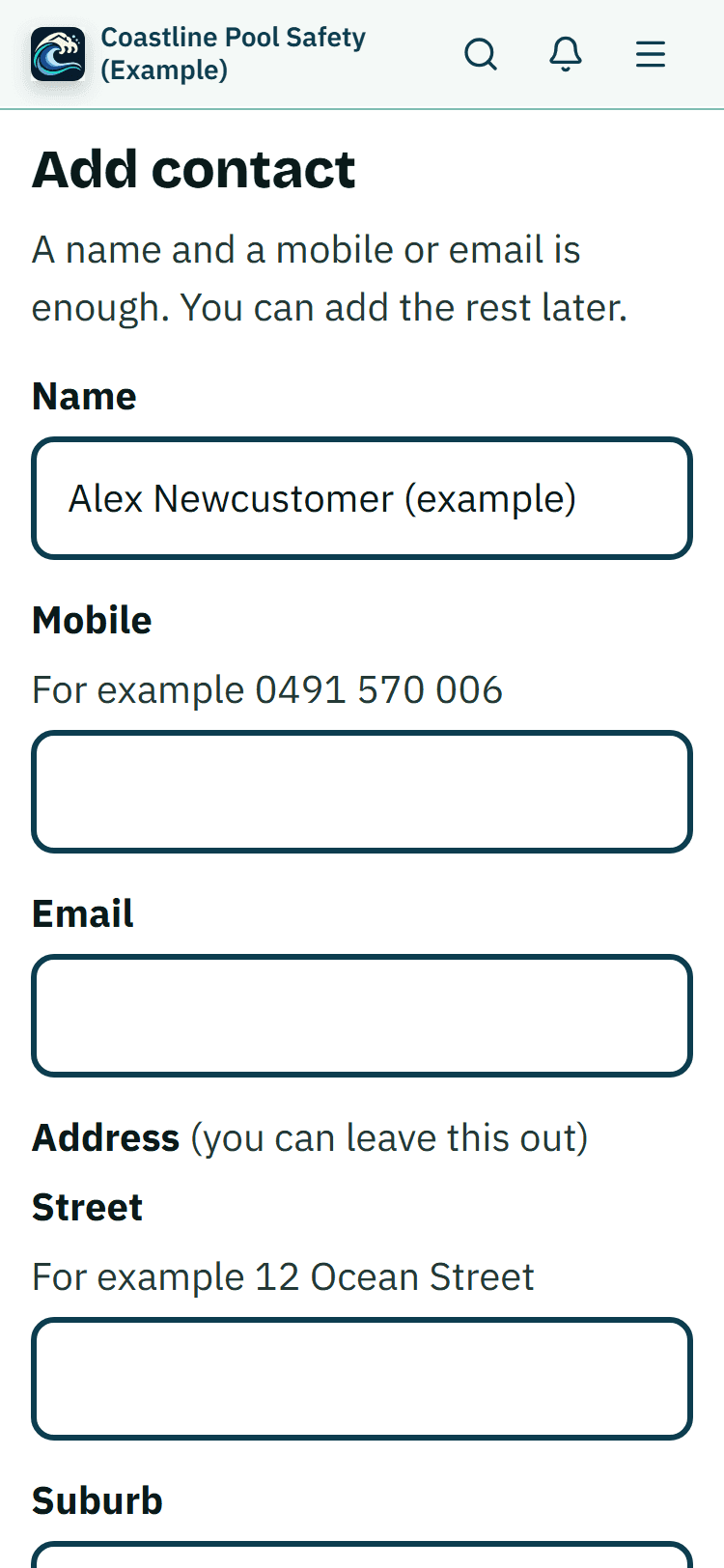
Taken from a demo on a phone, with made-up example customers.

What stays on the full screens
A few jobs are kept on the normal screens, and each Simple view screen has a link to its full page: gate videos, AI photo notes, quotes, adding other files to an email and marking an invoice paid on a day other than today.
A job page, a customer's page or the Add a job form keeps its normal layout but gets the bigger writing, with Home and Back to the full app above it.
The lists of requests and of invoices are normal screens too. Simple view Home tells you when requests are waiting for a reply, invoices are waiting for payment (the invoices you have sent) or, for an inspector, re-inspections are waiting to be booked, and that line opens the list. It also shows your next booked job.
A property manager's Simple view Home has big Certificates and Record a visit buttons; a property visit record is not an inspection, and planning a repeat visit is on the normal property page.

The cost
Simple view is not an add-on; it comes with every account. Inspections, reports and invoices are part of a business membership: Starter is $49 a month and Business is $99 a month, incl. GST. The first 20 businesses to sign up get 3 months at no charge (no card needed), then 25% off for as long as you stay a member.
Read more
After the places are gone, plans start with a 14-day trial, no card required. The For inspectors page and pricing have the details.

More about Simple view
- If small writing is the problem, the large print page lists the exact text sizes and colours.
- For speed on site, the in-the-field page counts the taps from the last question to getting paid.
- Simple view is one way to use the pool inspector app; that page follows a whole inspection day, from the booking to the To lodge list.
- Step-by-step help with every button named: How Simple view works.
Common questions
Can I break something by pressing the wrong button?
No. Simple view only changes which screen you land on and how big things are. Your customers, jobs, inspections and invoices stay exactly as they are, and nothing goes to a customer until you press the button that sends it.
How do I get back to the normal app?
Press Back to the full app, which sits at the head of every Simple view screen, or Full app on the bar that appears along the bottom of your phone once you scroll down. You stay on the page you were on, and you can turn Simple view on again whenever you like.
Does turning it on change the app for my staff?
No. It is saved for you alone. Everyone in a business makes their own choice, and because the setting is kept with your account, your phone and your computer match.
What does Simple view cost?
Nothing extra: it is part of the app for every account. The inspection tools come with a business membership: Starter is $49 a month and Business is $99 a month (incl. GST). The first 20 businesses to sign up get 3 months at no charge (no card needed), then 25% off for as long as you stay a member. After the places are gone, plans start with a 14-day trial, no card required. The demo has no charge and needs no sign-up.
Who do I talk to if I get stuck?
Email support@poolprecert.com. A person from the PoolPreCert team reads every message and writes back.
Have a look first, with nothing to lose
The demo opens your own practice copy filled with pretend customers. Turn on Simple view there and press every button you like. Emails don't go out from the demo.
No charge and no sign-up. The practice copy is deleted by itself after a day or two.
Related help articles
Sources
Last checked: 15 November 2026.