


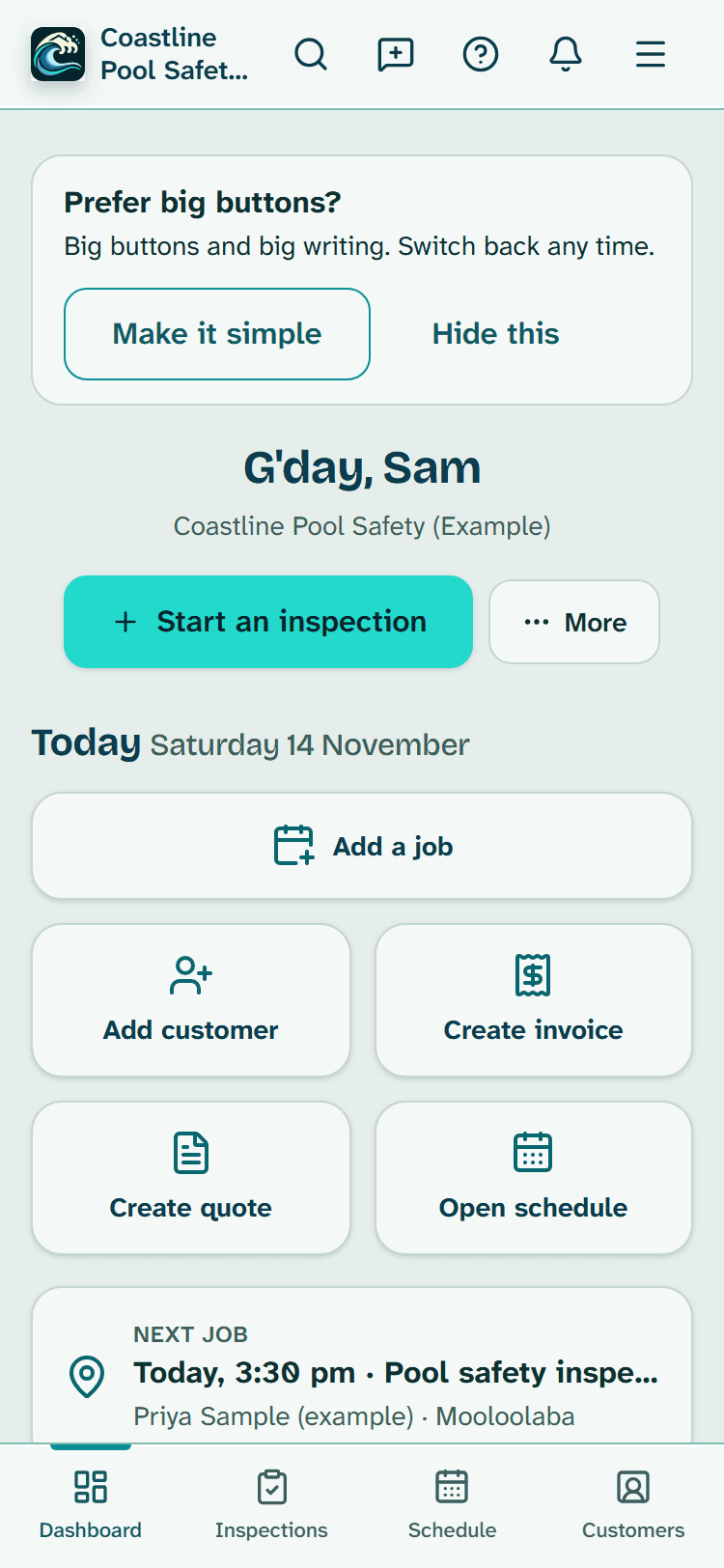
Simple view: big buttons, big writing
Turn on Simple view for four big buttons and big, clear writing. Switch back to the full app at any time with one tap. Nothing is lost or changed.
For: Pool safety inspectors, Property managers and agencies, Pool fence contractors, Pool builders, Pool owners · Last updated 19 November 2026
What it is
Simple view is a calmer way to use PoolPreCert.
Read more
Your Home shows just four big buttons, the writing is bigger and darker, and each screen asks for one thing at a time. Nothing is taken away: the full app is always one tap away, and you can switch back and forth as often as you like.
Who it is for
Anyone with a PoolPreCert account: inspectors, property managers, pool fence contractors, pool builders and pool owners. It is your own choice: turning it on does not change the app for anyone else in your business.
How to do it
To turn it on, press Make it simple at the top of your Home.
More detail
On a phone or tablet you can also tap the Simple view icon (a big and a small letter A) in the bar at the top of every screen: it is shaded while Simple view is on, and tapping it again takes you back to the full app.
On a computer, press Turn on Simple view at the top of any page. Settings, then Appearance, has the switch too. When you first sign up, we ask you once if you would like it.
Turned on from a page that has a Simple version (Quick add, Schedule, Customers, an inspection, Review & finish or an invoice), you land on that Simple screen; anything you had typed there is not carried over.
Your Home now shows four big buttons.
More detail
An inspector sees Start inspection, Add contact, Schedule and Customers. A property manager sees Certificates, Record a visit, Schedule and Owners and contacts, with a line above the buttons when pool certificates have expired, expire in the next 60 days or have no date recorded (tap it to see those pools).
A pool fence contractor or pool builder sees Build a quote, Add contact, Schedule and Customers. A pool owner sees Start a self-check, My pools, To-do and Find an inspector.
Above the buttons, a line says when requests are waiting for a reply (inspectors and trades), invoices you have sent are waiting for payment, or re-inspections are waiting to be booked (inspectors), with the same numbers as the full Home; tap it to open that list, which is a normal screen. Your next booked job is shown there too.
Add contact asks for a name, a mobile, an email and an address, with one big Save.
A name and a mobile or an email is enough. If that mobile or email is already in your address book, we open that person instead of making a second copy. More details (the full form) is a link at the bottom when you need more boxes.
Schedule shows today and the next three days as big cards, each with the time, what the job is, the customer and the address.
Tap a card to open that job. Add a job is the big button at the top; once you press Book it, you come back to this Schedule, which says the day and time it is booked for.
Customers has one big search box.
Type a name, a mobile number, an email or a suburb and the list changes as you type. Tap a person to open them. If Add contact finds the same mobile or email under another name, it asks whether it is the same person first.
Inspectors: Start inspection asks who and where in two steps.
More detail
Tap the customer (the ones you opened last are at the top, or search, or press New customer), tap the property (one with no pool saved yet asks what the pool fence is made of first), check what kind of inspection it is (your usual kind is already chosen), then press the one big Start.
An inspection you already started is listed at the top under Carry on.
Show the other 6 steps
Property managers: Record a visit asks for the property, the date, who went (you, to start with) and your notes, then lets you add photos.
It is a property visit record, not an inspection. To have the pool inspected, press Book a licensed inspector on the visit.
The inspection then asks one question per screen in big writing, with the question number at the top, like Question 4 of 27.
More detail
Press Pass, Fail, Unable to verify or Not applicable (where the question allows it): the same words as the full checklist and your report. A homeowner's or agency's self-check says Looks OK, Needs attention, Couldn't check or Doesn't apply, as in the full app.
A measurement has one big box for the number and the unit, and it tells you straight away if the number is below the minimum. Add a note and Add a photo are big buttons too. Press Next to save and go on, or Back to go back a question; your phone's own Back button goes back one screen too.
Check my answers under the buttons saves the answer too. Nothing you typed is lost: an answer that can't be saved yet (no answer chosen, or a reason missing) is kept on your phone, even if you close the page, and Check my answers says Not saved yet on that question until you open it and save it.
After the last question you see Check my answers: every question with its answer, grouped into Fail, Unable to verify, Pass, Not applicable and Not answered yet (a self-check says Needs attention,
Read more
Couldn't check, Looks OK and Doesn't apply), with your own checks in a group of their own at the end, because they are never counted in the result (Review & finish says so too). Tap any question to change the answer, the note or the photo, then press Save and go back to my answers.
Answer it now opens the next important question that has no answer; when more are missing, its big button is Save and go to the next one that needs an answer. Edit who and where shows the customer, the address and the pool, and lets you write who was present.
Finish the inspection appears once every important question has an answer.
When it is finished you see the results in big numbers, under the same headings as the full inspection page for an inspector (such as Needs fixing and Unverified / unanswered, plus Not applicable); how many need attention, look OK, couldn't be checked, don't apply or weren't answered on a self-check.
Read more
Your own checks are listed under them with their answers.
Then there is one big button for the next step: Create invoice, then Open invoice and Send (the inspection report starts ticked to go on the same email, unless you changed that in Settings, Invoicing), then Mark as paid, with Send a reminder as the other big button while it is unpaid.
If you need to fix an answer afterwards, an owner or admin presses Change something, then Finish again. A report made before the change is never sent: the next Send makes a new one with the new answers.
If the invoice had already gone, the next step is making and sending the new report on its own: only the report goes, and the invoice isn't sent again. Once it has gone, the screen says who it was emailed to, and the email tells anyone who had the earlier report that this one replaces it.
With no invoice to make, the report is made and sent on the same screen, with one big Send. A property manager's routine check offers Create invoice too when your invoicing is set up, the same as the full page.
One with no owner saved says so first: Add the owner saves them as the property's owner and brings you back to the check.
Change my checks (on the Start inspection screen, and in Settings, Inspection checklist) changes your own list of questions one thing at a time: Add a check (type it, then choose Yes or no, or A measurement), Remove a check (your own checks only) and Put back the standard checks.
To go back to the full app, press Back to the full app at the top of any screen, tap the shaded Simple view icon in the top bar, or, once you have scrolled down a page, Full app on the bar at the bottom of your phone screen.
Read more
You stay on the page you were on, and Check my answers opens the full Review & finish.
An answer on the screen is saved first; if it can't be saved yet, you are told before you switch and can stay to finish it, because the full app only shows saved answers (Simple view keeps the unsaved one on your phone).
Tip: Nothing is taken away. The full app is always one tap away, and you can switch back and forth as often as you like.
You can't break anything
Simple view only changes which screen you land on and how big things are. Your customers, jobs, inspections and invoices are exactly the same in both views, and every page of the full app still opens.
Read more
Nothing is sent to a customer until you press the button that sends it, the same as in the full app.
Every answer is saved the moment you press Next, the same way as the full checklist. With no phone signal, answers and photos wait on your phone and upload by themselves when the signal comes back. Finish waits until they have uploaded.
What stays the same
The questions, the rules for measurements and the result are exactly the same as in the full app. Your report still lists each check as Pass or Fail, and it is still your inspection record, not the pool safety certificate itself.
The standard PoolPreCert questions always stay on your list. If one doesn't fit a pool, answer Not applicable on the day (Doesn't apply on a self-check), where the question allows it.
Bigger writing on your phone
The Simple view screens use large, dark writing on a plain background, and big buttons that are easy to press. If you have set your phone to show larger text, or you zoom in, the screens grow with it.
Where it is remembered
Simple view is saved to your account, so your phone and your computer match. Only you see it: each person in a business makes their own choice.
What it does not do
- It does not delete, hide or change any of your information.
- It does not change the app for anyone else in your business.
- Other screens, such as a job, a customer's page, Add a job or New customer, keep their normal layout, with bigger writing, bigger boxes and buttons, and Home and Back to the full app at the top.
- Gate videos, AI photo notes, adding other files to an email, quotes (the Quote builder and a quote's page), the Requests list, the invoices list and marking an invoice paid on another day are on the normal screens: each Simple screen has a link to its full page. So is planning a routine check for another day or repeating it.
- Simple view does not finish an inspection with an important question unanswered. If you couldn't check it, press Unable to verify (Couldn't check on a self-check).
Common questions
How do I get back to the normal screens?
Press Back to the full app at the top of any screen. It takes one tap, and you can turn Simple view on again whenever you like.
I pressed the wrong answer. Can I change it?
Yes. Press Back, or open Check my answers and tap the question. Once the inspection is finished, an owner or admin presses Change something, changes it, then presses Finish again.
Who can help me if I get stuck?
Email support@poolprecert.com and a person will help you.
PoolPreCert helps you do and record your work. It does not decide whether a pool meets the Queensland standard. Only a licensed pool safety inspector does that.
Related articles
Getting started with PoolPreCert
Where things are in PoolPreCert, how the menu depends on your account type, and the quick ways to add and find things.
Dark mode and accent colours
Dark mode: switch between light and dark or follow your phone, pick an accent colour, hide menu items, choose your start page and switch AI offers off.
Customers: your address book
Add customers fast, keep dated notes, tags and favourites, and see each customer's properties, jobs, inspections and invoices on one page.
Schedule basics: jobs, the calendar and reminders
How the Schedule works: the week board, adding and moving jobs, jobs with no time yet, repeating jobs, confirmation emails and starting a quote or invoice.


Was this helpful?
YesNo, tell us what was missing
This opens an email to the PoolPreCert team. Please do not include passwords or personal details.
Still stuck? Contact support
Email support@poolprecert.com and tell us what you were trying to do and which screen you were on. Please do not send passwords or card numbers. The PoolPreCert team will reply.