


Schedule for fence contractors and pool builders
How a fence contractor or pool builder books and moves jobs, the job types and job templates, time on a job, and finishing a job with a quote or invoice.
For: Pool fence contractors, Pool builders · Last updated 23 November 2026
What it is
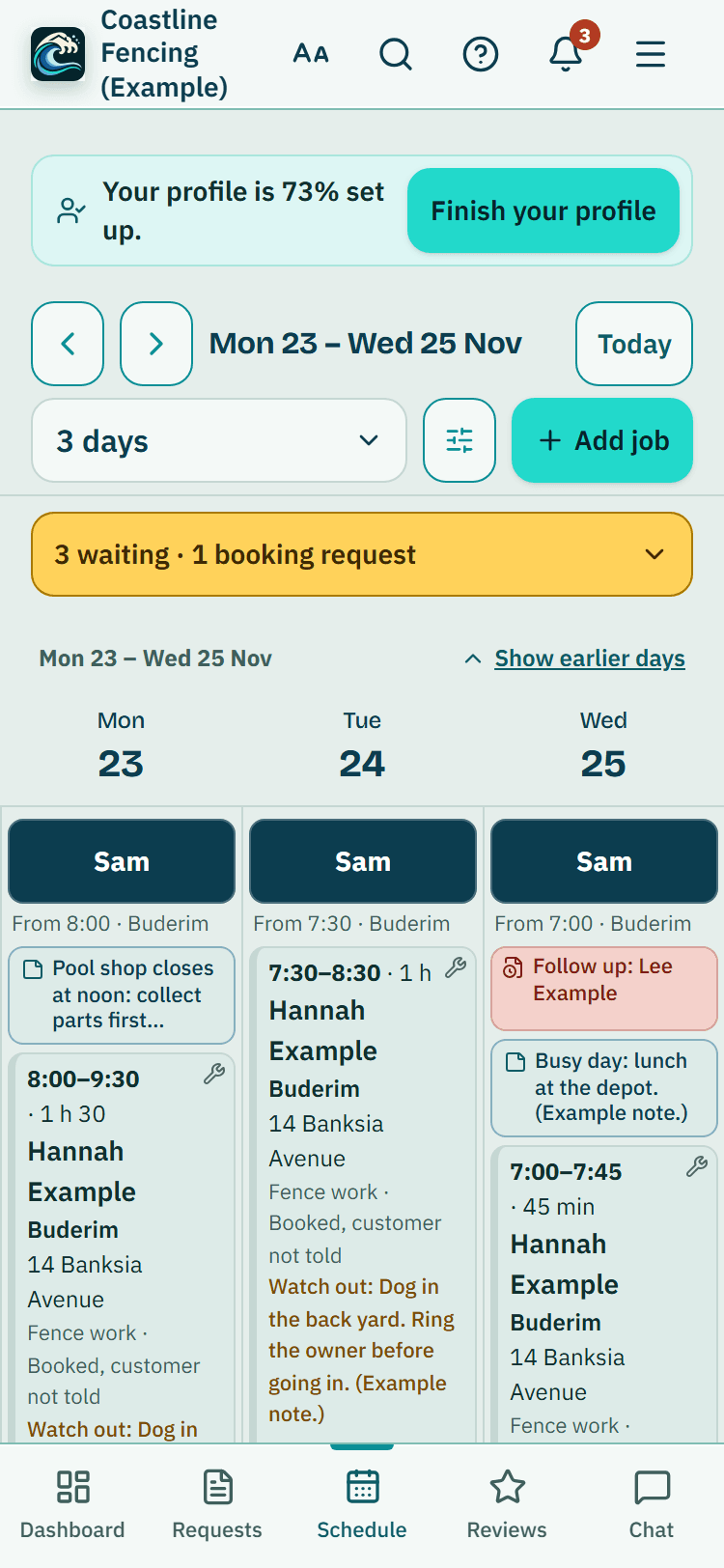
The Schedule shows your jobs by day, week and month. A job is linked to a customer and usually a property, with a job type, a time and a length.
Who it is for
Fence contractors and pool builders. Owners, admins and team members can add and move jobs; viewers can look.
How to do it
Open Schedule and press Add job (or the round add button).
The dashed plus at the bottom of a day adds a job on that day for that person.
Choose the customer and the property, then the job type.
A fence contractor's types are Fence work, Quote visit and Other. A pool builder's are Build / install, Site visit and Other.
Pick who is doing it, the date, the time and how long it takes, and press Book it.
Leave the date and time empty and press Save to schedule later to keep it in To schedule until you know the day.
To save typing, choose a Start from chip: a job template fills in the type, the length and a tick-list.
Make your own under Settings, Job templates, or add the starter templates there in one tap (Fence repair visit and Quote visit for a fence contractor; Site visit and Build stage visit for a pool builder).
To move a job, drag it to another day (on a phone, press and hold first), or open it and press Move to another day.
A bar offers Undo for 8 seconds.
Open a job for the customer's phone number, site notes, photos, its checklist and Costs and profit.
Tick the checklist off as you go.
Show the other 2 steps
To count your time against the job, press Start my time on this job on its page, and Stop my time when you finish.
Time on this job shows the total.
When the work is done, open Finished the job? and press Done: create invoice or Done: create quote.
The job is marked done and a quote or invoice opens, already filled in, for you to check and send. Done, no invoice only marks it done.
Good to know: Done, no invoice marks the job done without opening a quote or invoice.
Jobs that repeat
To book the same job again and again, choose Repeat when you add a job, or press Make it repeat under More on a customer's page. See Repeating jobs and planned dates.
What it does not do
- Moving a job that is already booked does not email the customer by itself. If they were already told, you are offered Email the new time.
- A job checklist is your own tick-list. It says nothing about whether a pool barrier meets the standard.
PoolPreCert helps you do and record your work. It does not decide whether a pool meets the Queensland standard. Only a licensed pool safety inspector does that.
Related articles
Repeating jobs and planned dates
Make a job repeat every week, month or year, see Planned dates ahead, change just one job or every job after it, skip a date and stop a repeat.
Move several jobs at once
Tick jobs across days with Select, then move them to another day, give them to someone, send them back to To schedule or cancel them, with one Undo.
Hours, days off, travel time and calendar link
Set working hours and days off for the business and each team member, the gap between jobs, and a private calendar link for your phone.
Clock on, breaks and weekly timesheets
Staff tap Clock on, Start break and Clock off on their phone. Owners and admins check each week, edit hours if needed, then approve and lock it.
Was this helpful?
YesNo, tell us what was missing
This opens an email to the PoolPreCert team. Please do not include passwords or personal details.
Still stuck? Contact support
Email support@poolprecert.com and tell us what you were trying to do and which screen you were on. Please do not send passwords or card numbers. The PoolPreCert team will reply.