


To lodge: your end-of-day list
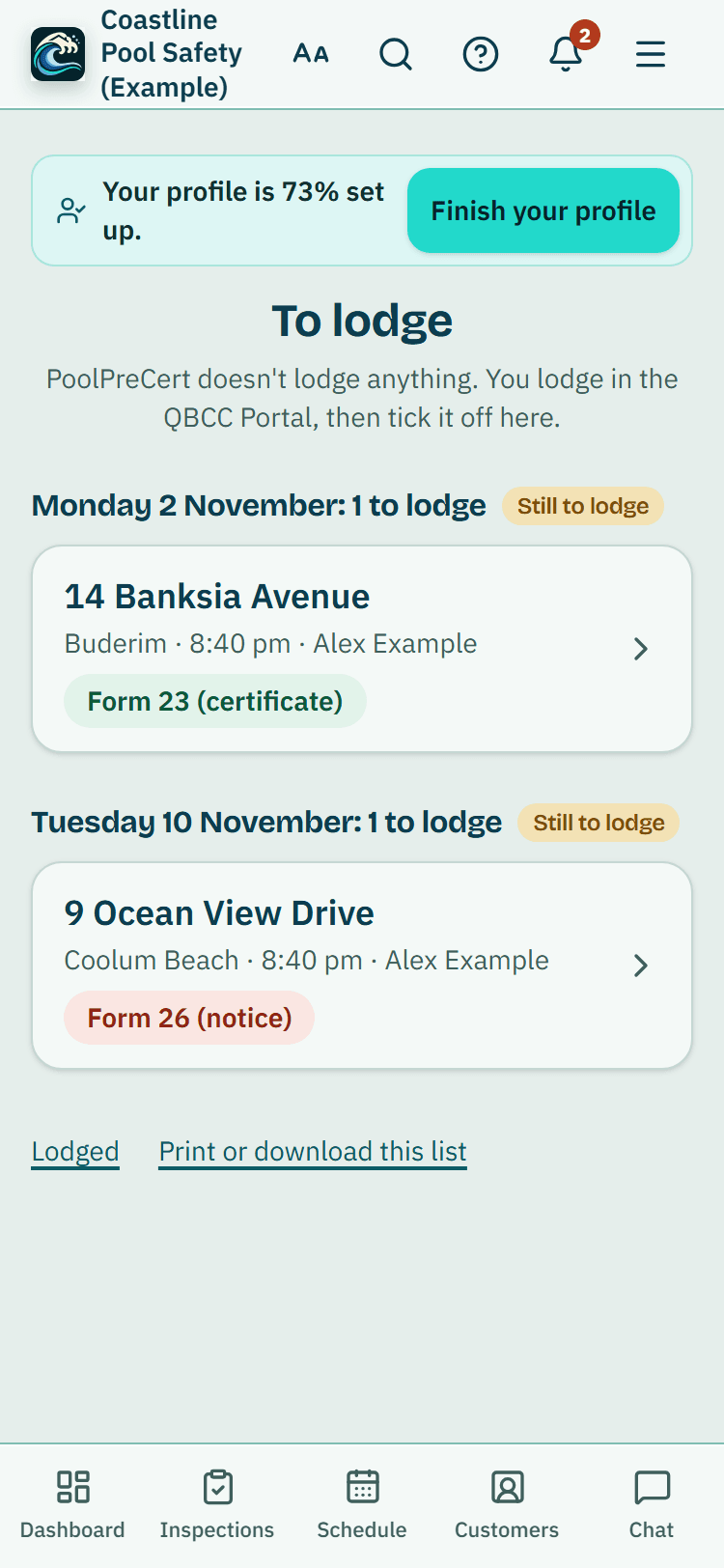
At the end of the day, To lodge lists every finished inspection not yet ticked off. Copy each one's details into the QBCC Portal, then press Done.
For: Pool safety inspectors · Last updated 15 November 2026
What it is
To lodge is a list for the end of the day.
Read more
It shows every finished inspection you haven't ticked off yet, so you can lodge each Form 23 or Form 26 in the QBCC Portal and keep track of where you are. PoolPreCert doesn't lodge anything: Done only records that you did.
Who it is for
Inspector businesses. A team member sees their own inspections; an owner or administrator sees everyone's.
How to do it
Open To lodge in the menu (or tap the line on Home, for example 7 to lodge (3 from earlier days)).
Each day has its own heading, oldest day first, and an earlier day is marked Still to lodge.
Tap an inspection.
Its details are shown in QBCC's order. Each detail you type into the Portal has a Copy button that shows a tick once copied. The inspection date, the earliest issue date and how long the certificate lasts are for your reference only, with a note: you choose the issue date in the Portal.
Press Open QBCC Portal.
It opens in a new tab, so when you come back you are on the same inspection. On one screen you can also put the two windows side by side.
Lodge it in the Portal yourself, then press the green Done, I've lodged it (or press Enter).
More detail
It is ticked off and the last step opens: Add the certificate. Press Choose the PDF (on a computer you can also drop the PDF on it), then Email it to your customer if you want to, and press Next one. Do this later leaves it on the list marked Certificate not added yet.
For a Form 26 the last step has the notice to email instead, then Next one: a failed pool has no certificate to add, so it isn't flagged. The line under Email it says who the email comes from and where replies go.
Pressed Done by mistake?
Press Undo in the green line at the top.
Which form each one needs
Each row says Form 23 (certificate) when no items were recorded as Fail, Form 26 (notice) when some were, and Form 23 or 26: you decide when some items weren't checked. It comes from how you finished the inspection; the decision is always yours. For a notice, the Form 26 PDF button opens the pre-filled form to check and download.
The small links
Add a QBCC reference: type a reference before you press Done and it is kept with the tick. No need to lodge?: takes an inspection off the list without counting it as lodged, and you can undo it.
Read more
Lodged, at the bottom of the list, shows what you ticked off, with the date and who did it, and Put back on the list. Print or download this list prints the list or one day, or downloads it as a CSV.
Read more
If something is still waiting late in the afternoon, you get one short reminder that day, in the app and by email. Switch it off under Inspection reminders in Settings > Notifications. In Simple view, Home shows one big End of day: lodge button that opens the first one.
The list starts with inspections finished from 1 November 2026. The tick is also in each inspection's record pack and in the records index.
What it does not do
- PoolPreCert has no connection to the QBCC Portal. It doesn't lodge, submit or check anything with QBCC: the tick is what you told the app.
- It doesn't tell you a QBCC time limit for lodging. Check QBCC's own guidance.
PoolPreCert helps you do and record your work. It does not decide whether a pool meets the Queensland standard. Only a licensed pool safety inspector does that.
Related articles
QBCC-ready data sheet
Check, edit and download a Form 26 pre-filled from your inspection, and follow the Form 23 steps with the details ready to copy into the QBCC Portal.
Check a pool on QBCC and open the QBCC Portal
Copy a property's address, search it on QBCC's own pool register, and open the QBCC Portal or QBCC's forms and guides in one tap from PoolPreCert.
Inspection records, Form 26 reminders and retention
Keep the records QBCC asks inspectors to keep: times, who was present, video of gates, a barrier sketch, notices given, a keep-until date and record packs.
Your saved forms
Every Form 26 you make, your Form 23 details and the certificate PDFs you add are kept with the inspection. Open always shows the kept copy.


Was this helpful?
YesNo, tell us what was missing
This opens an email to the PoolPreCert team. Please do not include passwords or personal details.
Still stuck? Contact support
Email support@poolprecert.com and tell us what you were trying to do and which screen you were on. Please do not send passwords or card numbers. The PoolPreCert team will reply.