


Customers and quotes: fence contractors and pool builders
How a fence contractor or pool builder keeps customers, notes and tags, makes quotes and invoices, sets up Invoicing and gets paid by bank transfer.
For: Pool fence contractors, Pool builders · Last updated 23 November 2026
What it is
Customers is your address book for the homeowners, landlords, agents and builders you work for. Open a customer and their contact details come first, then their properties, jobs, quotes and invoices. What you send a customer is a quote, an invoice or a booking message.
Who it is for
Fence contractors and pool builders. Owners, admins and team members can add and change customers; viewers can look. An owner or admin does the one-off Invoicing settings.
How to do it
Open Customers and use Search customers to find someone by name, email, mobile, suburb or property address, or press Add customer.
Fill in the name, and an email and mobile if you have them, then press Save customer.
Add their property from their page.
Open a customer.
The contact card at the top has Call, Text, Email and Directions buttons for the details you have.
Under Notes press Add note for calls, access or what you quoted.
Each note is dated, newest first. Use Tags to group customers, then press Save tags.
The main button on a customer's page is Create quote.
Book a job, Create invoice, Add property, Make it repeat, Add to favourites and Edit are under More.
More than one email?
Press More, then Edit, then Add another email / mobile, and tick what each one is for: Invoices and quotes, or Reminders and booking messages. Settings, Contacts sets whether everyone ticked gets the email or only the first.
Show the other 3 steps
To make a quote or invoice, open Invoices and press Create quote or Create invoice, choose the customer and write the work and the price, or use Add a saved item.
Tick Email it to the customer now, or send it later from its own page.
When the customer answers, press Accepted or Declined on the quote.
An accepted quote has Book the job and Create invoice from this quote. For a deposit or a stage of the work, open Invoice a deposit or progress payment on the accepted quote.
The first time, an owner or admin opens Settings, then Invoicing: answer Are you registered for GST?, add the bank account for payments and Days to pay, and press Save.
Your ABN goes under Business and branding.
Tip: A customer's main button is Create quote, so a quote is one tap from their page.
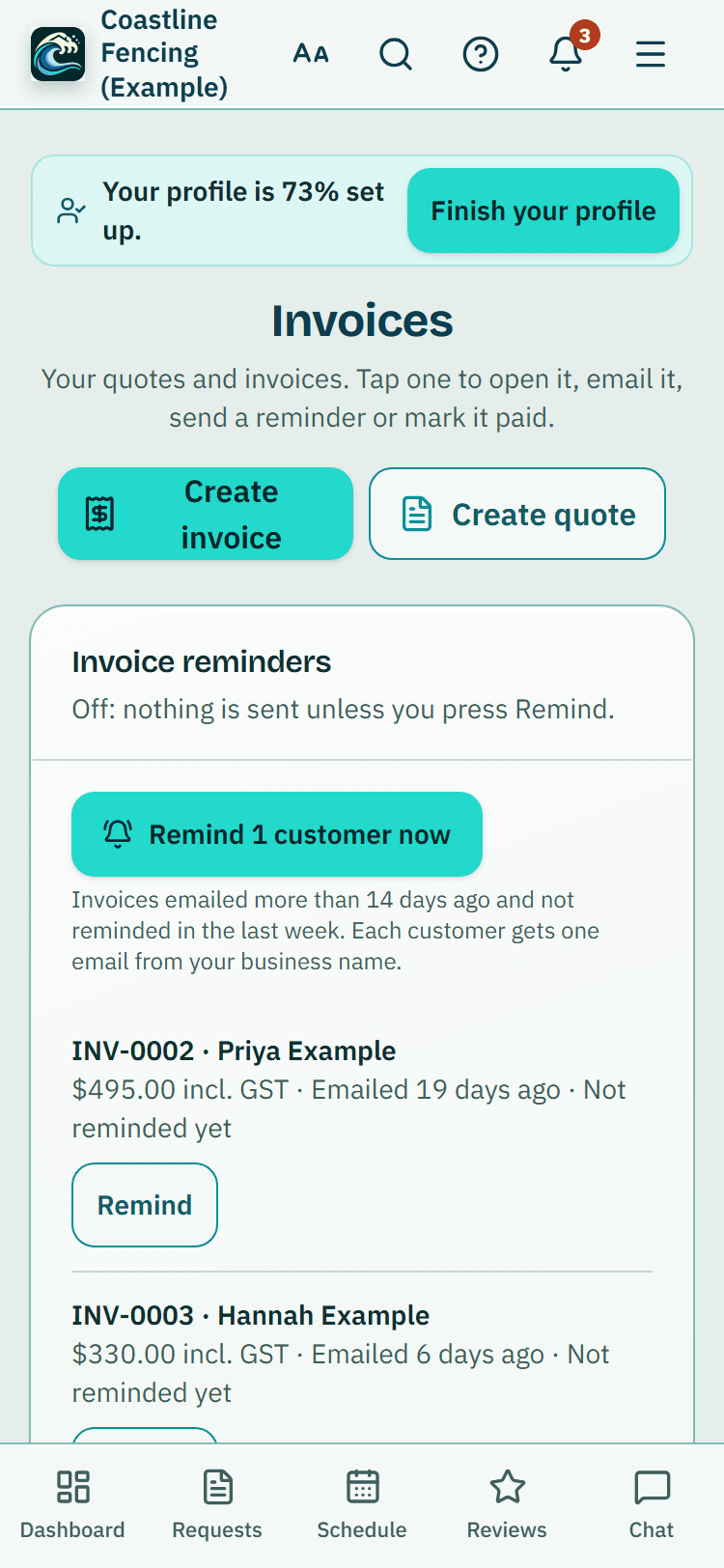
When the money arrives
An invoice you emailed that is still unpaid has Send a payment reminder, and Invoices has an Invoice reminders box for all of them. When the money reaches your bank, open the invoice and press Mark as paid.
What it does not do
- Customers are your own records. They are never shown on your directory listing.
- PoolPreCert does not take payments or hold money. Customers pay you by bank transfer, and you press Mark as paid.
- A quote or invoice says nothing about whether a pool barrier meets the standard. Only a licensed pool safety inspector decides that.
PoolPreCert helps you do and record your work. It does not decide whether a pool meets the Queensland standard. Only a licensed pool safety inspector does that.
Related articles
Build a pool fence quote with the quote builder
How a pool fence contractor or pool builder builds a quote from their own price list and offers options. PoolPreCert numbers it and emails the PDF.
Quotes and invoices without Xero
No accounting software? Make quotes and invoices in PoolPreCert: numbered, with GST worked out, as a PDF you can email, with your bank details on invoices.
Automatic follow-ups for quotes and invoices
Switch on one polite email reminder for a quote with no answer and one for an unpaid invoice, sent once each to the customer's email.
Merge duplicate customers
PoolPreCert flags customers with the same email or phone so you can review the pair and merge them without losing history.



Was this helpful?
YesNo, tell us what was missing
This opens an email to the PoolPreCert team. Please do not include passwords or personal details.
Still stuck? Contact support
Email support@poolprecert.com and tell us what you were trying to do and which screen you were on. Please do not send passwords or card numbers. The PoolPreCert team will reply.