


Fix list: track repairs and get them done
Items that need fixing after a check go on your fix list. Send one to a tradie or the owner from your own phone, then mark it fixed with the date.
For: Property managers and agencies, Pool safety inspectors · Last updated 19 November 2026
What it is
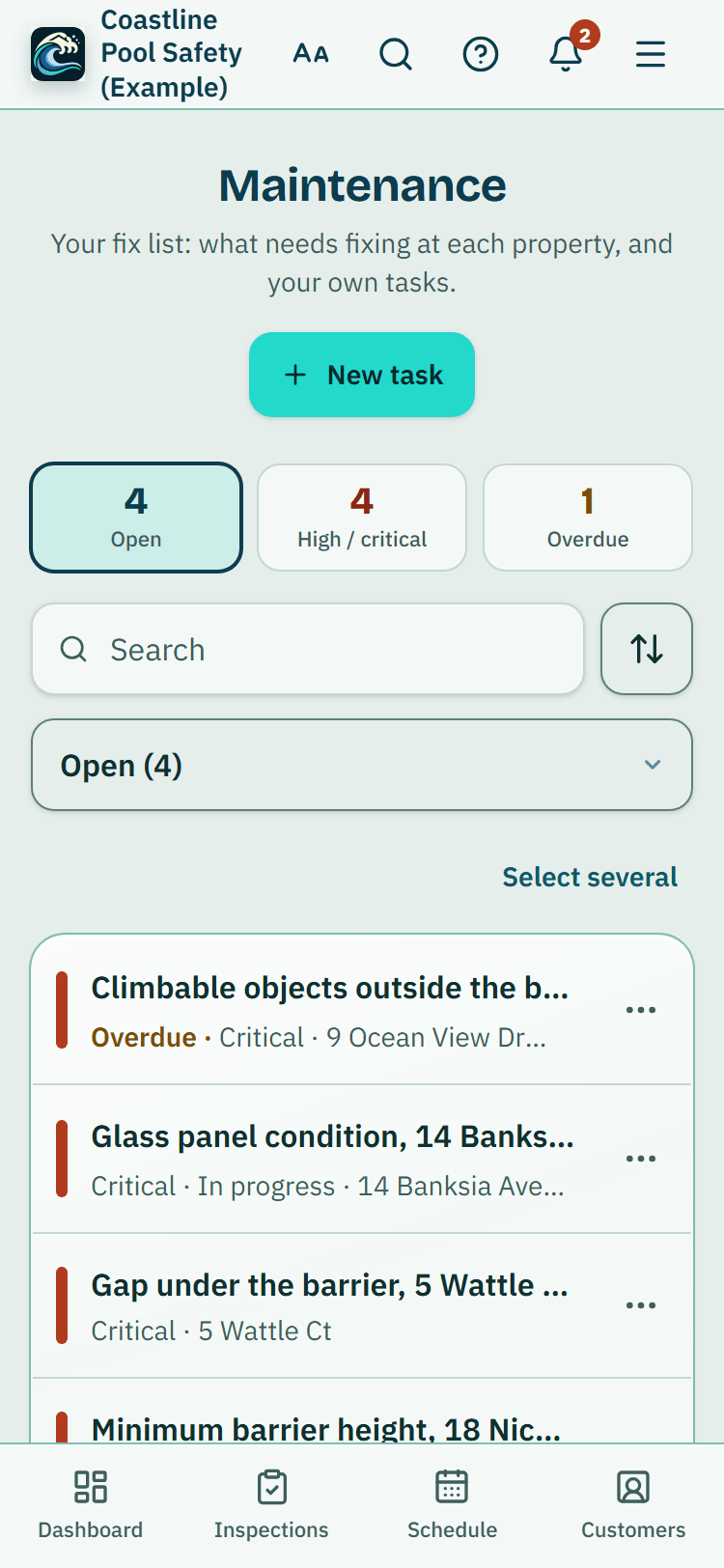
Maintenance is your fix list.
Read more
When an inspection is finished, each item that needs fixing is added as a task named after the item (for example Glass panel condition, 31 Lakeside Drive), with what has to happen to fix it. On an agency account, tasks came from its earlier routine checks; a property visit has no checklist, so it adds no tasks.
You can add your own tasks with New task, for example after a property visit.
Who it is for
Agencies and property managers, and inspectors who keep track of repairs.
How to do it
Open Maintenance.
Each row shows the item, how urgent it is and the property. Tap a row to open the task: the arrow on the row turns into a spinner while it opens.
At the top of the task are the address, What needs to happen (taken from the checklist item) and Open the inspection (Open the earlier routine check on an agency account), which shows the answers and photos from the latest check that found the item.
Read more
On a phone a long What needs to happen shows its first two lines: press Show all for the rest and the question from the check.
Send to a tradie: pick a contact you've tagged tradie in your address book, or type an email or mobile, then press Email or Text.
Your own email or messages app opens with the item, the address, what needs to happen, the due date and up to three photo links filled in. Check it and press Send there. Photo links work for 7 days. See the message shows the words first.
Tell the owner: the same, for the owner or contact saved on the property.
If there isn't one, add one on the property first. For a task you added yourself the message just says the item needs fixing; it only mentions a check when a check found it.
Mark fixed: choose the day it was fixed (today unless you change it) and, if you like, what was done, then press Mark fixed.
The task moves to Completed.
Update task, further down, changes the status, severity, due date, who in your team it's assigned to and the tradie or contractor doing it, with resolution notes.
Who's on it and the notes also show near the top of the task.
Show the other 2 steps
Snooze a week (the ... menu on a row) moves the due date a week later and says so at the top of the list, with Undo.
Archive task asks first, then offers Undo; archived tasks stay under Archived tasks at the bottom of the list, each with Put back.
If a later check finds the same item while its task is still open, no second task is added: the one task stays on the list and its Open link then opens that later check.
Tip: Snooze a week, in the ... menu on a row, moves the due date a week later and offers Undo.
What it does not do
- PoolPreCert doesn't send the tradie or owner messages. They go from your own email or phone, and copies stay in your own sent items.
- Marking a task fixed doesn't check the pool. Only a licensed pool safety inspector can do that.
- It doesn't book the tradie or pay them.
PoolPreCert helps you do and record your work. It does not decide whether a pool meets the Queensland standard. Only a licensed pool safety inspector does that.
Related articles
Certificates and expiry reminders
Record each pool's safety certificate dates, attach the certificate PDF or a photo of it, see the QBCC register and get reminders before expiry.
Customers: your address book
Add customers fast, keep dated notes, tags and favourites, and see each customer's properties, jobs, inspections and invoices on one page.
Inspections: the checklist, photos and finishing
How an inspector records an inspection: start it, answer the barrier checklist, add measurements and photos, and finish. A finished inspection is locked.



Was this helpful?
YesNo, tell us what was missing
This opens an email to the PoolPreCert team. Please do not include passwords or personal details.
Still stuck? Contact support
Email support@poolprecert.com and tell us what you were trying to do and which screen you were on. Please do not send passwords or card numbers. The PoolPreCert team will reply.