


Clock on for property managers
How property managers clock on and off, take breaks, put their time against a visit, and how an owner or admin checks and approves the team's weekly timesheets.
For: Property managers and agencies · Last updated 23 November 2026
What it is
Each person taps when they start, take a break and finish. PoolPreCert adds the taps up into a weekly timesheet, and an owner or admin approves it.
Who it is for
Owners, admins and staff have their own clock. Only owners and admins see everyone's hours. A viewer has no clock.
How to do it
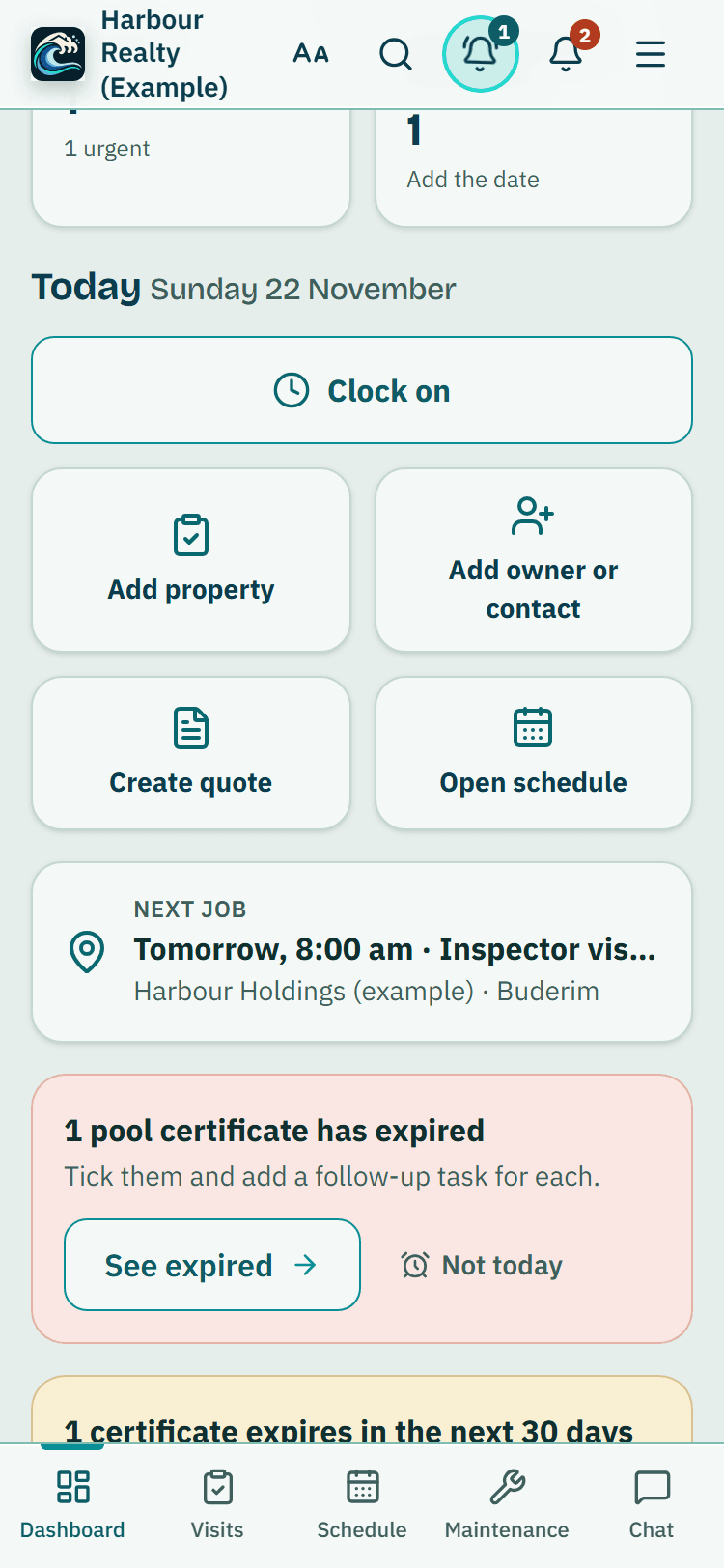
Press Clock on at the top of your dashboard.
The Clock on page in the menu has the full card. To count the time against a visit, choose it under Which visit? first, or open the visit and press Start my time on this visit.
Going from one visit to the next without clocking off: choose the next one under Moving to another visit? and press Switch visit.
The time on the first visit stops and the next one starts at once.
Press Start break when you stop and End break when you are back.
Press Clock off when you finish. Each tap is saved with the time on PoolPreCert's clock, so the time can't be typed in.
Your week shows each day's taps, your break time and your hours.
If something is wrong, scroll to Something wrong?, choose what to fix, give a reason and send it. Your manager approves the fix and the original tap stays on the record.
Owners and admins: open Team timesheets, pick a week, decide any corrections waiting, then press Approve and lock for each person, or Approve all ready.
Download spreadsheet gives one line per person in hours.
Good to know: Nobody edits a tap. A wrong or missing time is a correction your manager approves, and the original stays on the record of your week.
What it does not do
- Times are as recorded by the person who tapped. PoolPreCert does not track location.
- It does not work out pay, overtime, leave or tax. It gives you hours per person per week.
- The owner can switch Clock on and timesheets off under Settings, Team tools. Nothing is deleted.
PoolPreCert helps you do and record your work. It does not decide whether a pool meets the Queensland standard. Only a licensed pool safety inspector does that.
Related articles
Schedule for property managers
How a property manager books property visits on the Schedule, keeps visits with no time yet, moves them, tells the owner or contact and records the visit on the day.
Hours and roster for property managers
How a property manager sets working hours and days off for the Schedule, a calendar link for your phone, and how staff ask for time off on the roster.
Was this helpful?
YesNo, tell us what was missing
This opens an email to the PoolPreCert team. Please do not include passwords or personal details.
Still stuck? Contact support
Email support@poolprecert.com and tell us what you were trying to do and which screen you were on. Please do not send passwords or card numbers. The PoolPreCert team will reply.